Why is the Payment Device not Taking Payments?
A Quick Trouble Shooting Guide for Fixing Non-Operating Payment Devices
- Before you begin troubleshooting, be sure to document the issue as it's happening by taking photos or videos of the device or iPad showing what it is doing while you try to make a payment. If you need to escalate with your support teams, this will help them further define the problem issue
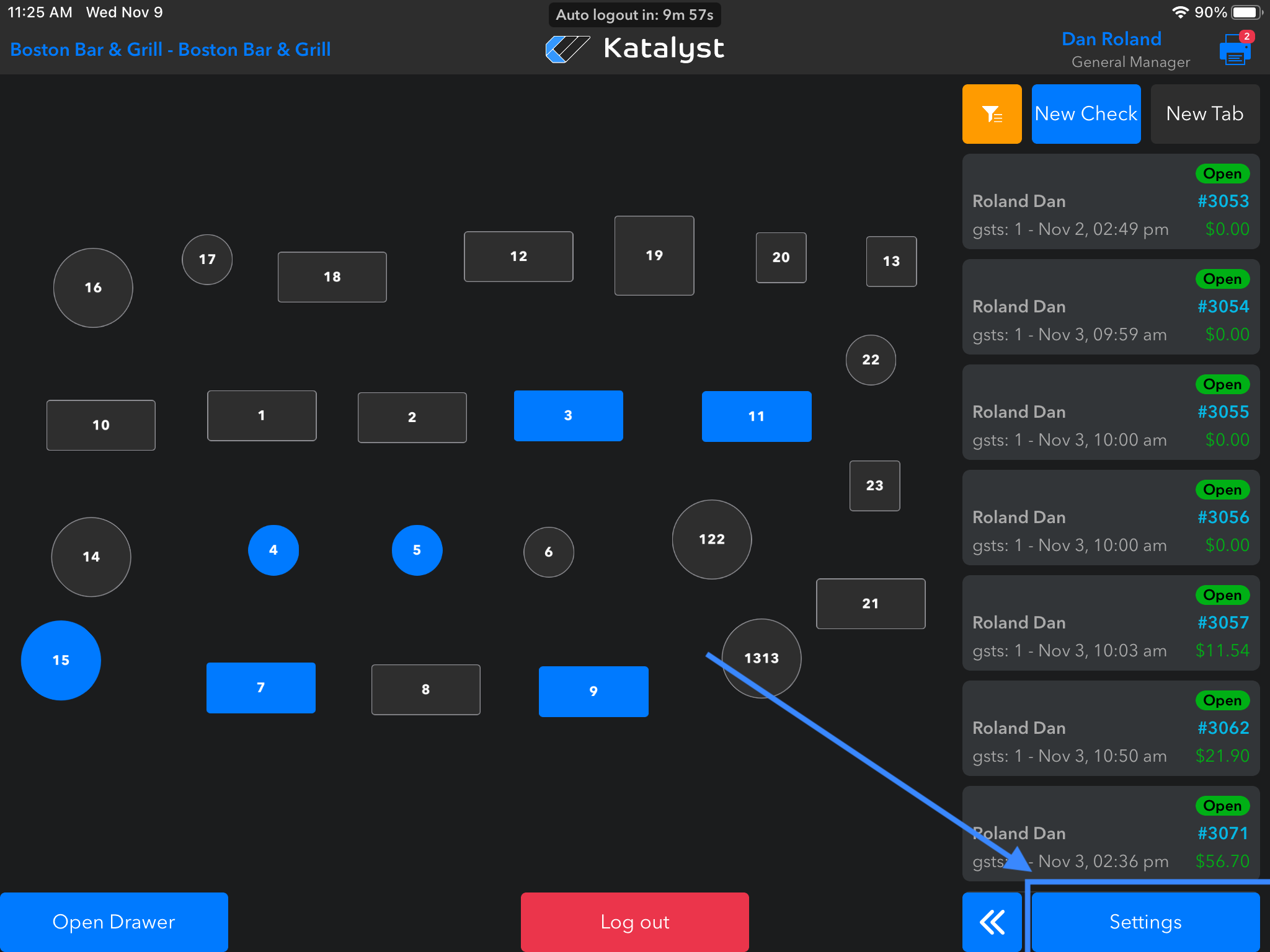
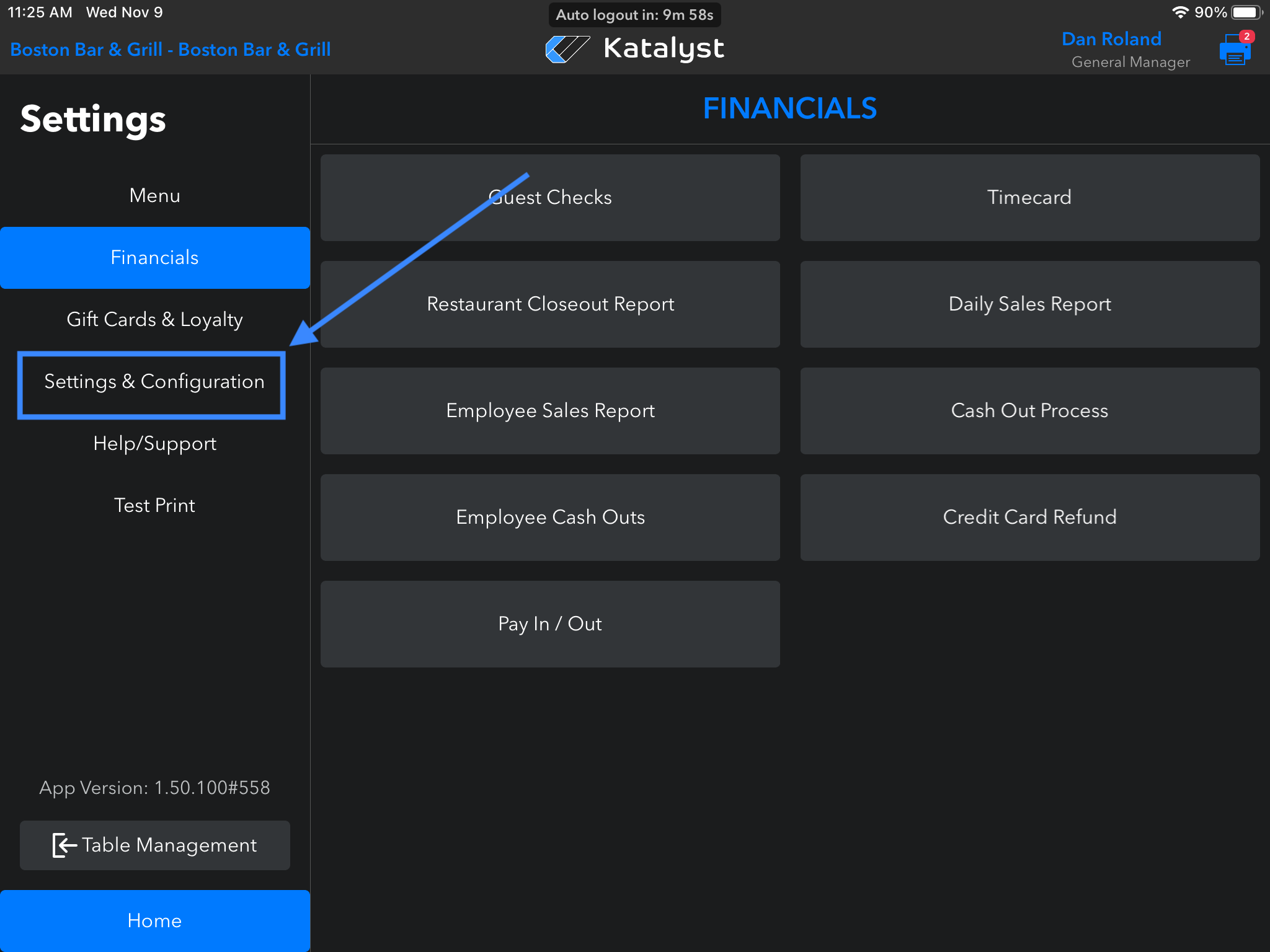
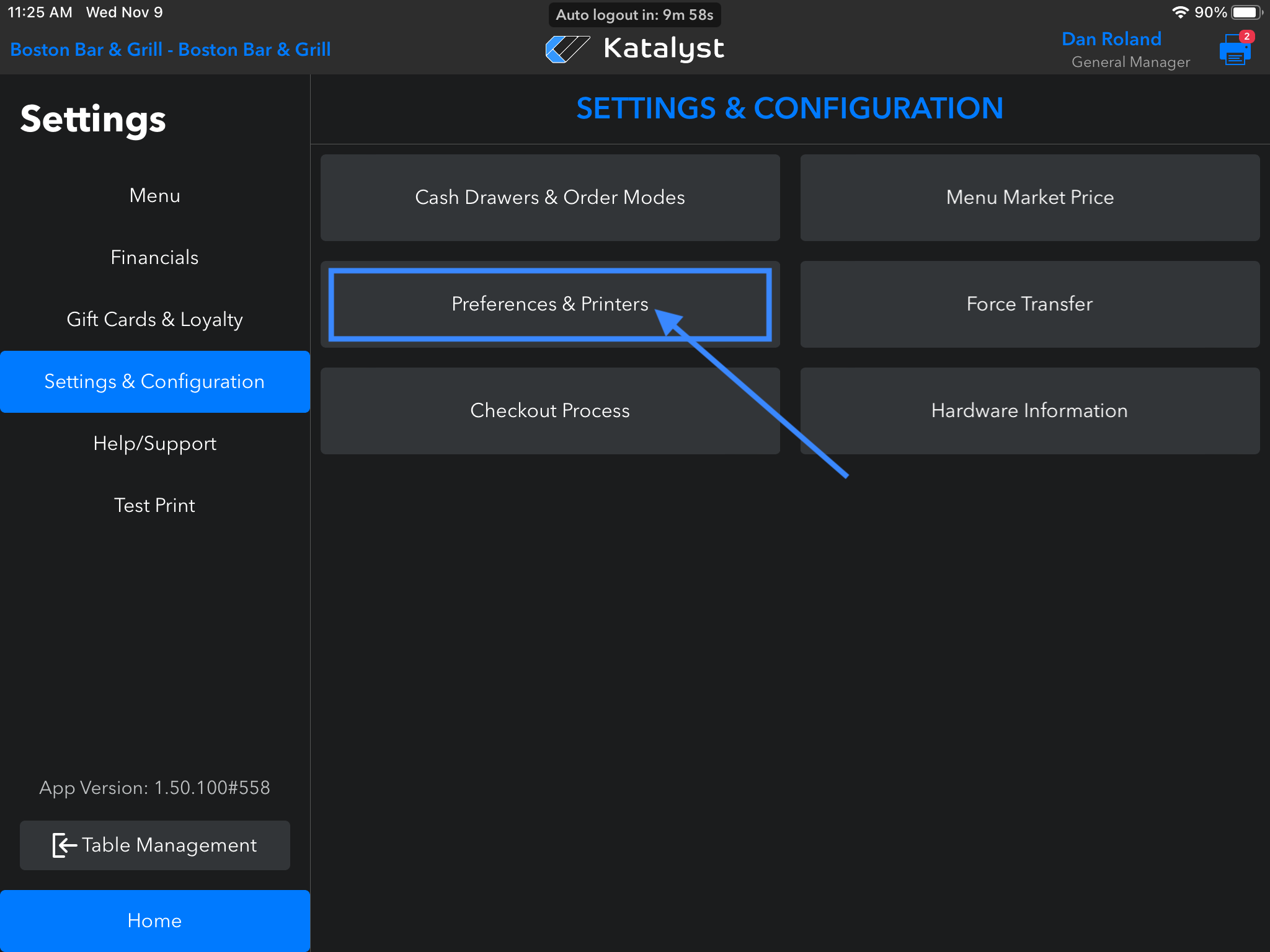
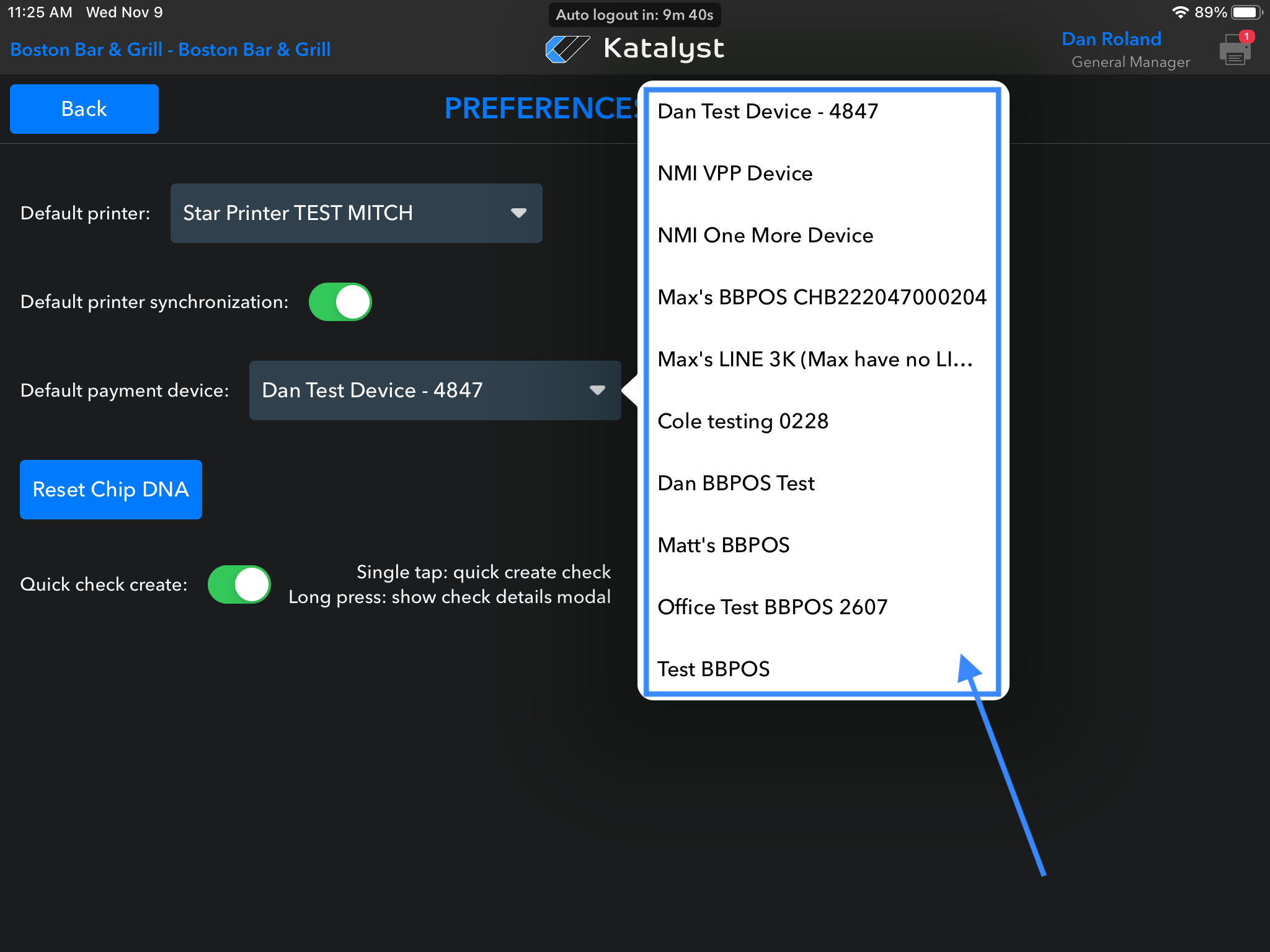
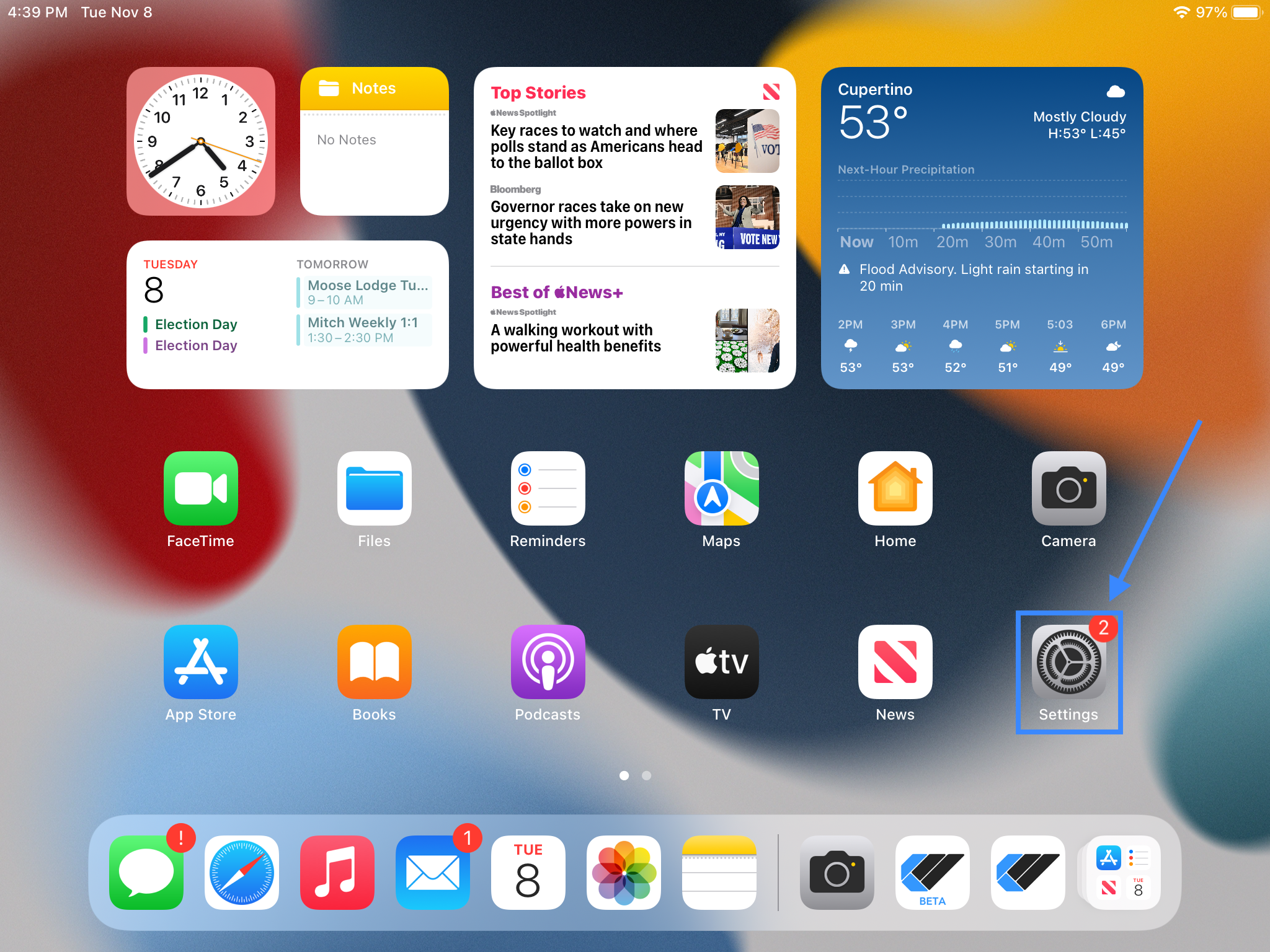
- On your iPad, go to Settings > Settings & Configuration > Preferences & Printers; make sure that the payment device is selected in the Default dropdown
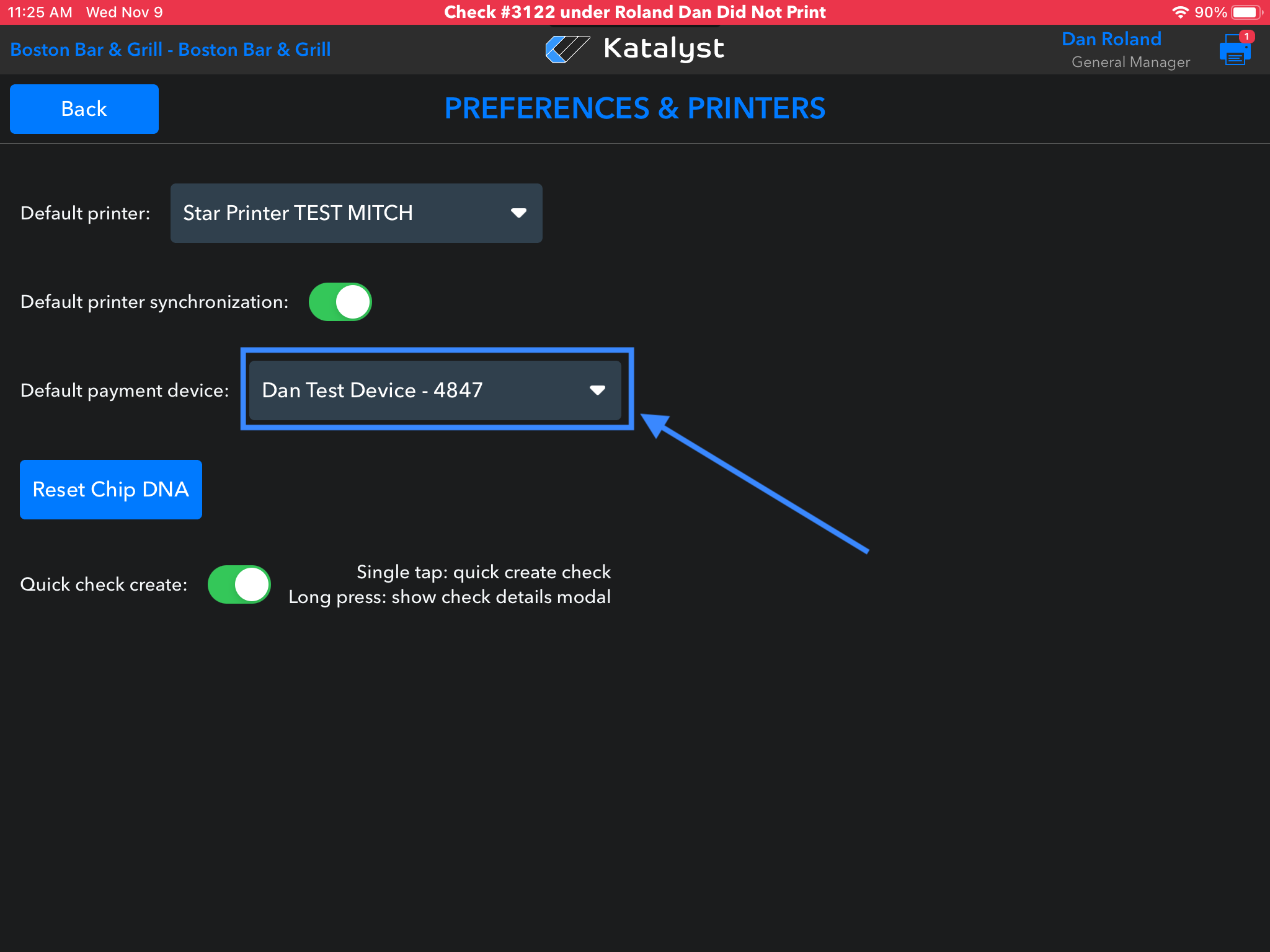
- If so and still not working, select a different device in the dropdown and try another one to see if it is an isolated issue
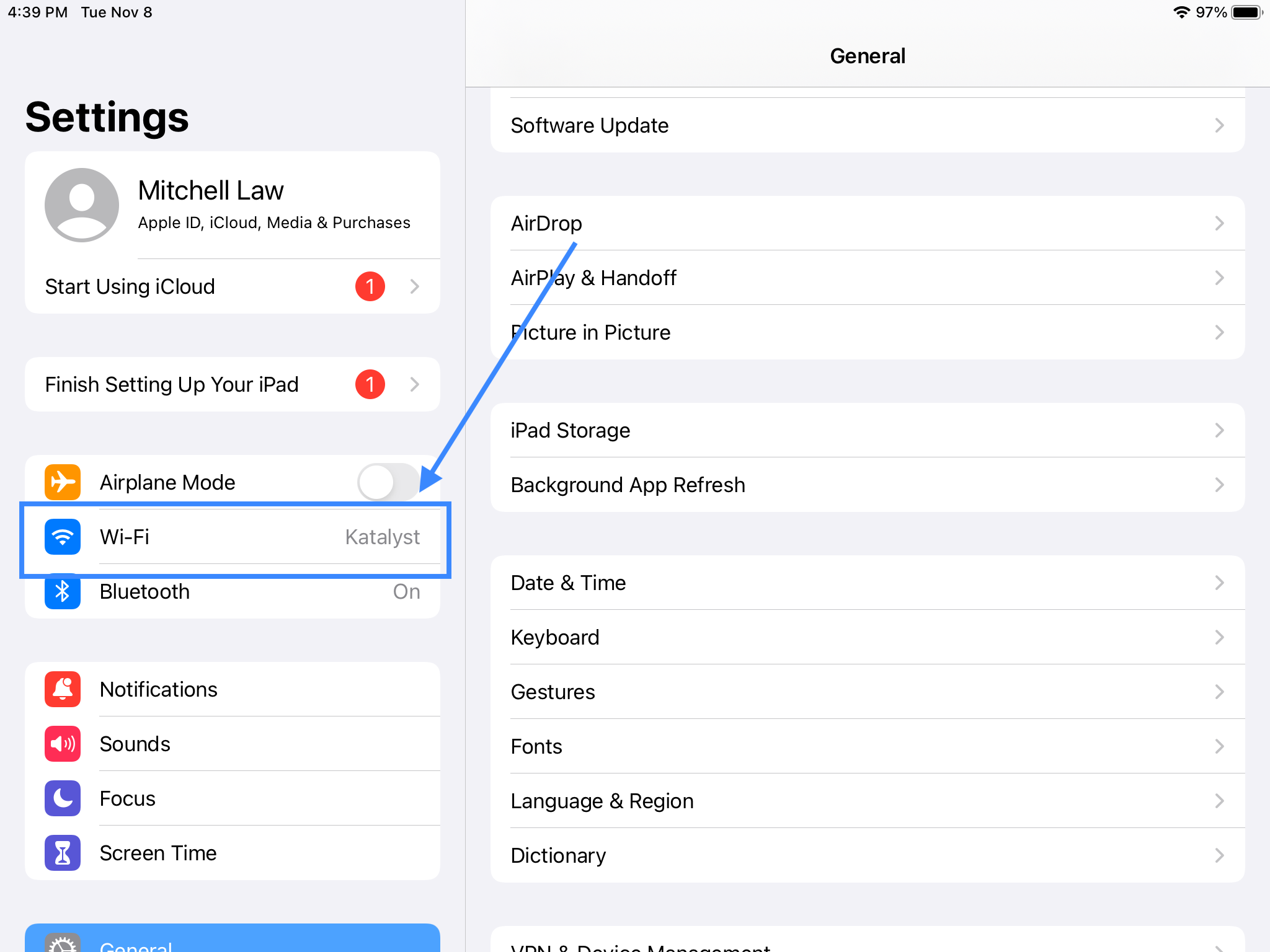
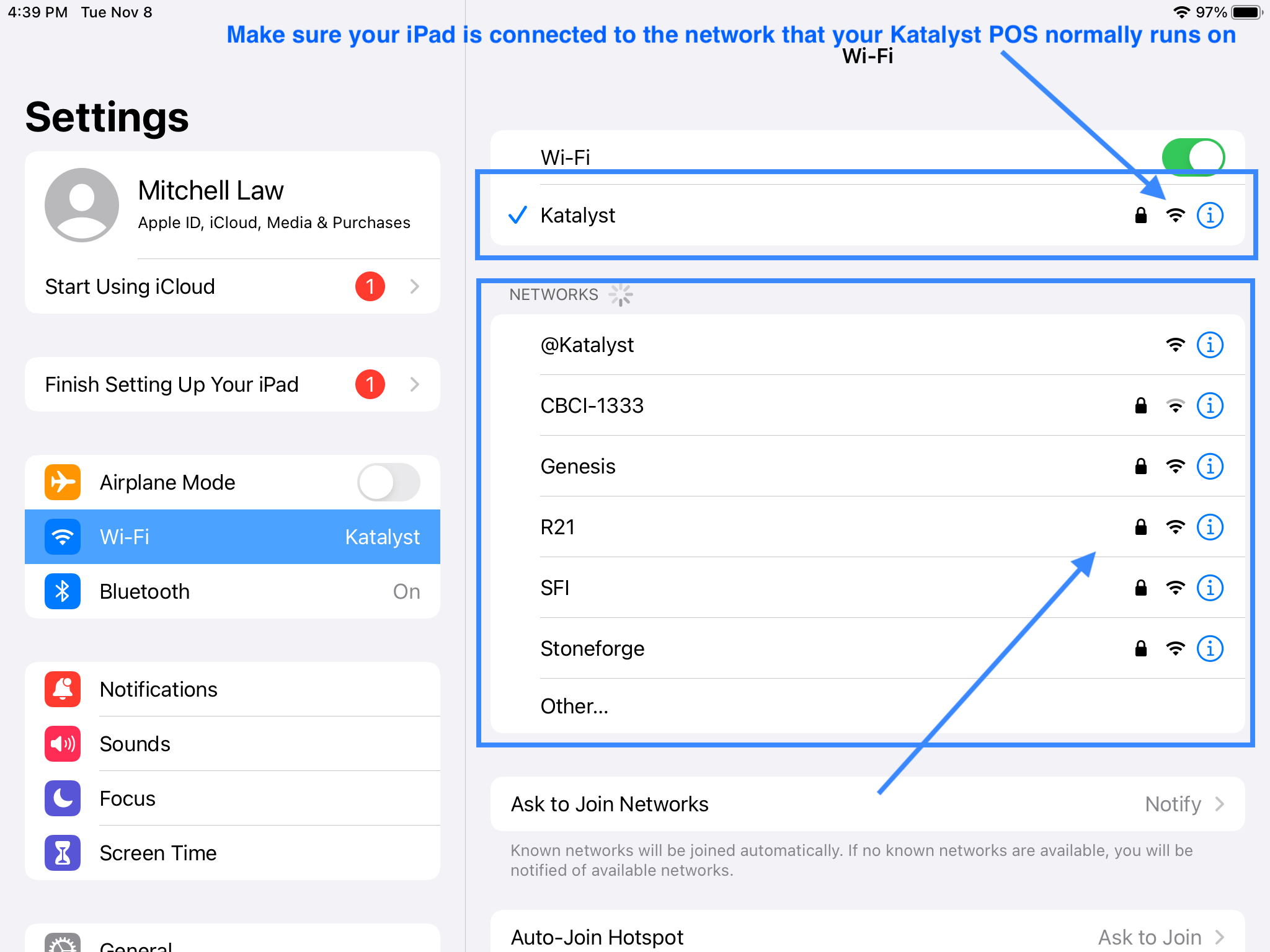
- Check the network that the device is connecting to. Make sure it did not connect to another network
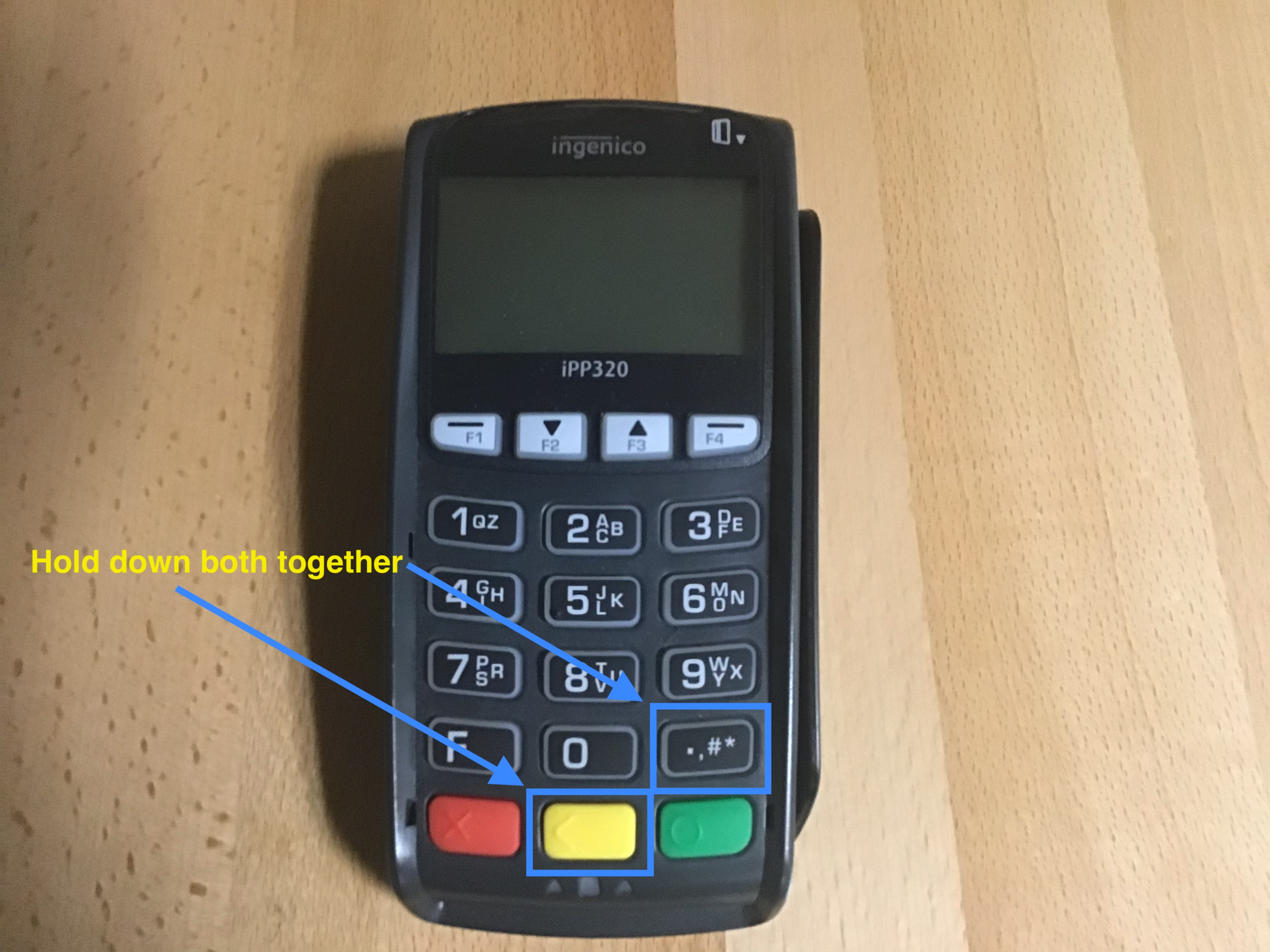
- Power cycle/restart the device; to do this hold down the Yellow button and ‘#’ button at the same time. The device will restart automatically. Try the payment again
- Is an error populating on the iPad when a payment is attempted? If so take a picture/video of the error so you can send it to your Katalyst support team to look into
- Check for loose or fraying cords that are not inserted securely. Sometimes this can cause a spotty connection
- If all the above steps fail, this could mean a device software issue which would need to be discussed with the payment processor Customer Support