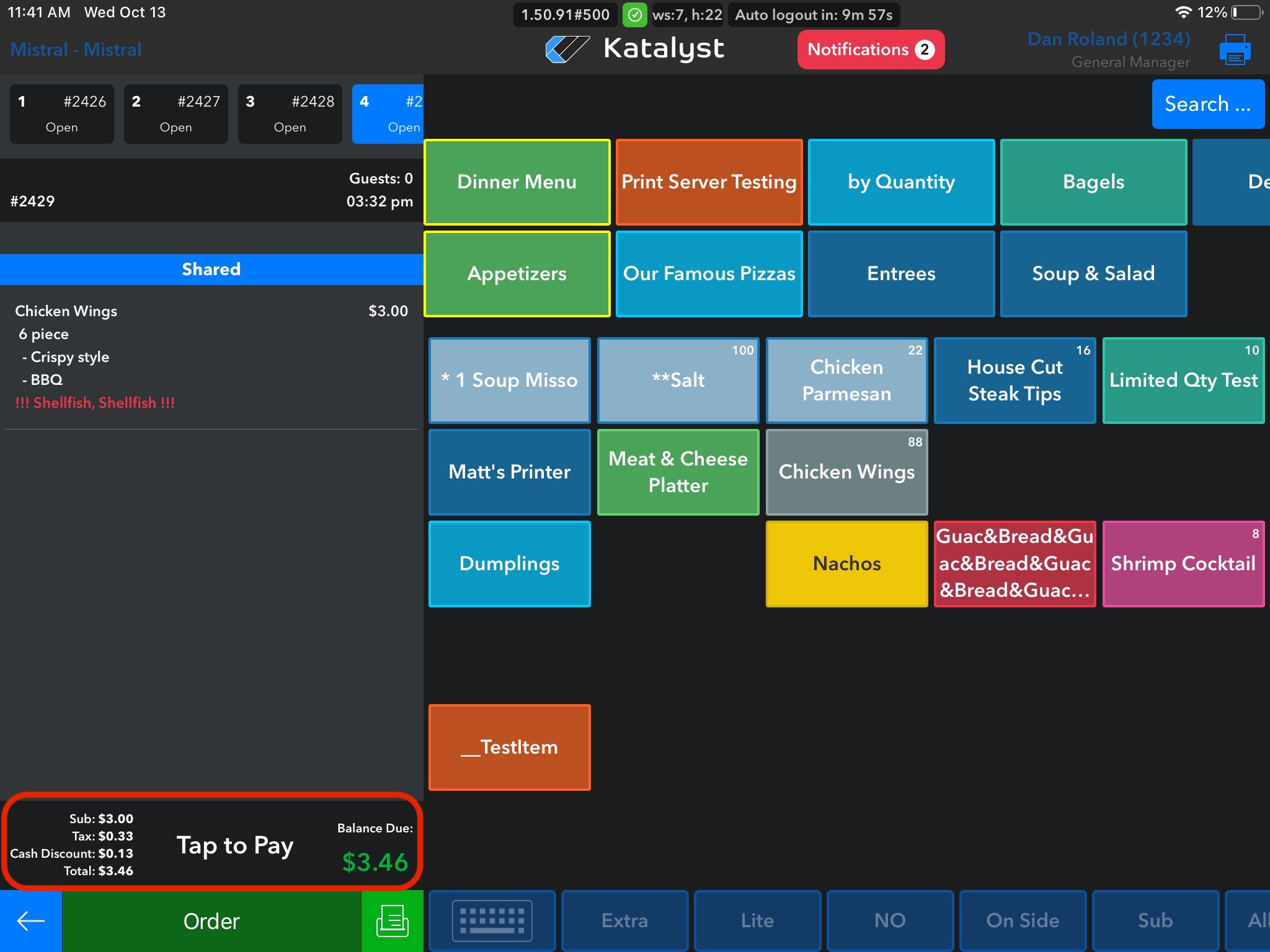
When the customer is ready to check out, the server will be able to access all options for payment on one screen. To access the screen for payment, you will click on the section that is labeled Tap to Pay.
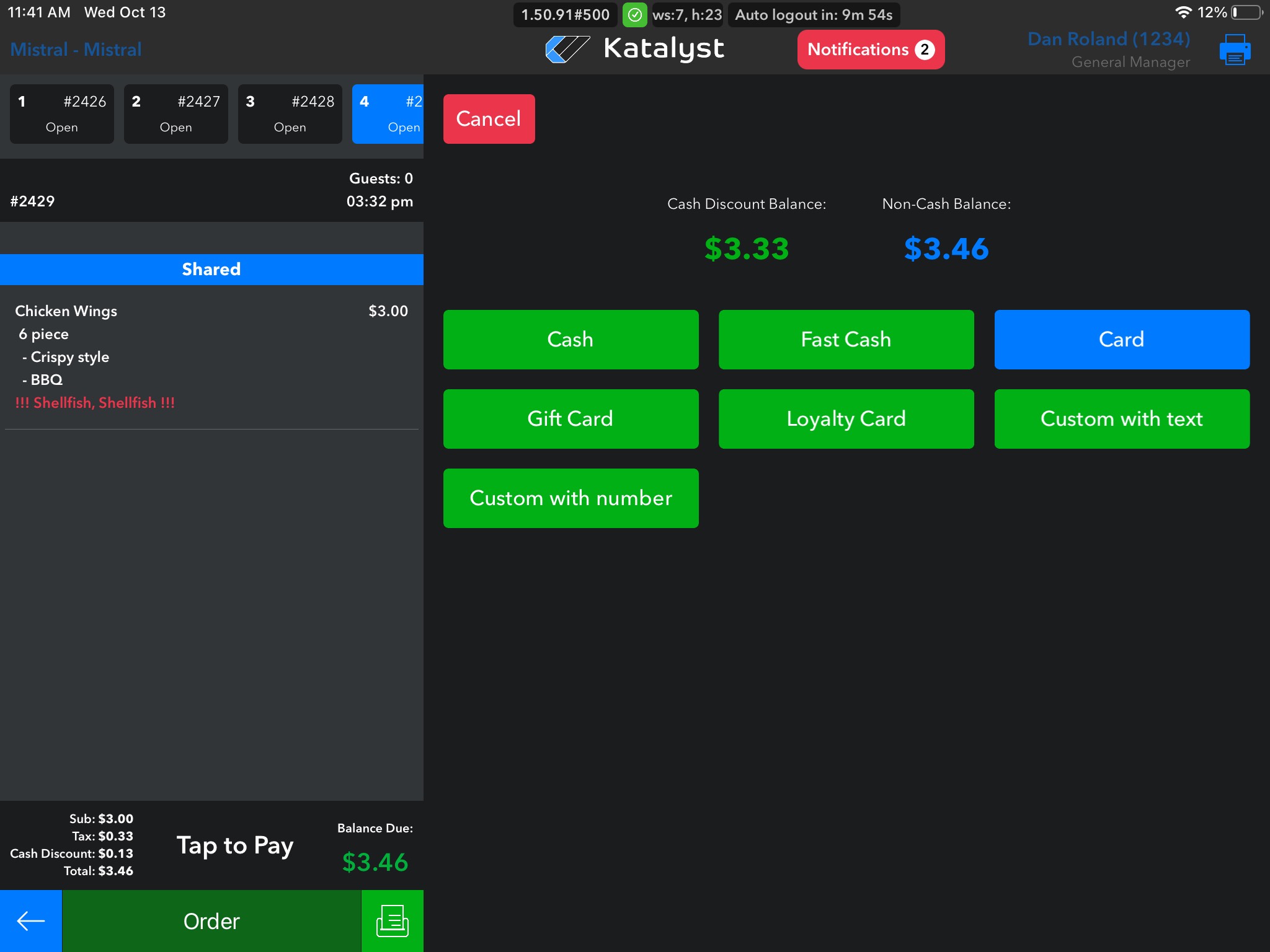
Once Tap to Pay has been selected, a new screen will generate where you can select the payment type the customer wishes to use.
Cash will allow you to enter the amount given.
If the customer gives the exact amount, Fast Cash can be used.
Use 'Card' for any type of card payment. The Card is listed in blue to make the connection between the Cash Discount Balance and the Non-Cash Balance. The Non-Cash Balance reflects the processing fees.
Gift and Loyalty Card are self-explanatory.
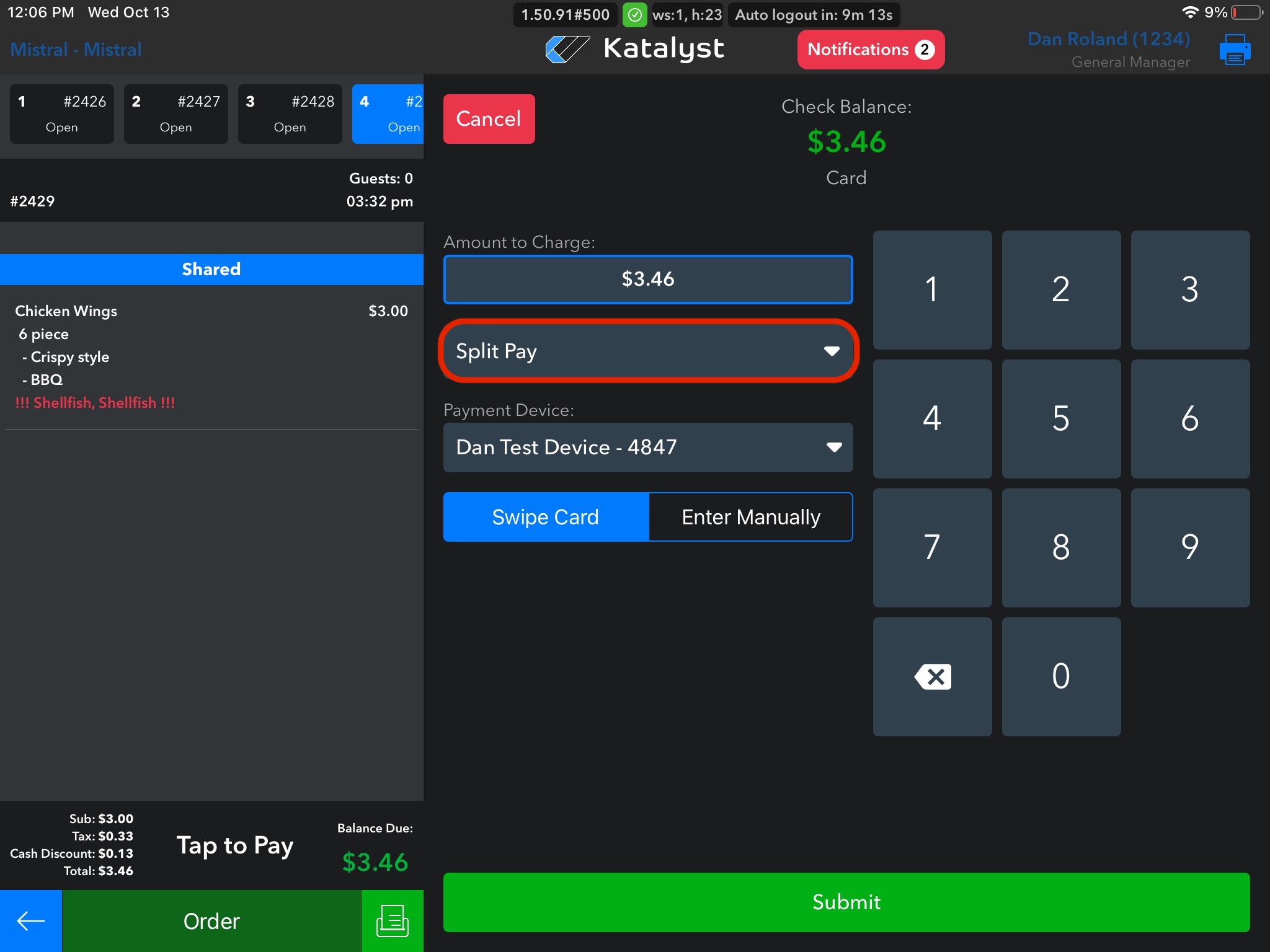
Within every payment method, you're able to split the payment, enter the amount, and card number manually if need be. To split the payment from payment methods, you can use the drop-down menu labeled Split Pay.
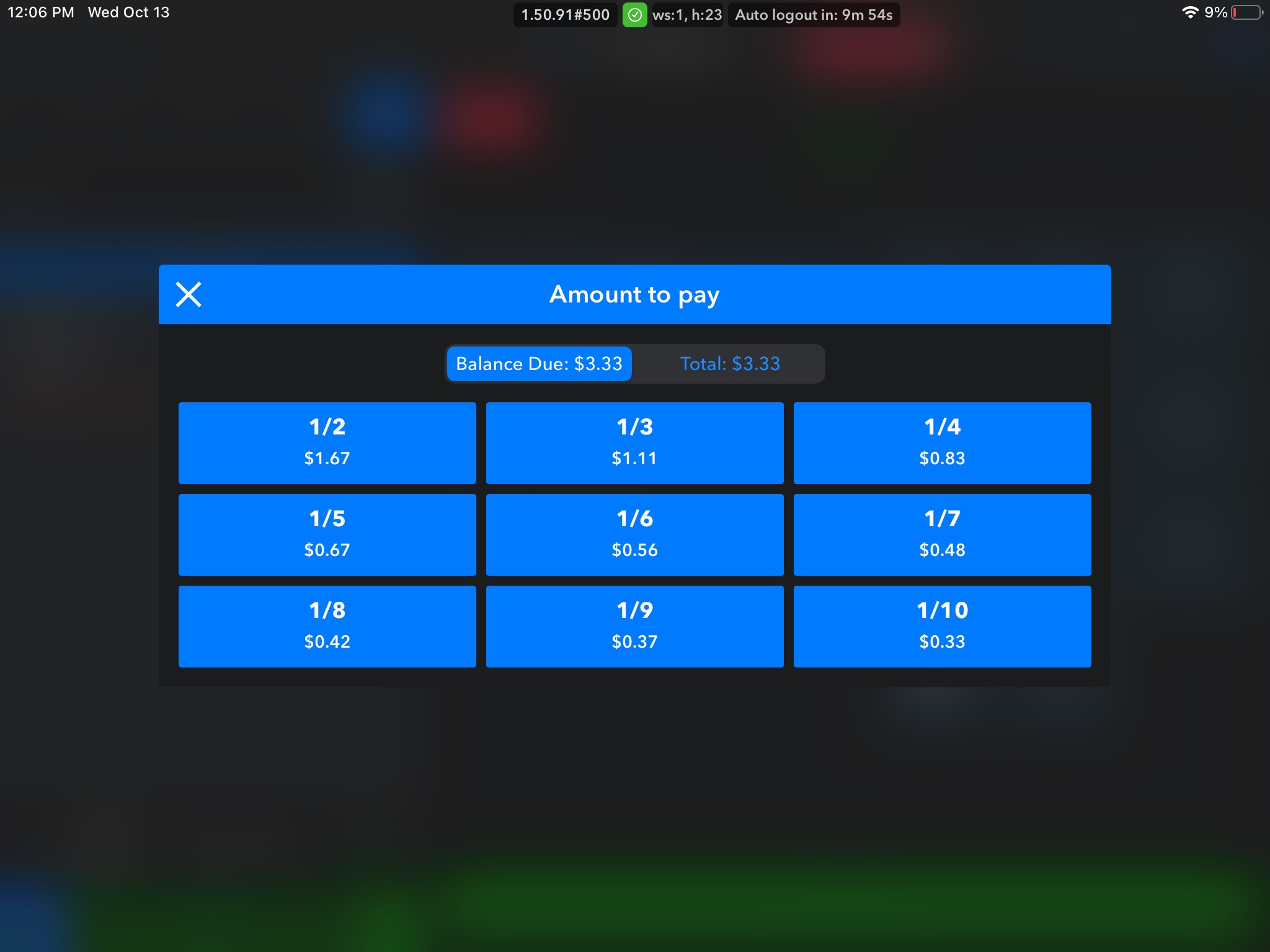
Once you tap into the drop-down, a new screen will generate that gives you different options to split the payments. You should click whichever option works best for what you are trying to do.
If it's a case where the customer wants to put a specific amount on their card and leave the rest to another guest, we can click on the Amount to Charge editable field.
.jpg)