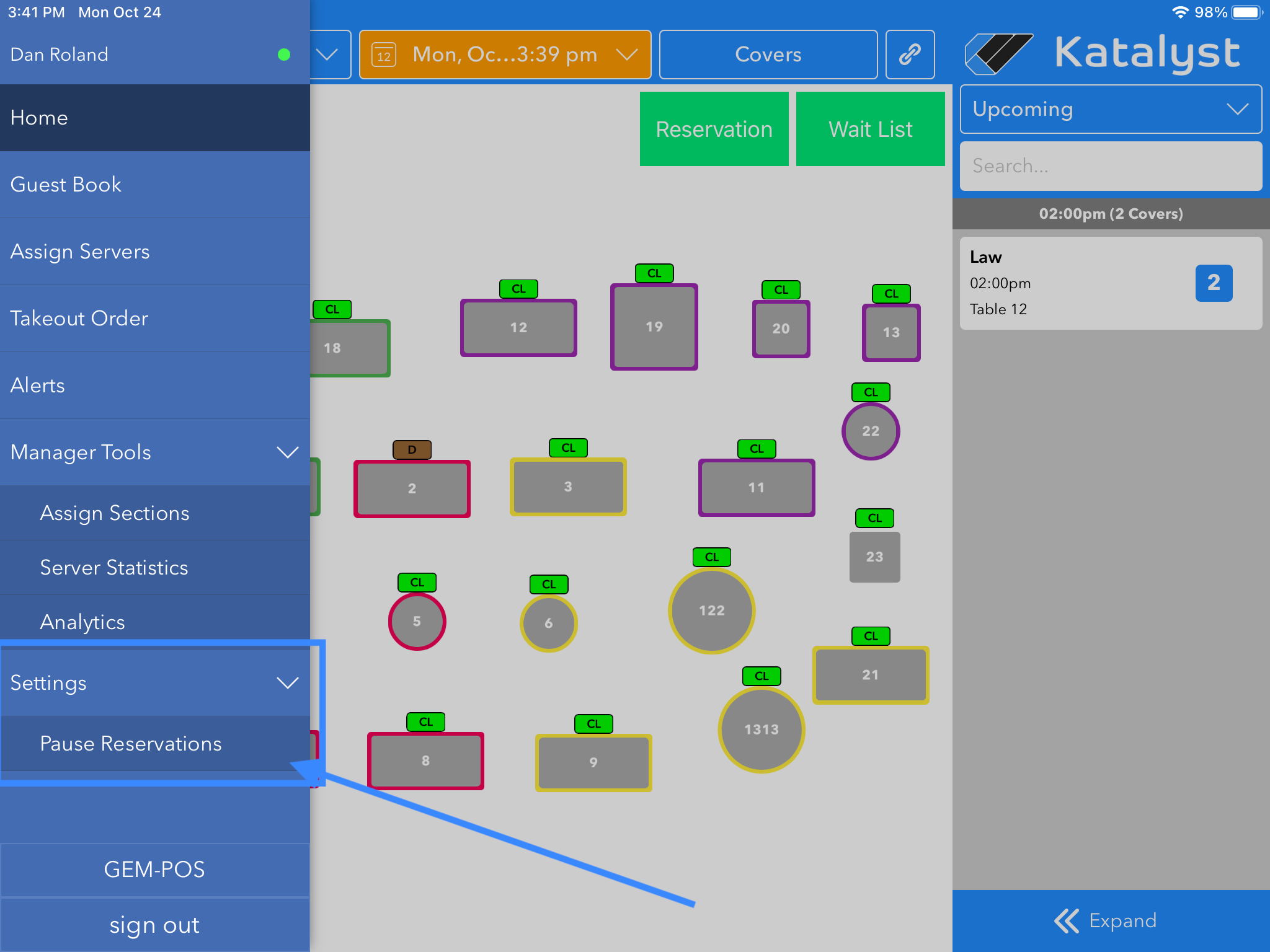
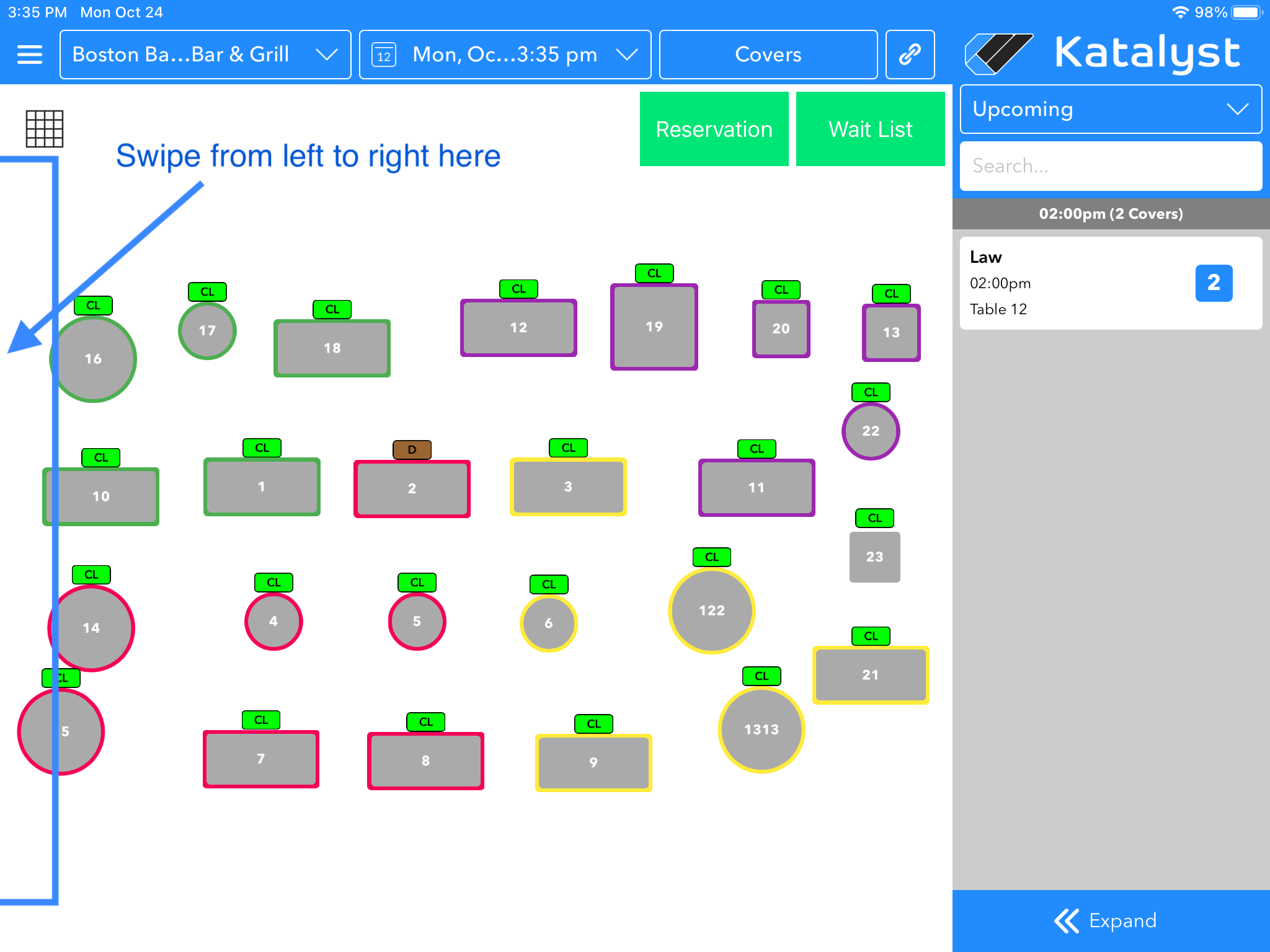
Table Management is host to its own set of settings. Navigating to these settings is done by moving your fingers from left to right on the left side your screen, which slides in your settings menu.
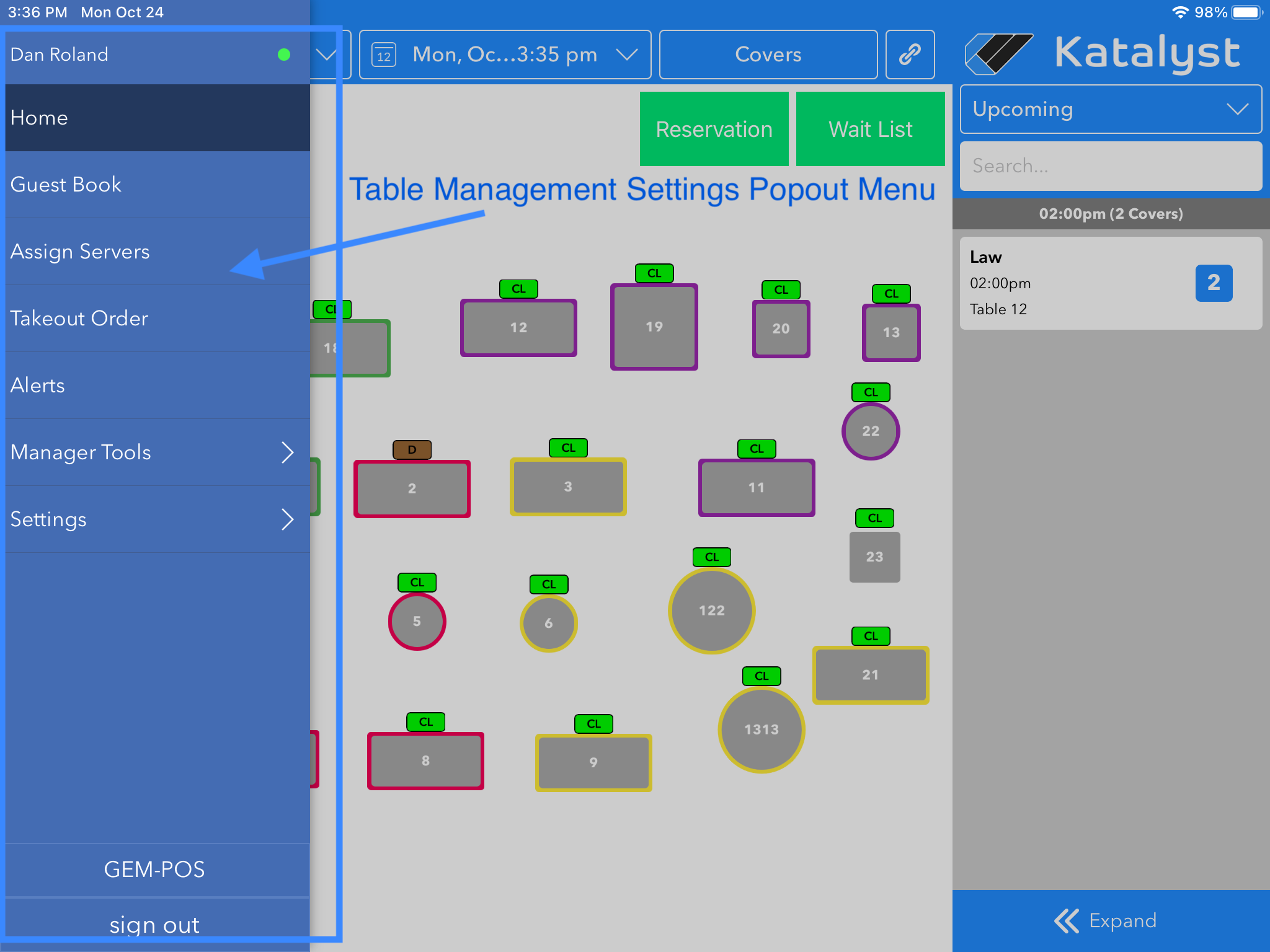
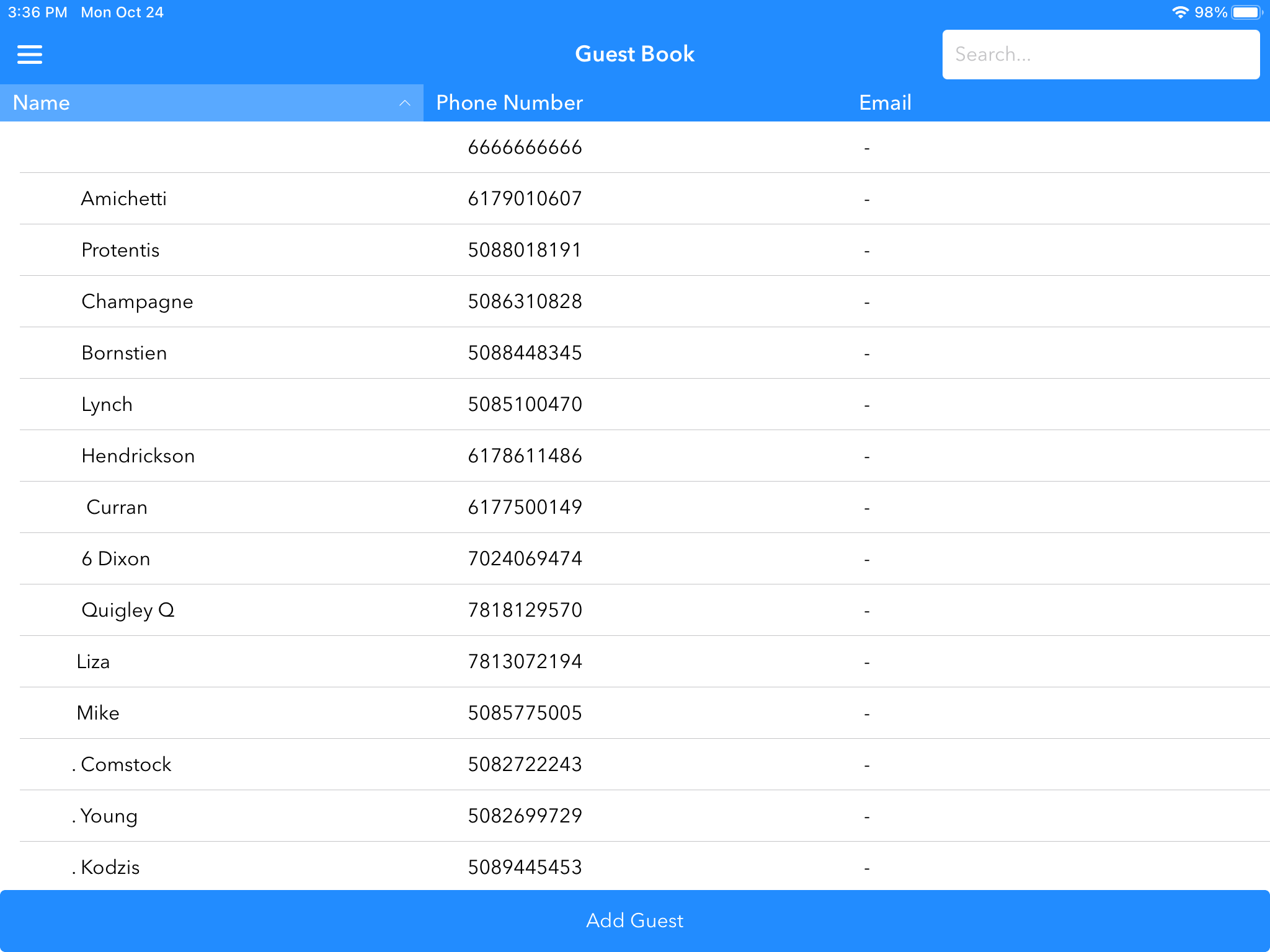
The first menu option is Guest Book. The Guest Book is a space where you can find all guests that have ever made a reservation with them. This includes walk-ins. You are able to use the search bar in the upper right-hand corner of the screen to quickly search for guests. You're also able to add guests using the Add Guest bar at the bottom of the screen. When adding or editing a guest, you can collect information that could help to improve the customer's experience. Examples of ways to track preferences of the customer includes birthday, anniversary, and even allergies.
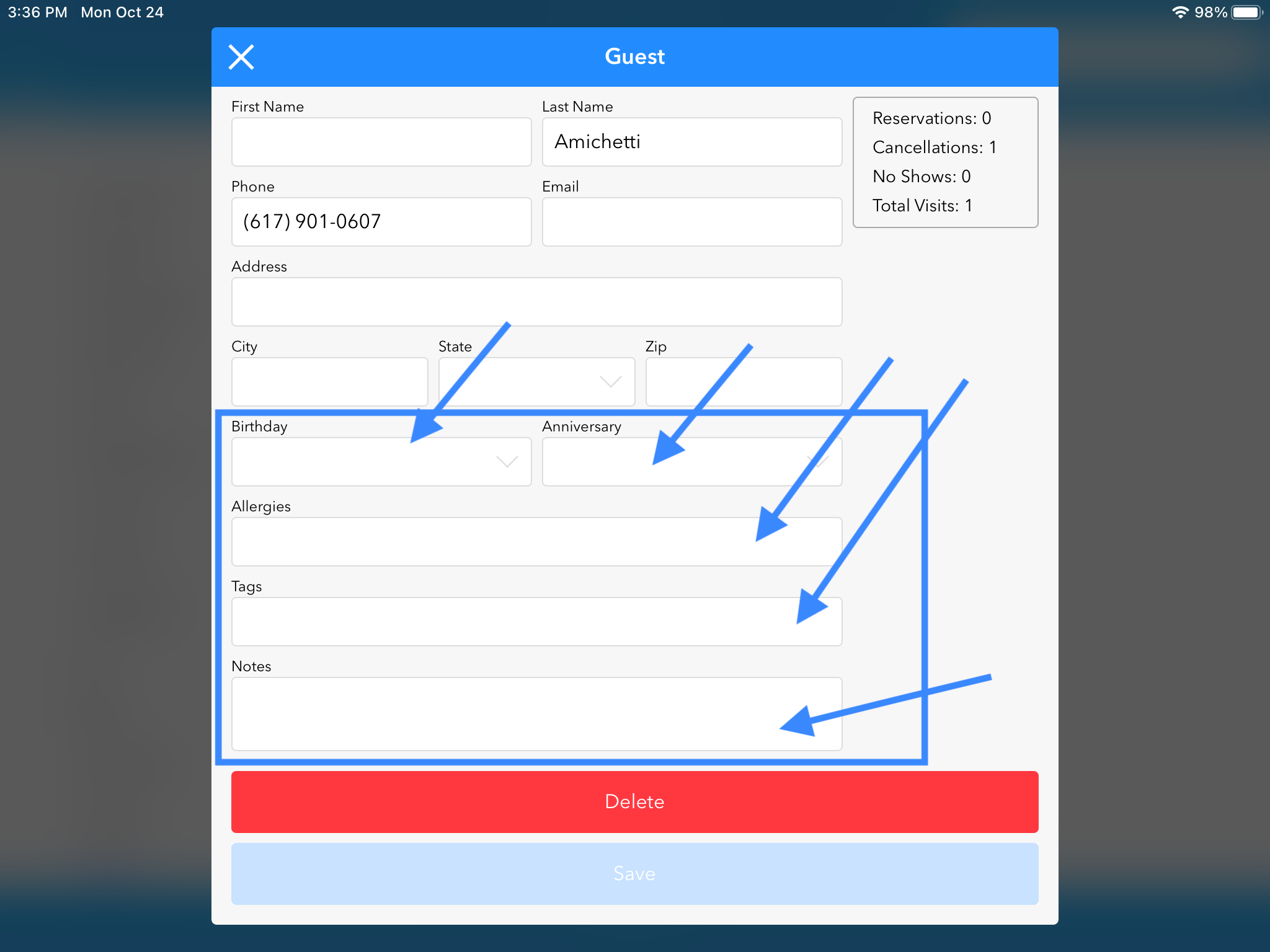
This guest profile also shows you how many reservations, cancellations, no-shows, and total visits the customer has.
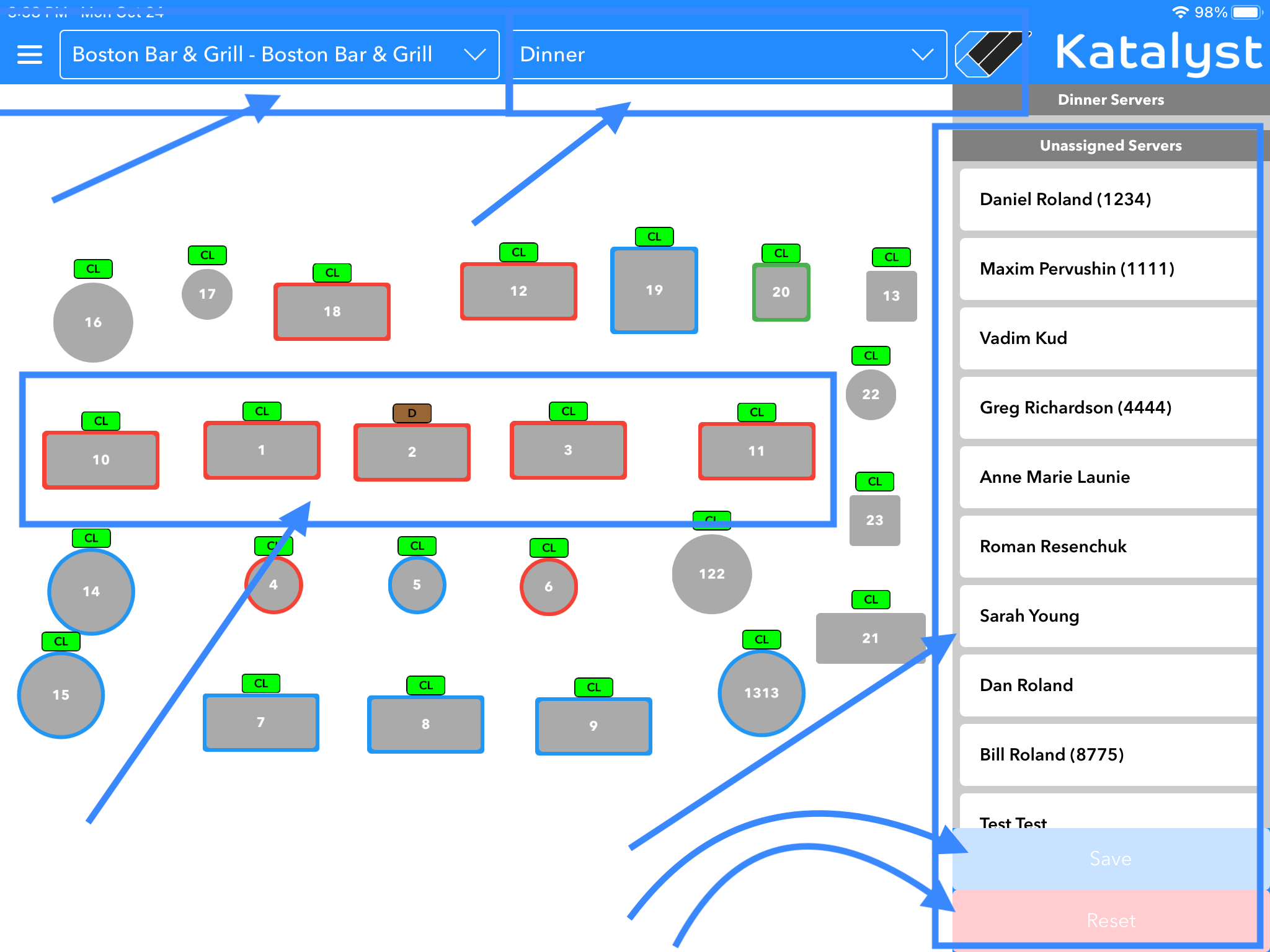
The next setting option is Server Assignment. Server Assignment allows you to adjust the table section assignments as needed for each server. You should first check to make sure they are in the correct revenue center, and layout or day part (i.e Breakfast, Lunch, Dinner) prior to selecting sections for your servers. Once these are selected, the server can then be selected and a section can be attributed to that server. Keep in mind that this function does not allow you to change the tables that are included in any given section. Changing the tables within a section can only be done from the the Manager Tools section, which we will cover soon. Once table sections are selected, you should either save your selections or reset them.
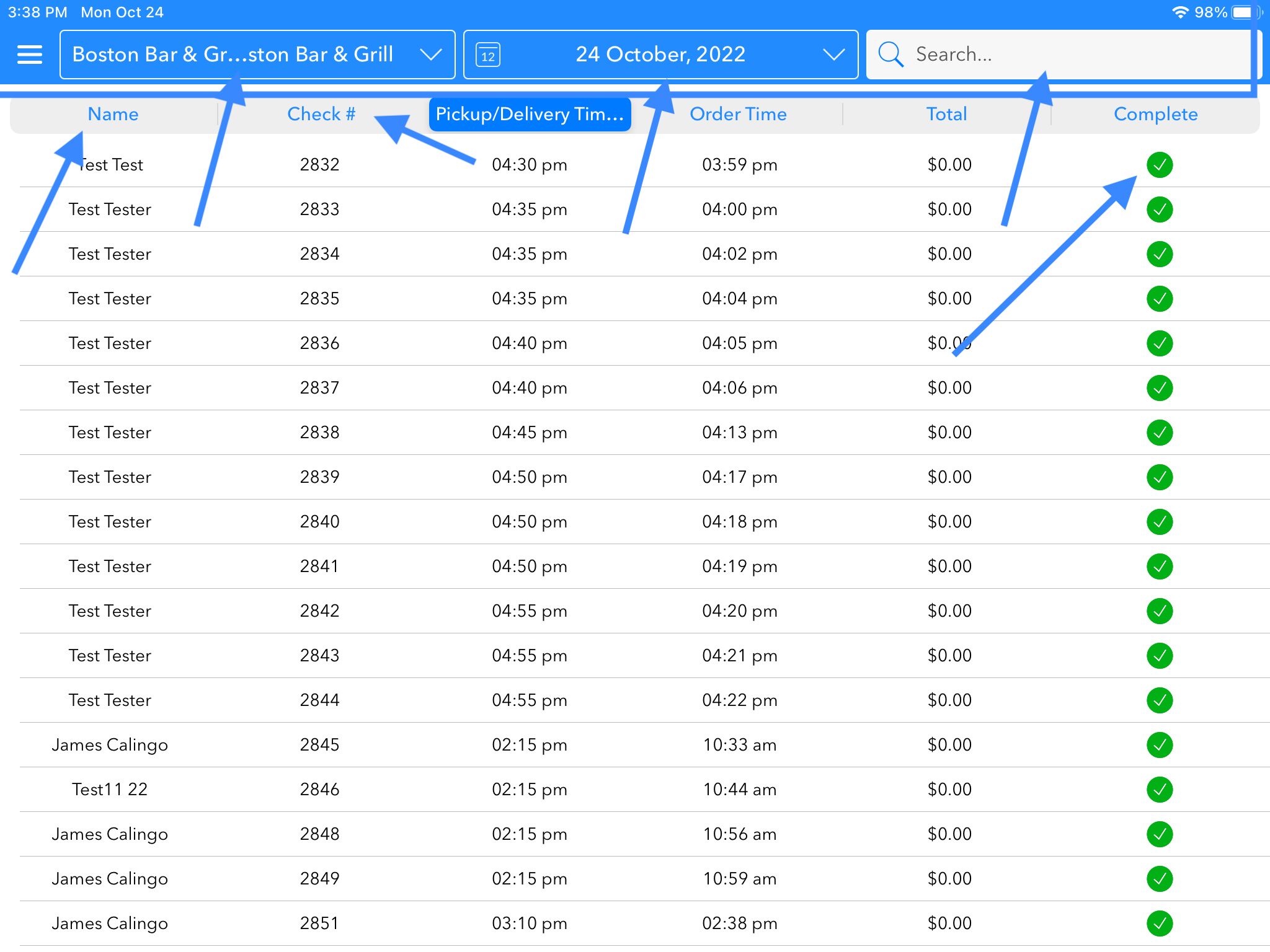
Next is Takeout Order. These sections give the host a view of the order by name, check number, pickup/delivery time, order time, total, and if the order has been completed or not. The host is able to click into any of the orders to see more information on that check, such as the confirmation number, order total, and the time the order was placed. The host can also see customer information, such as a customer email, phone number, allergies, and any comments left on the customer profile. If the order has not been completed, the host can switch the toggle here to mark it as complete and can also reprint the receipt using the green button on the button right-hand corner of the pop-up screen.
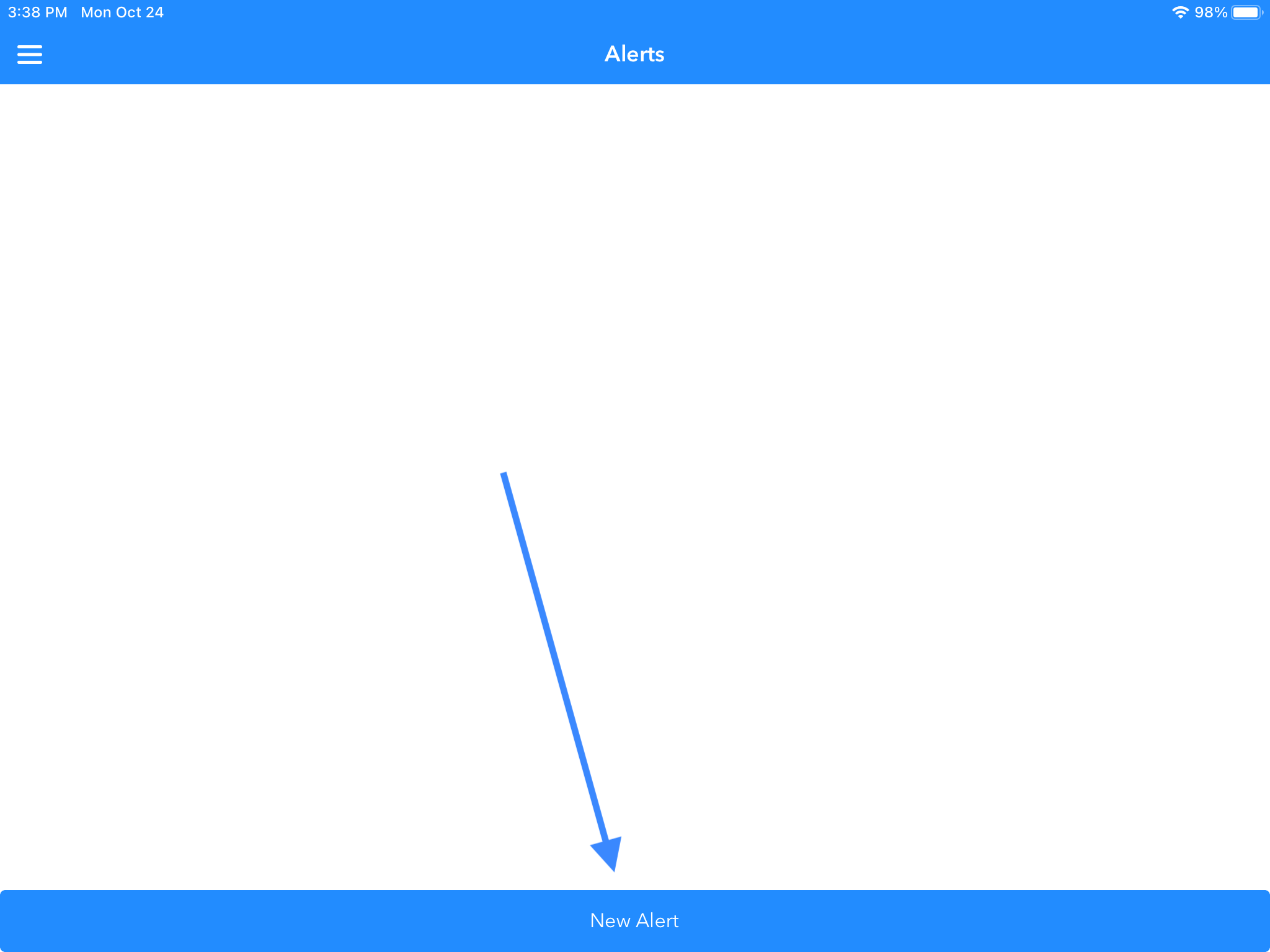
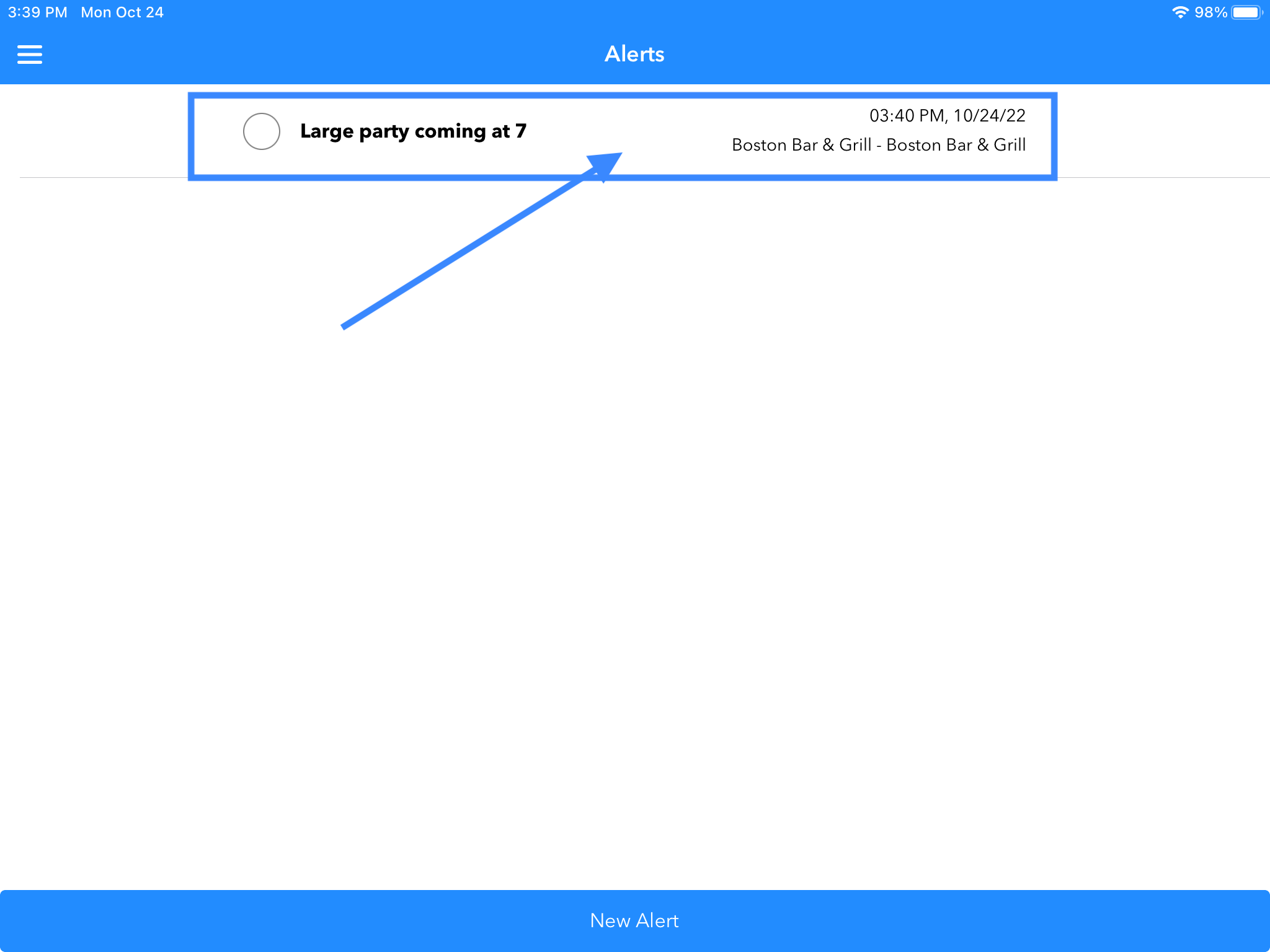
Alert allows the host to use a reminder system for themselves. This acts as a post-it reminder that can be dated ahead of time. For example, if a large party is coming on a future date and the host would like to remind themselves to push together tables X, Y, and Z, they are able to make a note for themselves here.
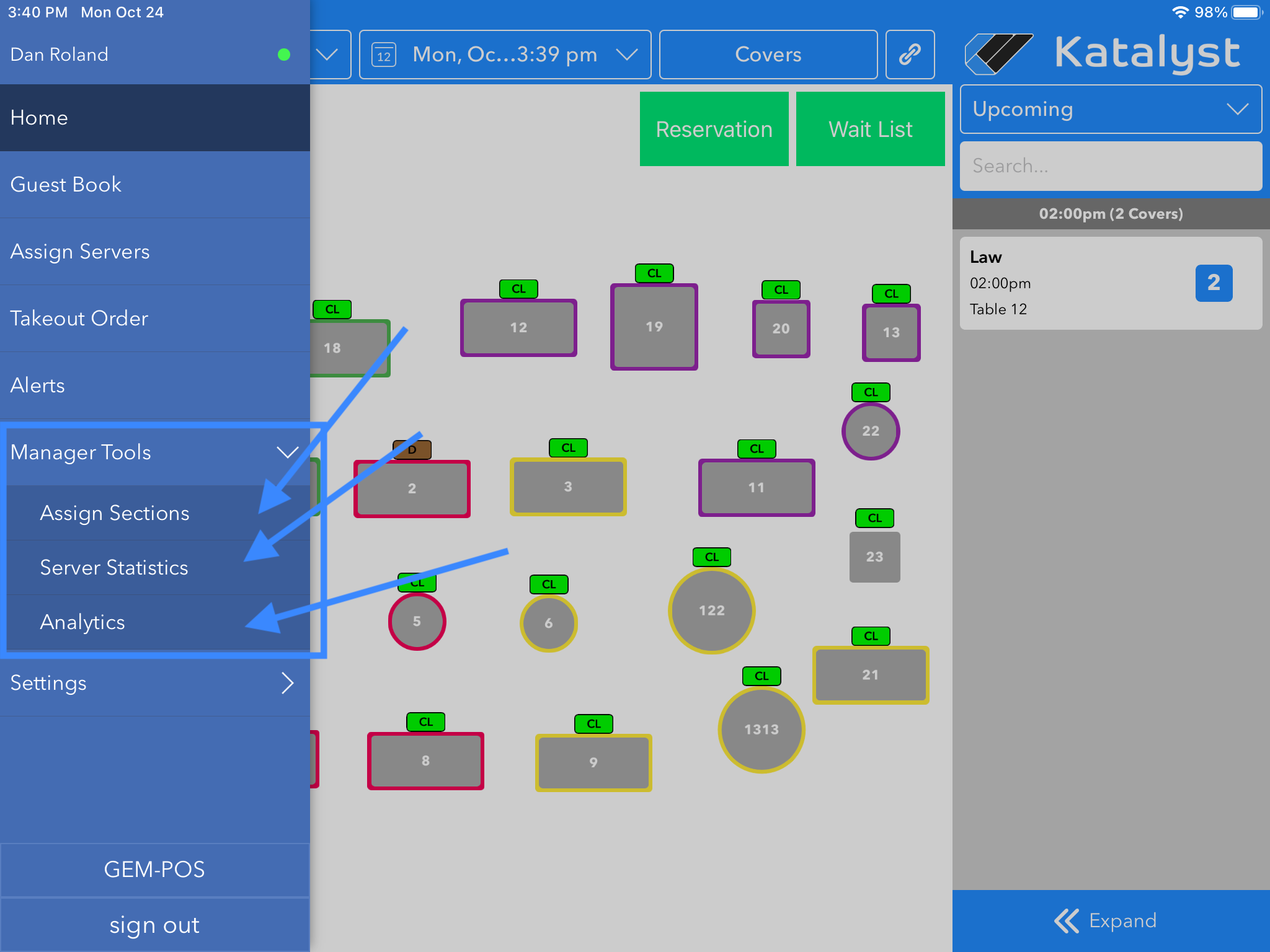
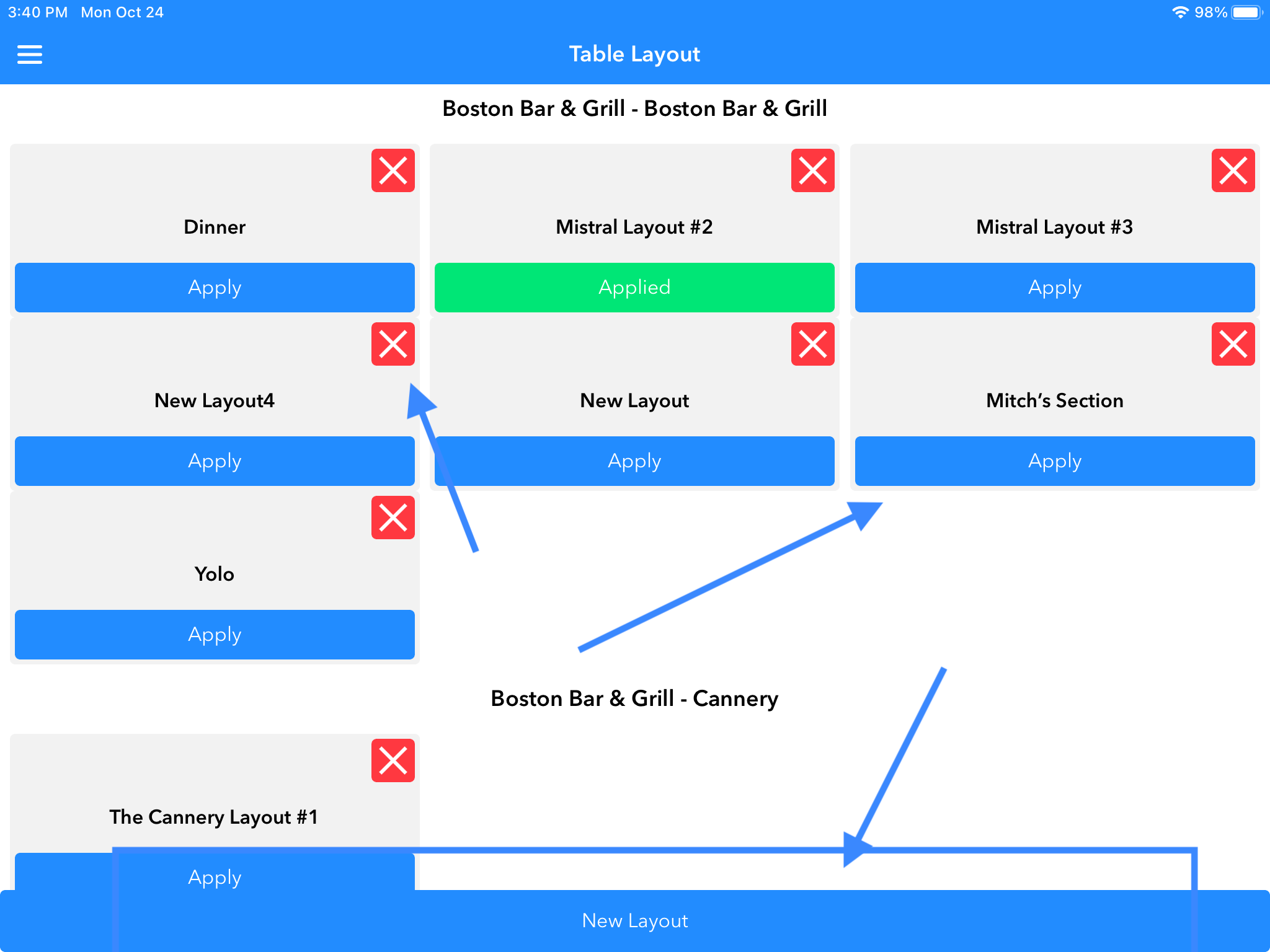
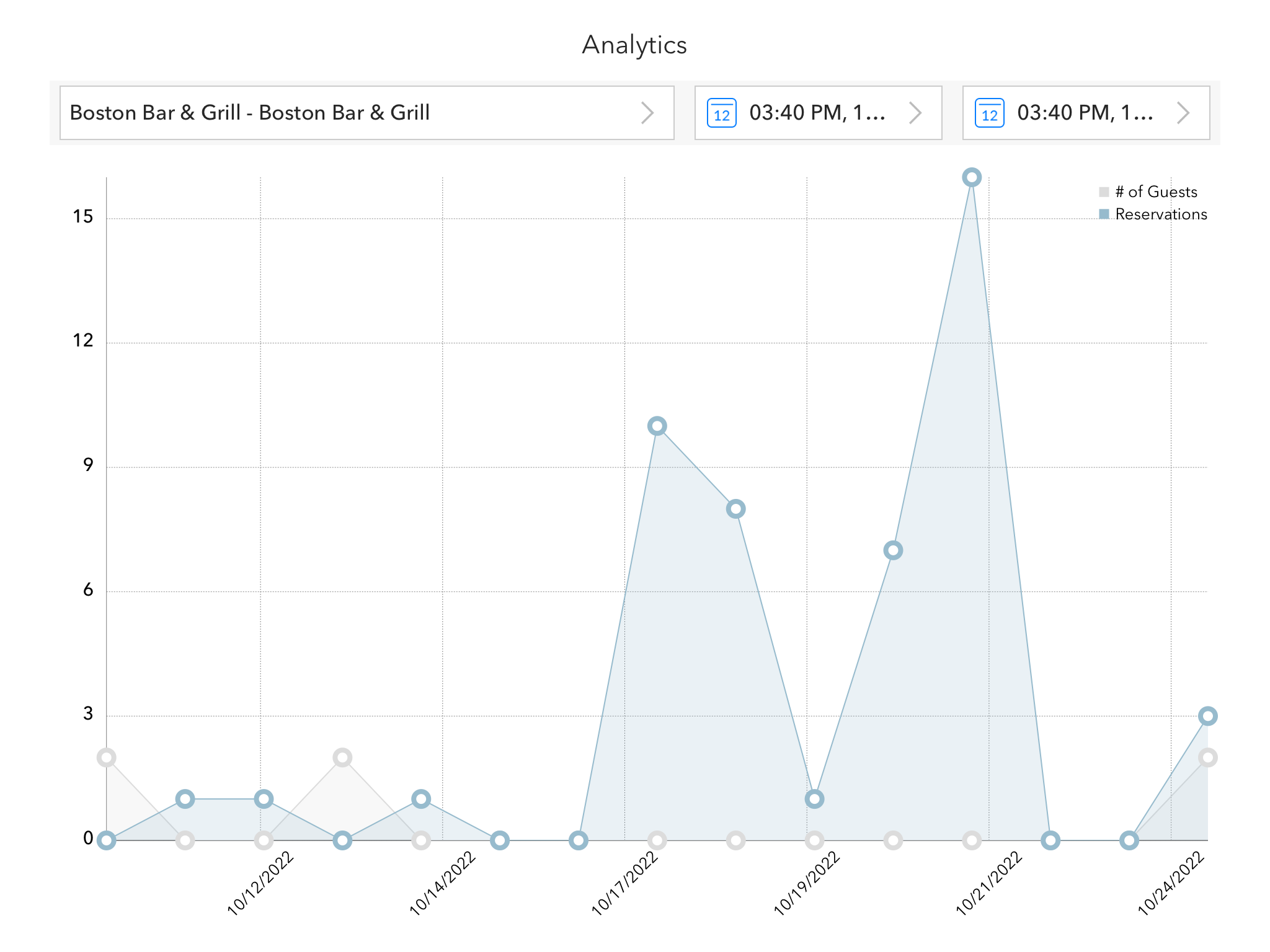
Manager Tools contains three subsections: Assign Sections, Server Statistics, and Analytics. Assign Sections is where you're able to make new layouts for server sections or edit layouts that have already been created.
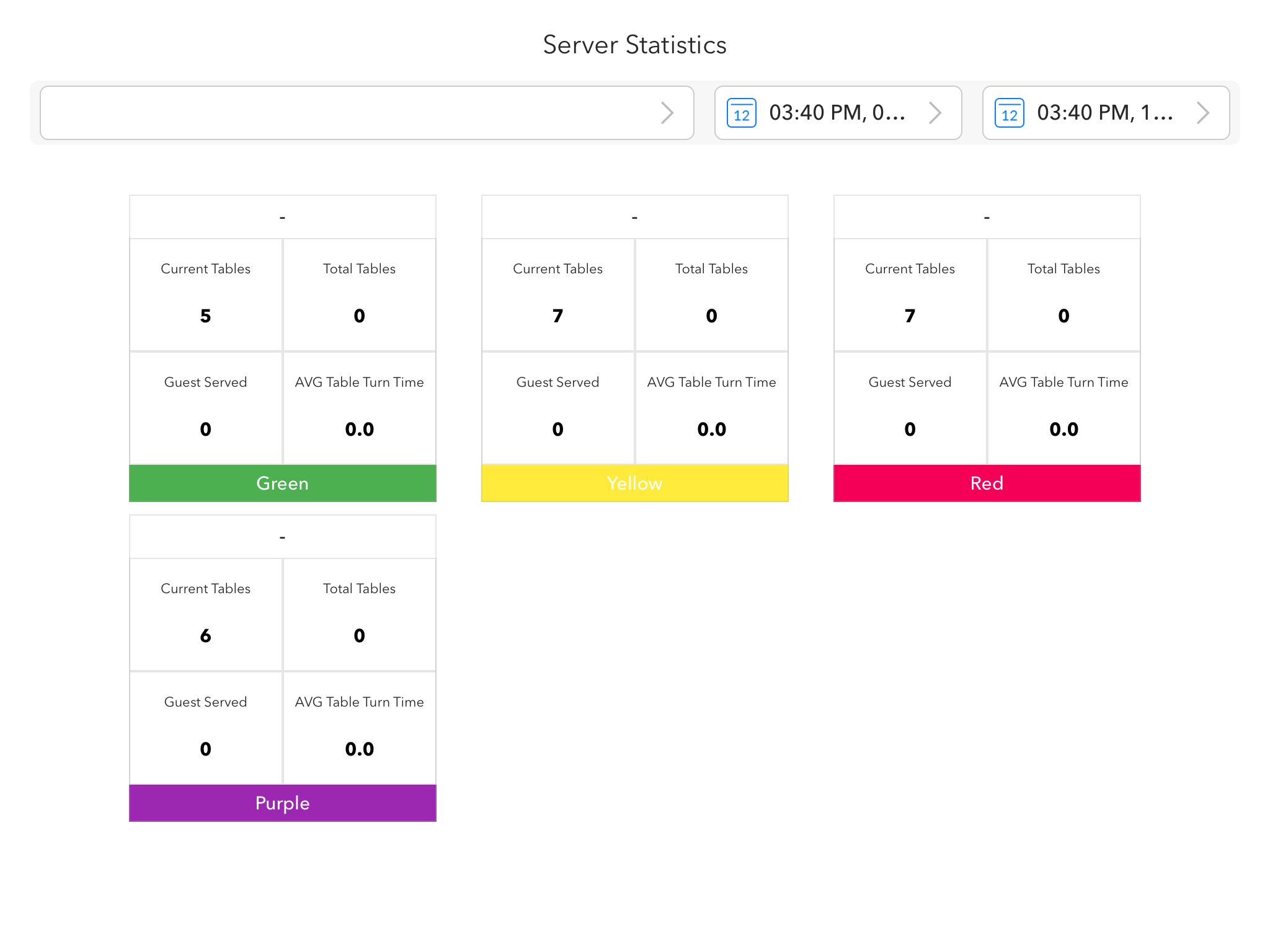
Server Statistics allow you to get a quick overview of each section of analytics. These analytics include how many current tables each section has, total overall tables, total guests served, and average table turn time. You're able to view this data per each revenue center by selecting the menu located in the top right.
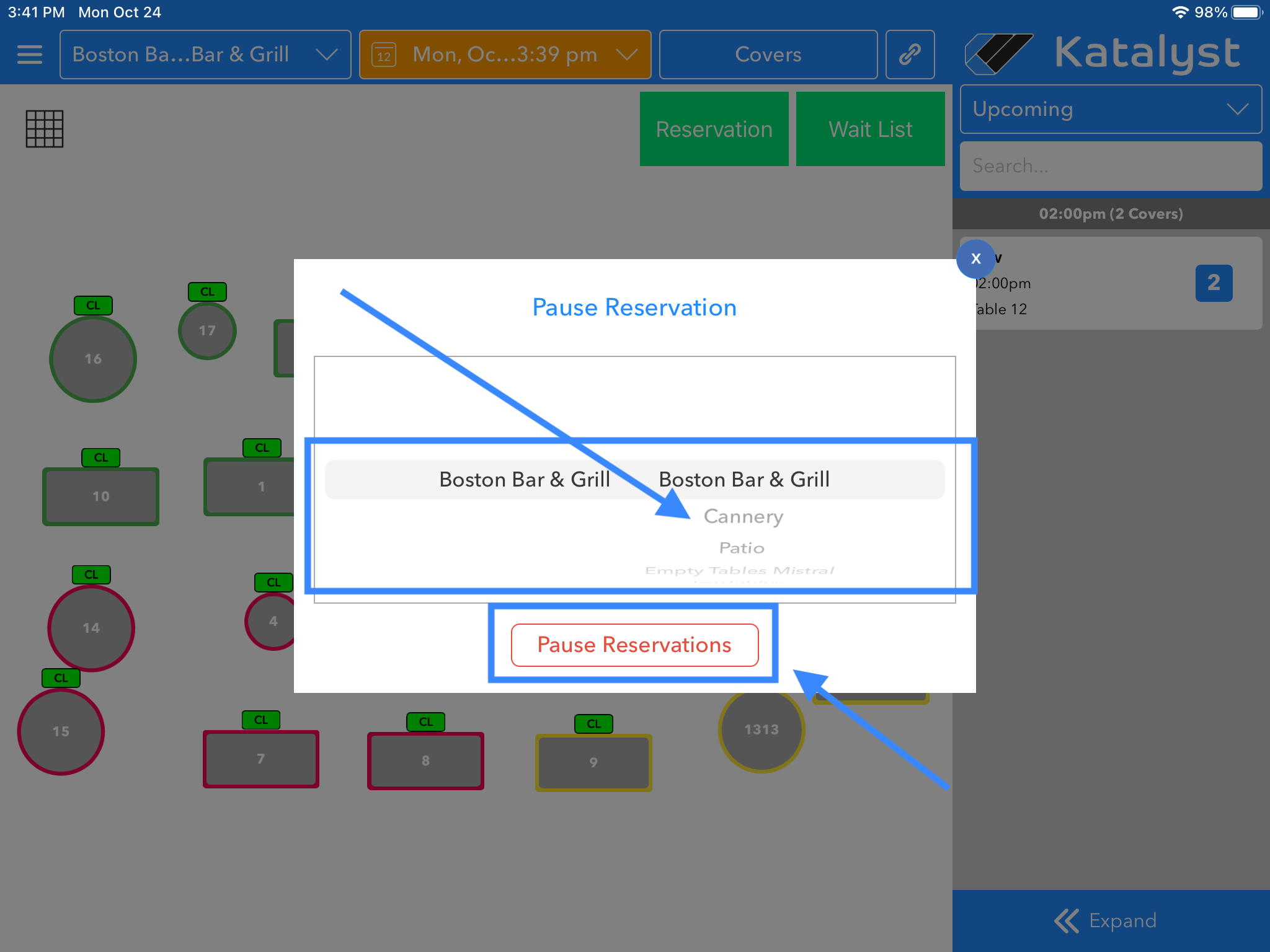
Lastly, the settings menu option contains the sub-category to Pause Reservations. You're able to select the revenue center that they would like to pause reservations. (Does not work right now)