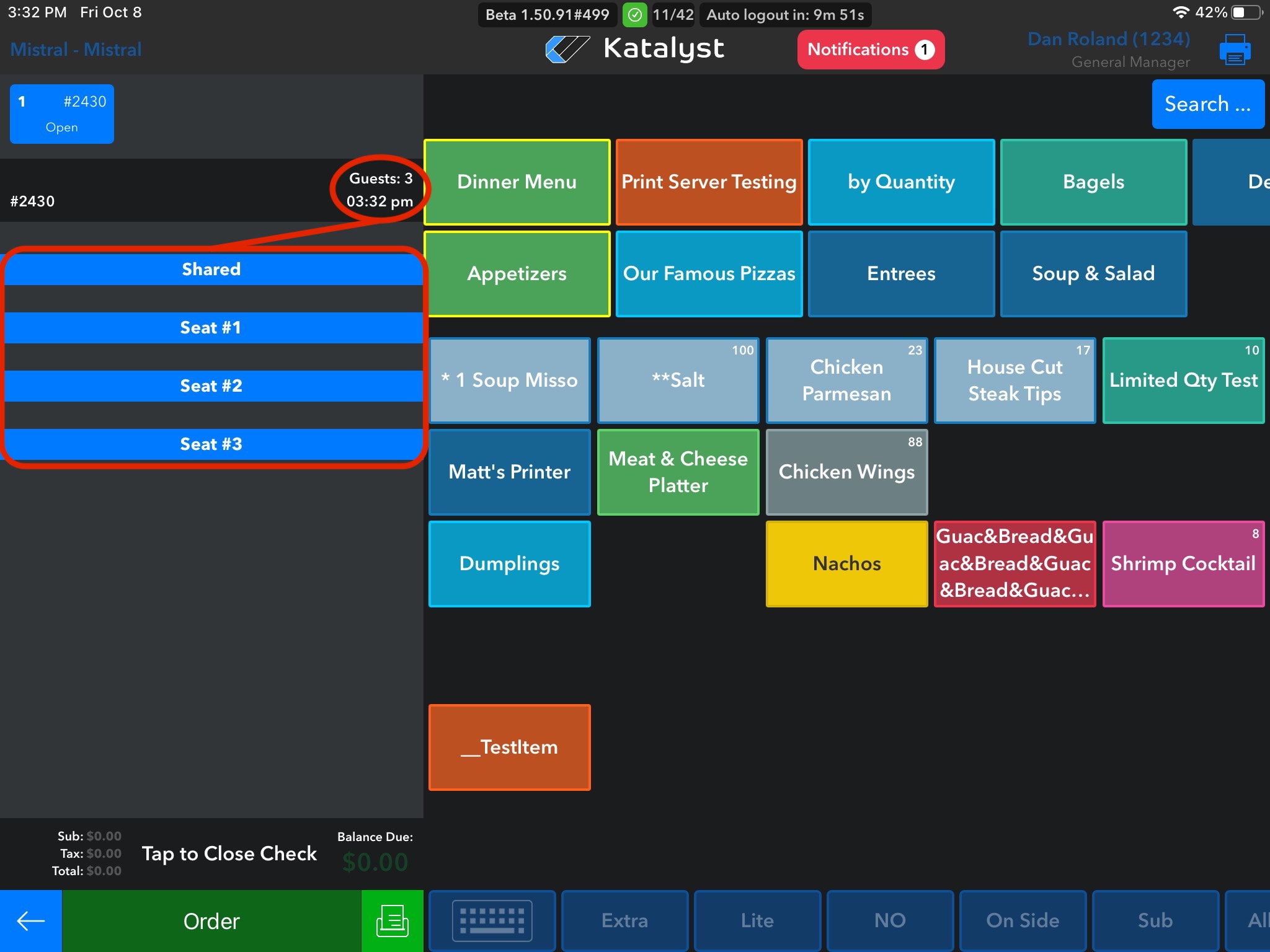
To split checks by seats you first need to make sure that the guest check reflects the accurate amount of guests that are ordering. If the guest count is three, it will show three seats within the check. This is to help keep the server organized, but it does not mean that the check has been separated into three separate checks.
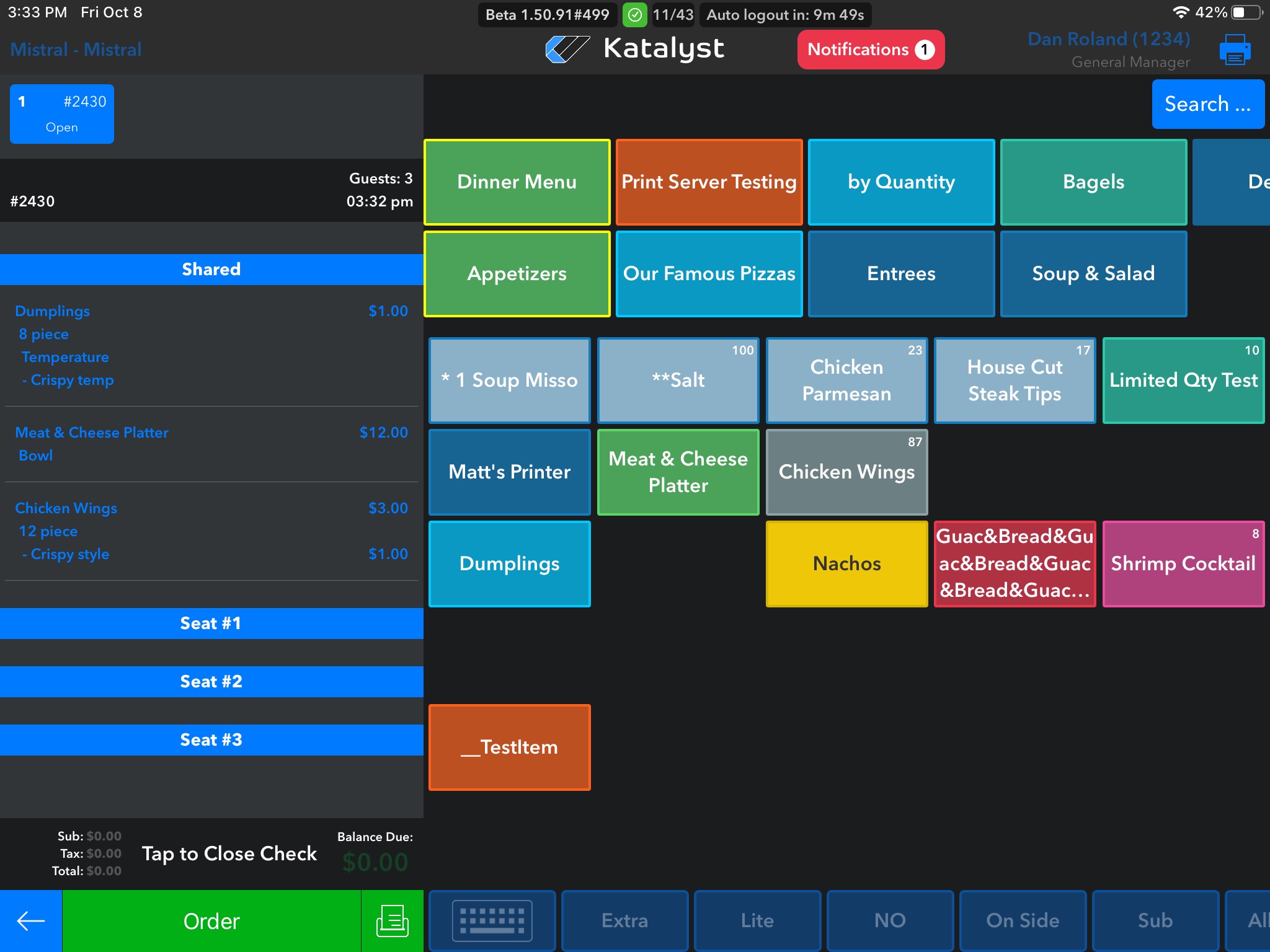
First, the server should add the items that will be ordered. Remember that blue means the item is neither on hold nor ordered. In this situation, the server should follow preferred practice within their establishment if they should assign the seat prior to ordering or not.
For our training purposes, we will assign them after they have been ordered.
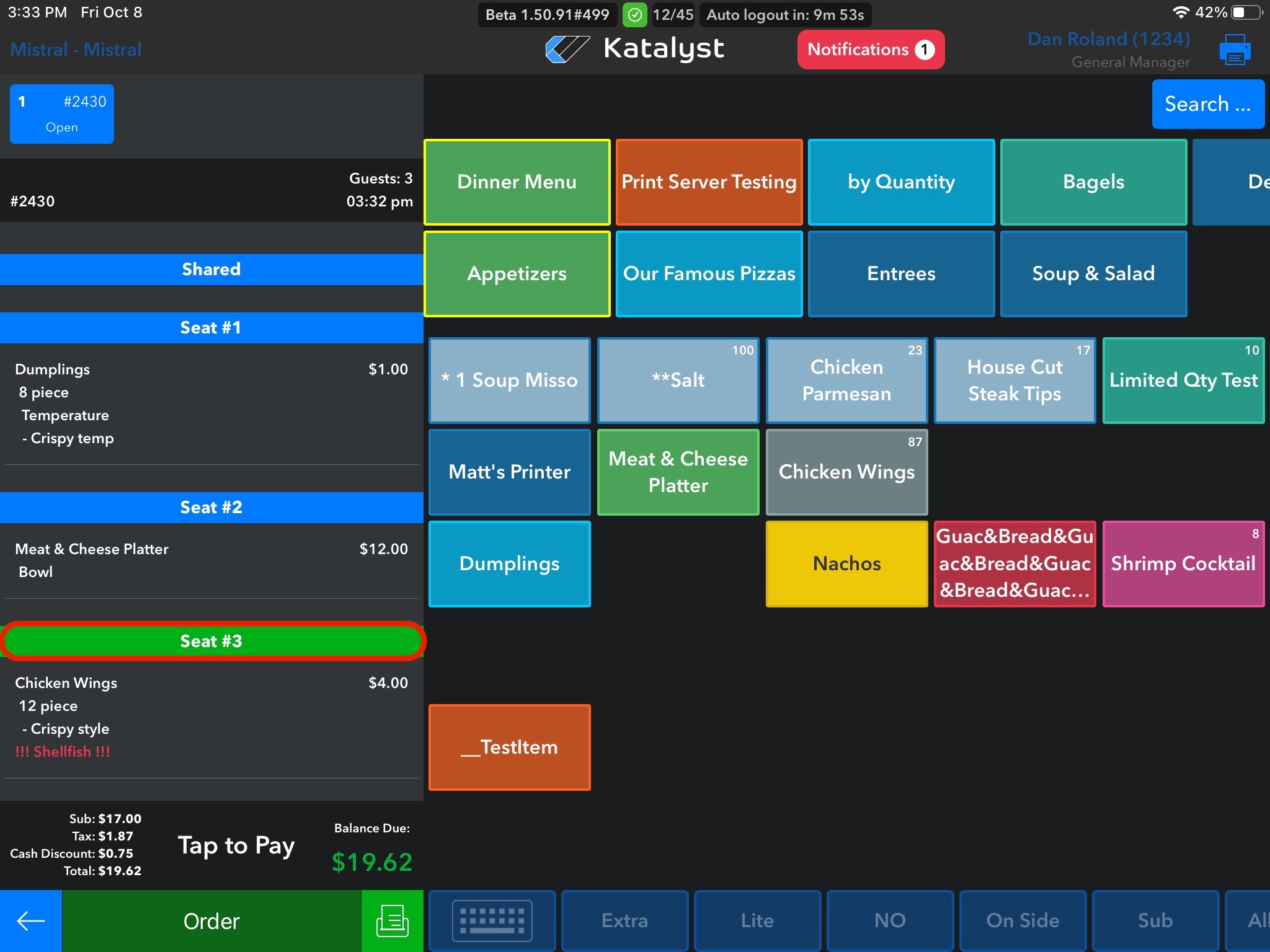
To assign food items to a seat, you will want to press the seat. In this case, seat three is selected as indicated by it being green, and then select the item you want to move. Once all items have been moved, we will tap on the area above the check that says 'Guests'.
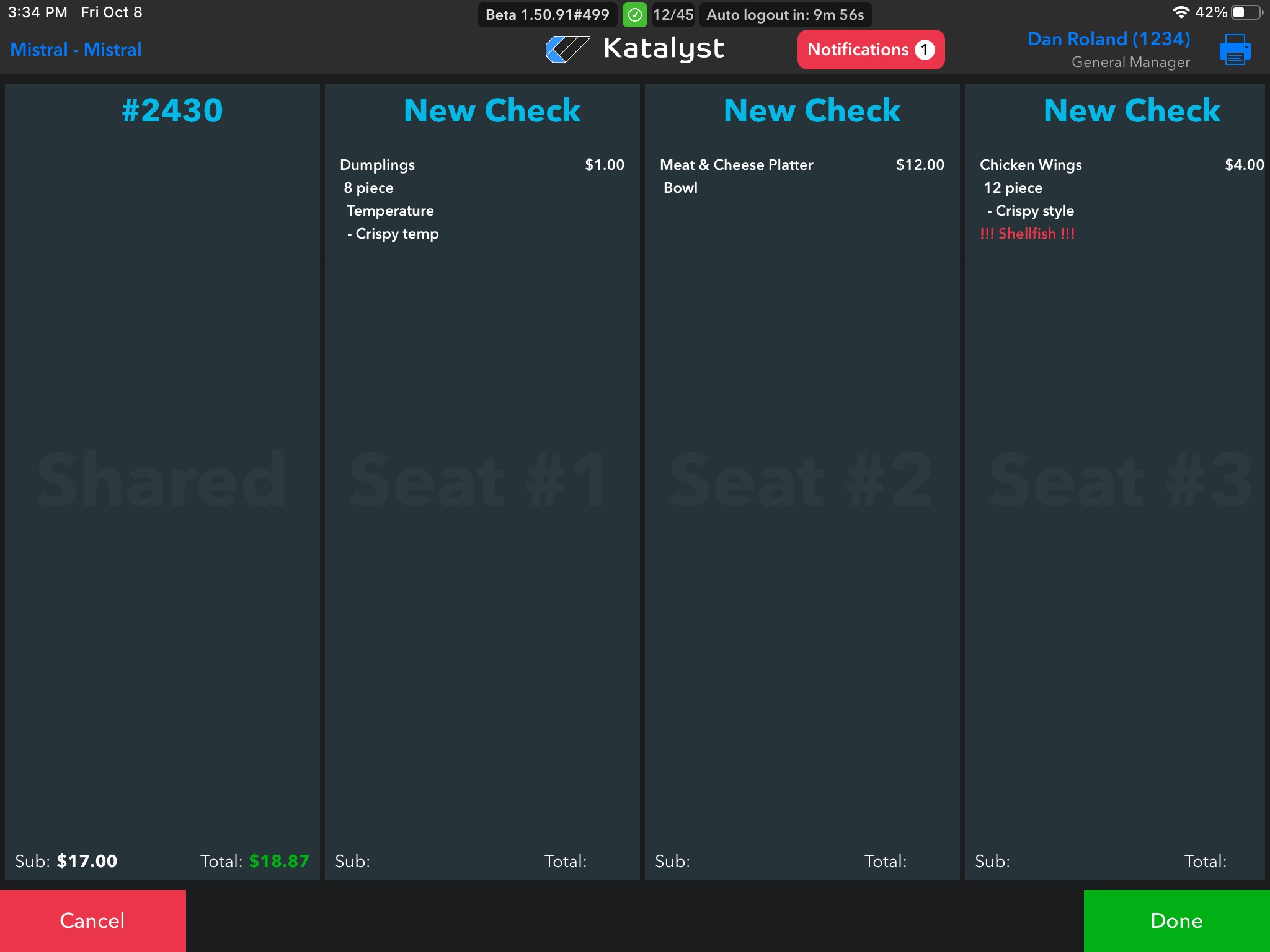
Doing so will bring us to the screen below. The first check number indicates the original check number where all the food items were held. Since we have already assigned our food item to each seat, you can see that doing so has created three 'New Checks'. Once we hit the green 'Done' button at the bottom right, these 'New Checks' will be assigned their own check numbers.