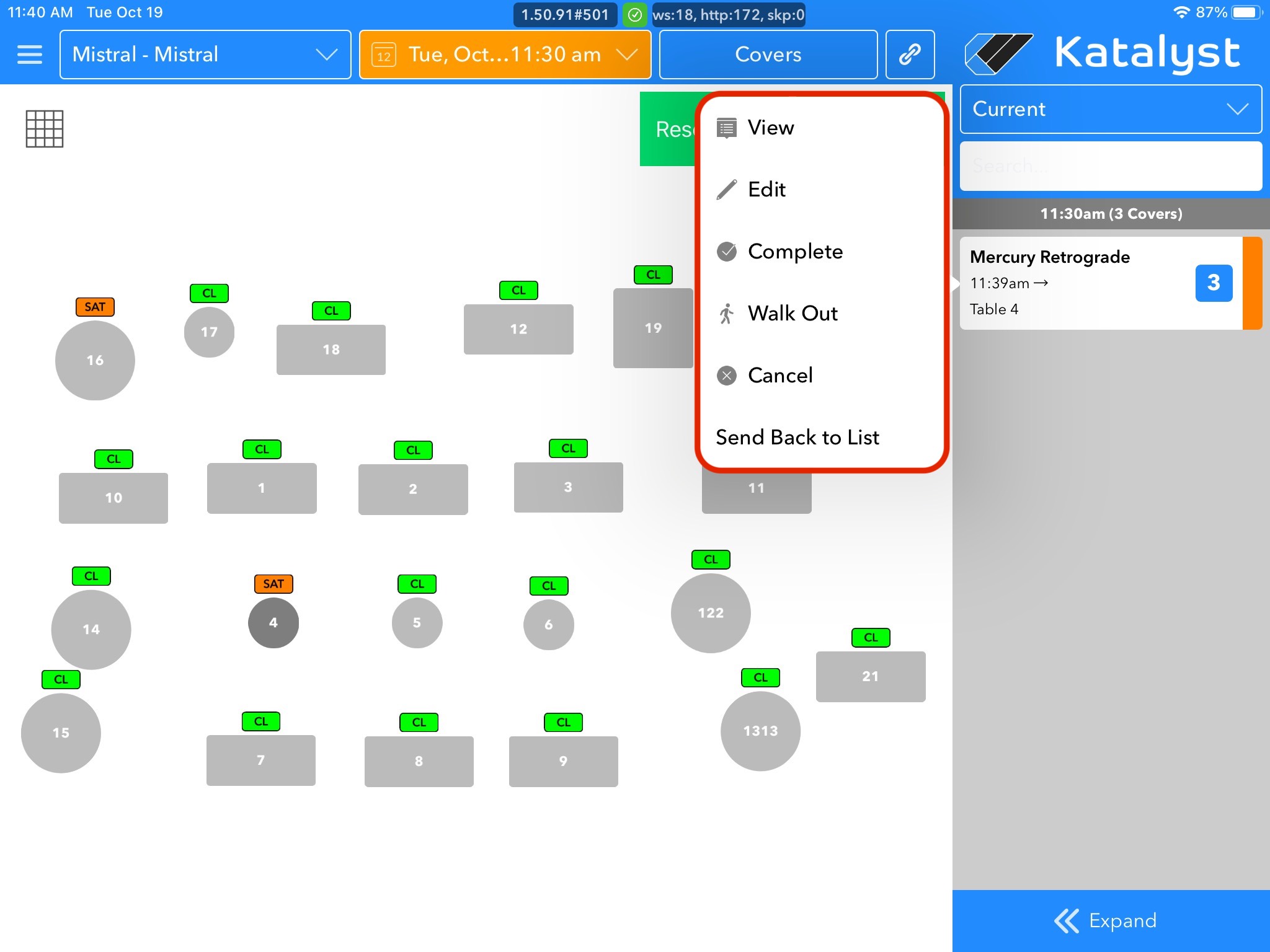
Seating a reservation can be done in three different ways.
The quickest way does not leave you with control over where the guest is sat. If you tap the reservation, a menu bar will pop up to the left of the reservation. The third option down will say Seat. If we click this, the system will take into account how many heads are on the reservation and seat them where they see an open table that would fit the party.
.jpg)
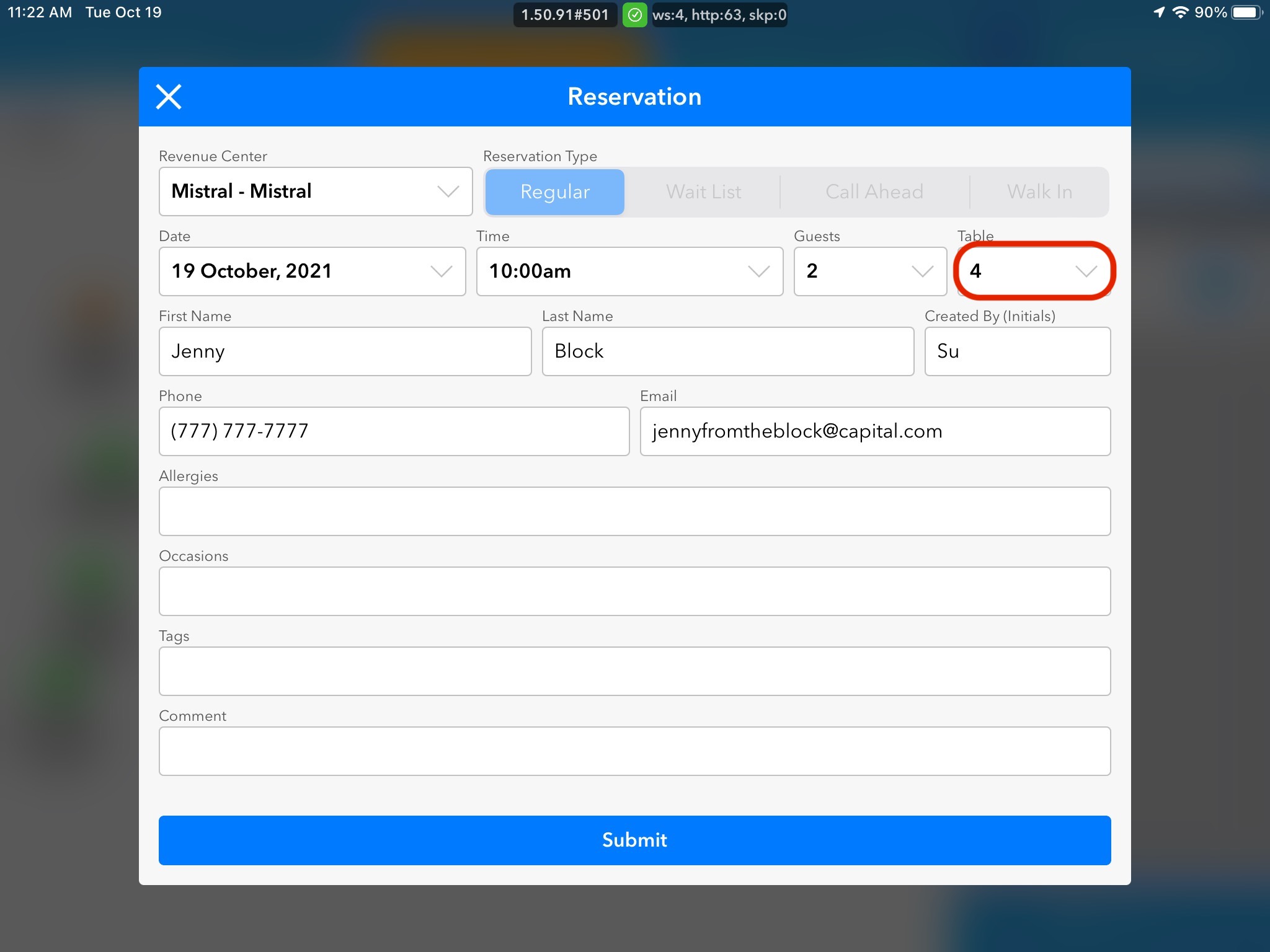
The second way you can seat a guest is by tapping on the reservation, but this time clicking edit. Once the pop-up appears you can click on the table drop-down menu.
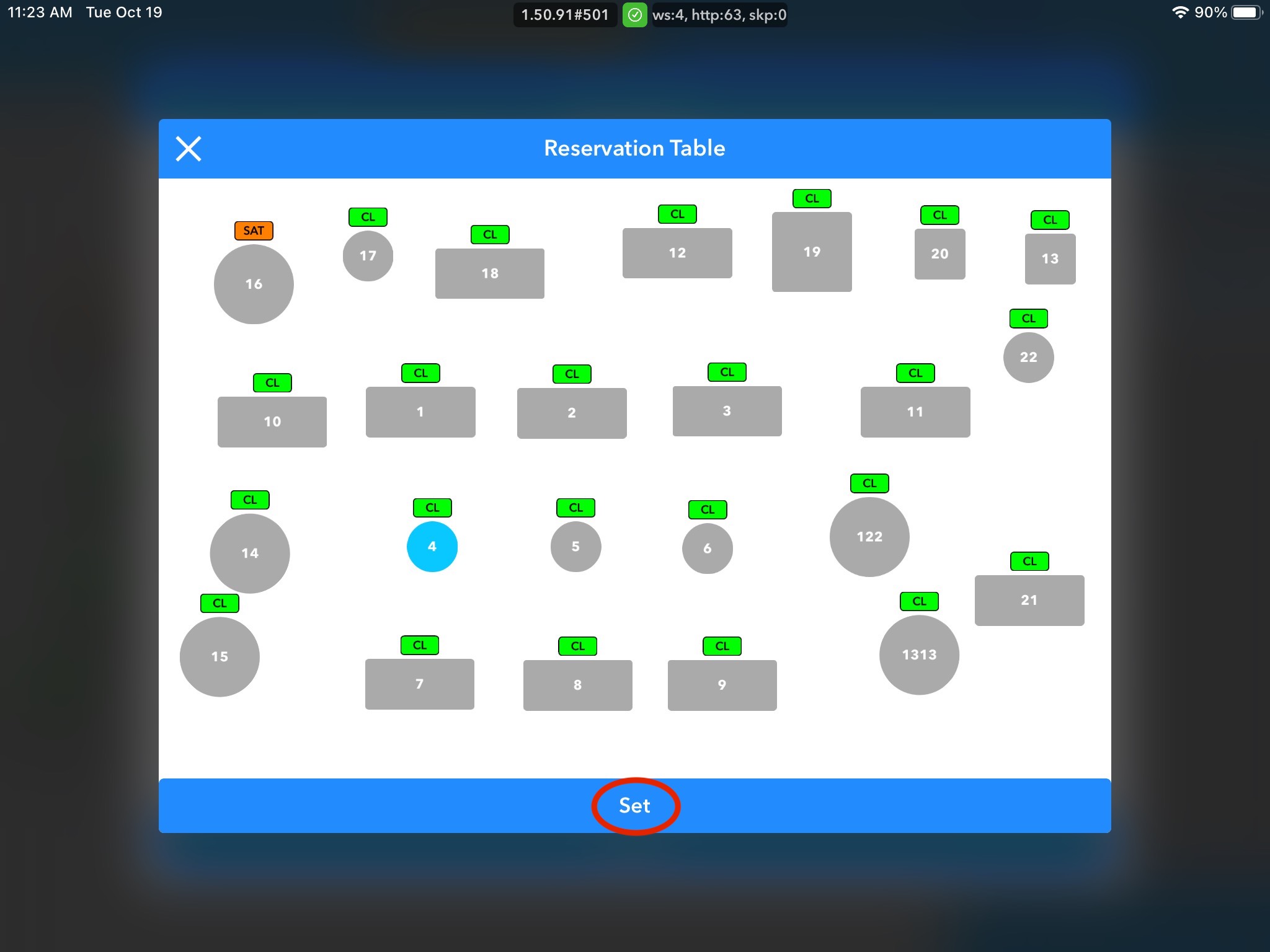
Clicking on the table drop-down will give you another pop-up that shows the venue layout. From here, we can choose which table we want to seat the guest at and press set to confirm our selection.
When we press Set, this will take us back to our edit screen where we can press submit.
We will have to tap on the reservation again and press seat. This time our reservation will go to the table we have designated ahead of time. You can utilize this feature ahead of time if you want to get a head start on the night and seating arrangements.
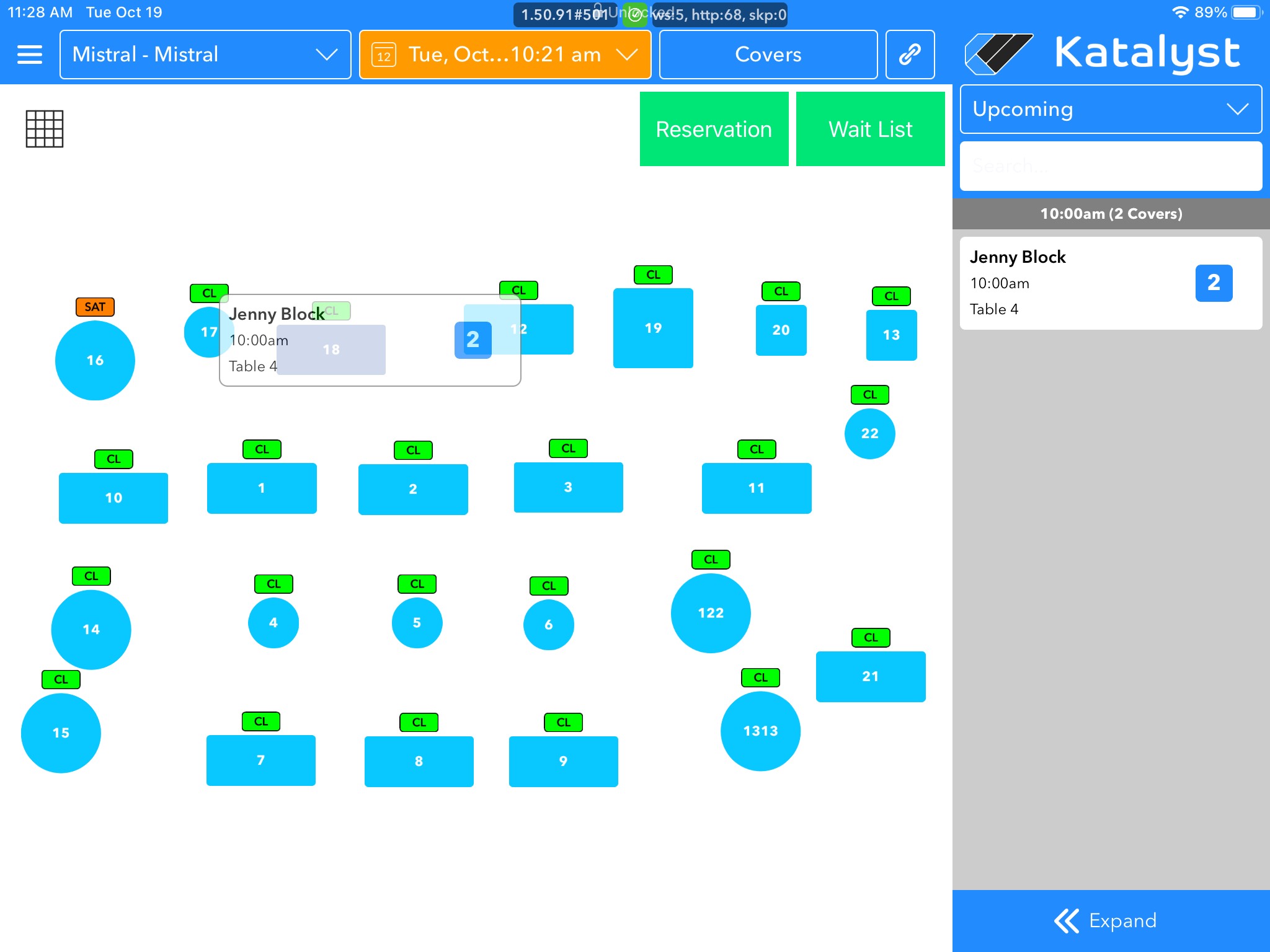
The third, and easiest way, to seat a guest is by tapping and holding the reservation and dragging it to the table you wish to seat them at. The system will ask you to confirm your selection and proceed to seat the table.
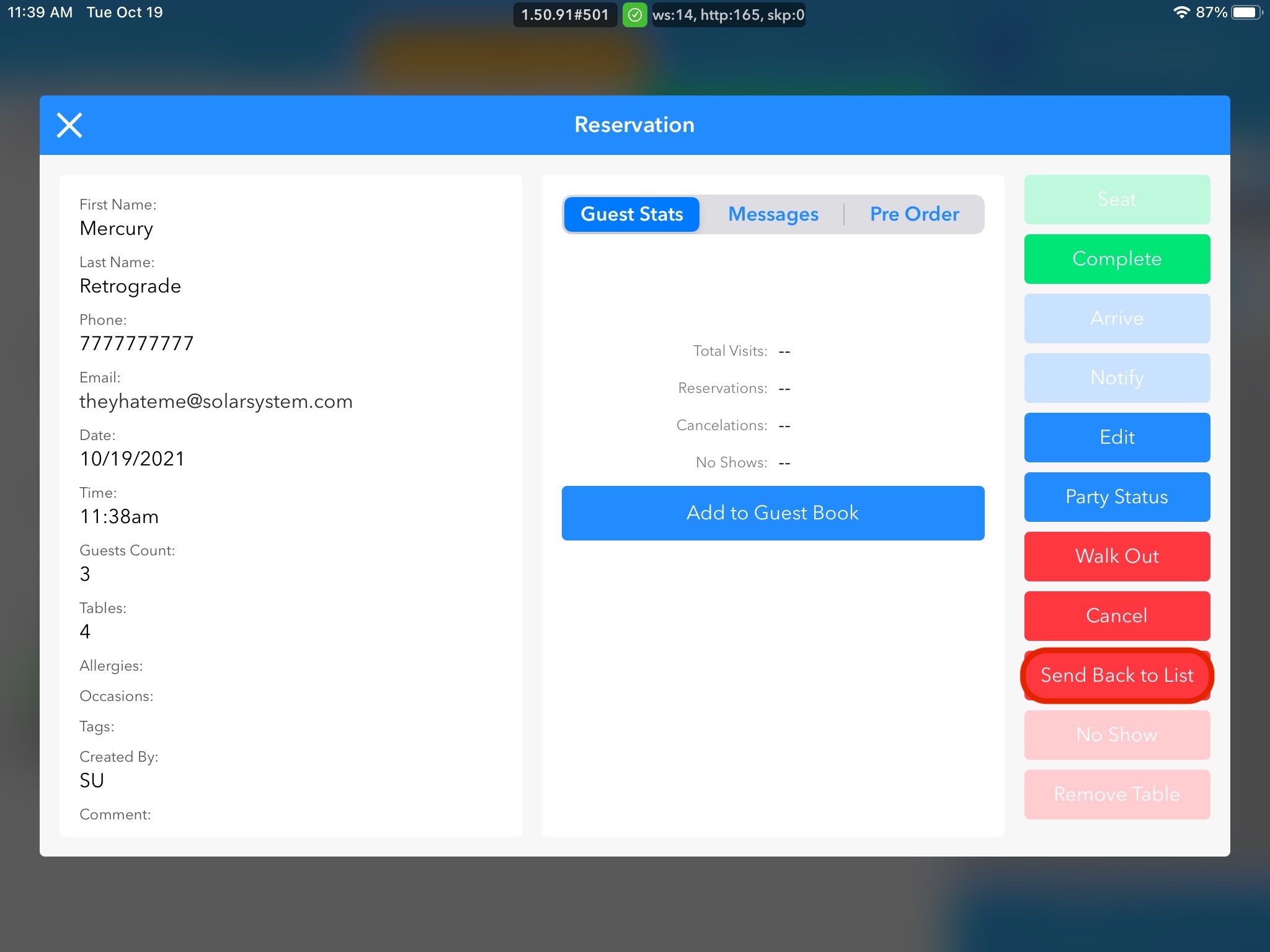
To unseat a reservation, you have two options. Your first option is to click on the reservation that you wish to unseat and click View to view it. A pop-up will appear and we will shift our attention to the red button to the far right of the pop-up. The red buttons will indicate a walkout, a cancel, and send back to the list. For the purposes of this training block, we are looking to send it back to the list. The system will ask us to confirm and we will be sent back to the main page.
The other way to unseat a guest is to use the drop-down menu that shows us upcoming reservations. We will tap here and select current. This will allow us to see all seated reservations. Find the reservation that you would like to unseat and tap on it.
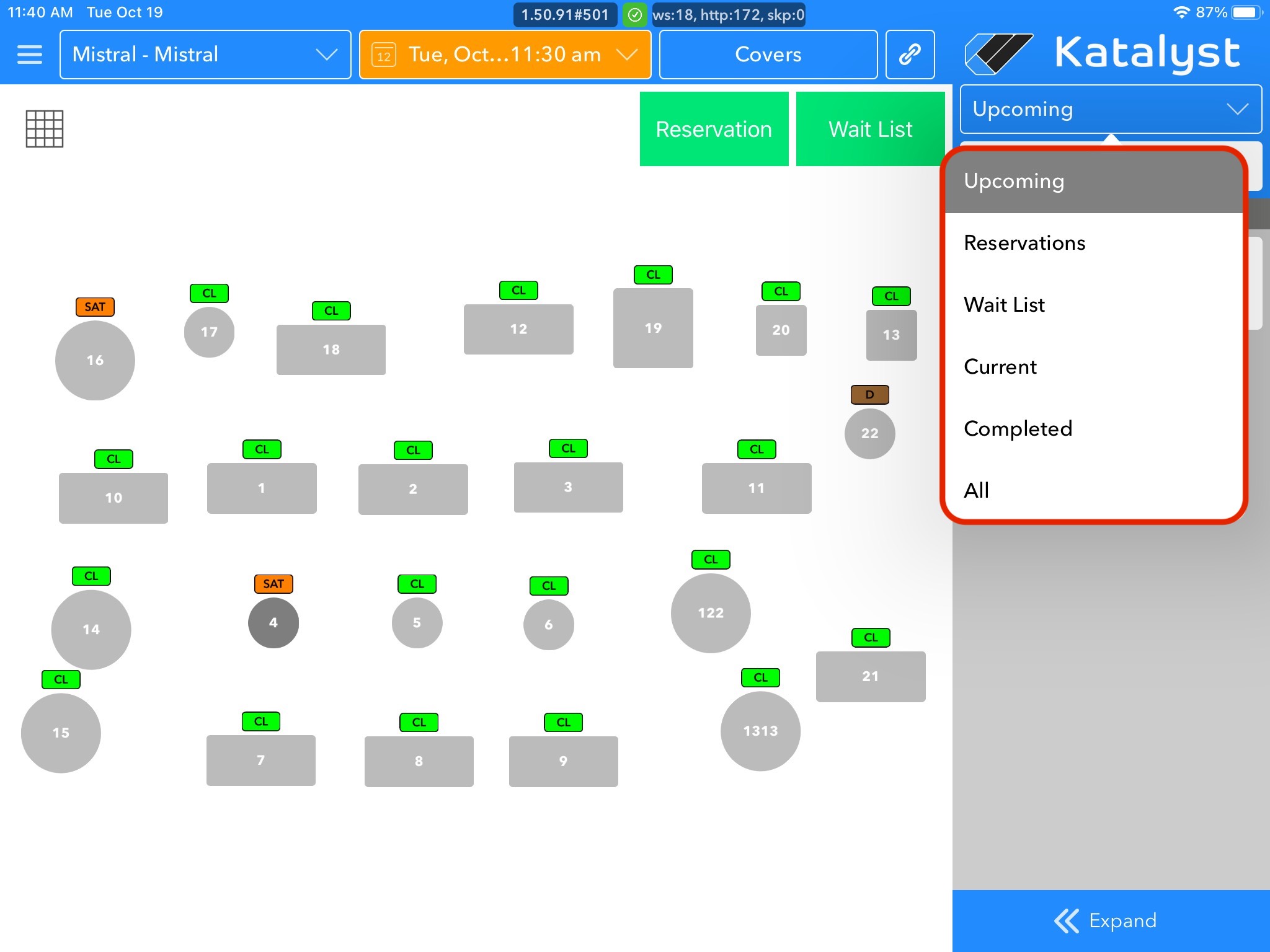
A menu will pop up to the left and we will select Send Back to List which is last on the list. The system will ask us to confirm and then send us back to the home screen.