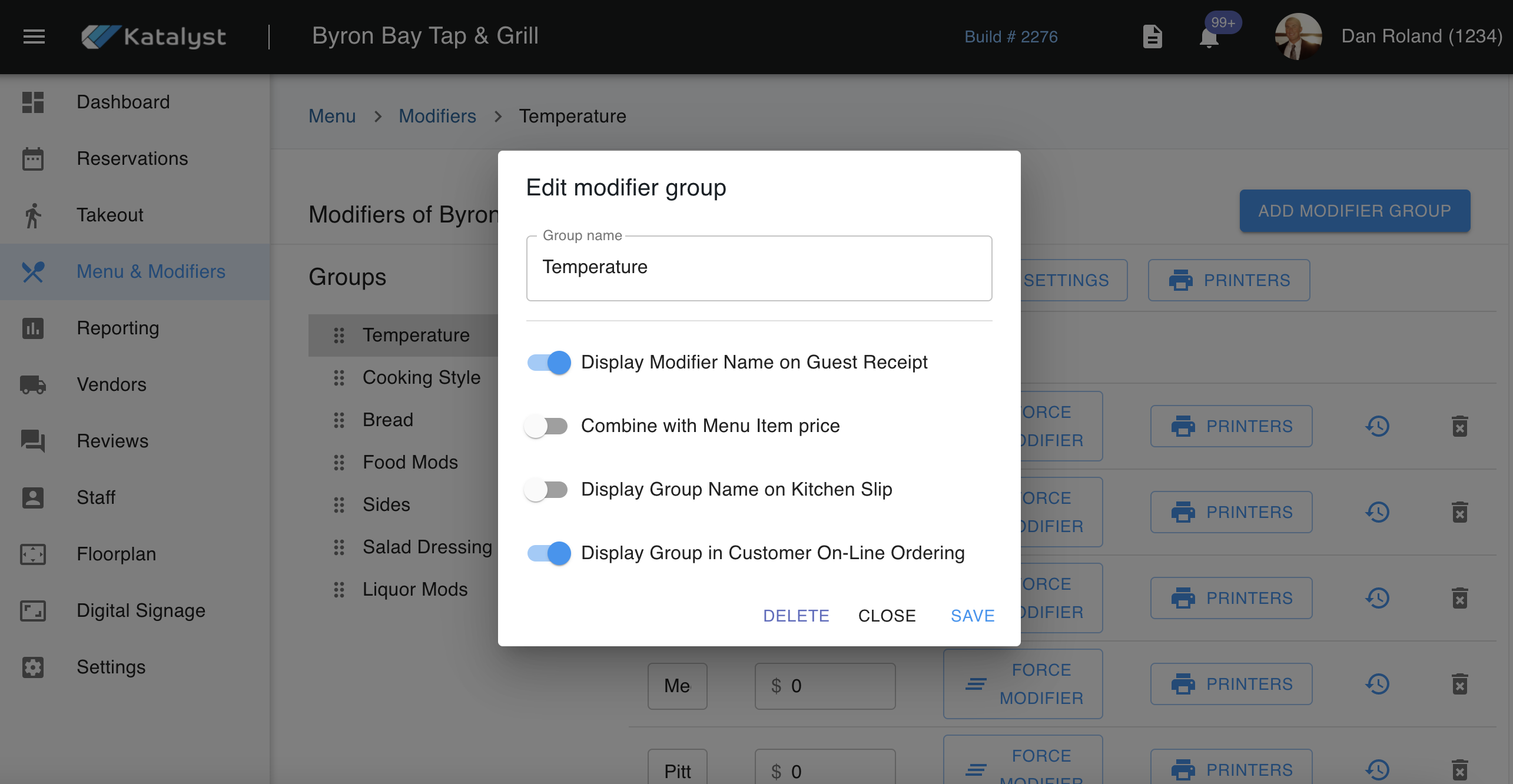
Once we click into Modifiers, this is the page that we will see. If you have multiple revenue centers, your change will affect all revenue centers.
Group is listed by type of modifier. Here we can see one group of modifiers is for temperature, another for the type of salad dressing, and so on. You can have as many of these modifiers as you would like and can add a modifier by clicking the ADD MODIFIER GROUP button to the right.
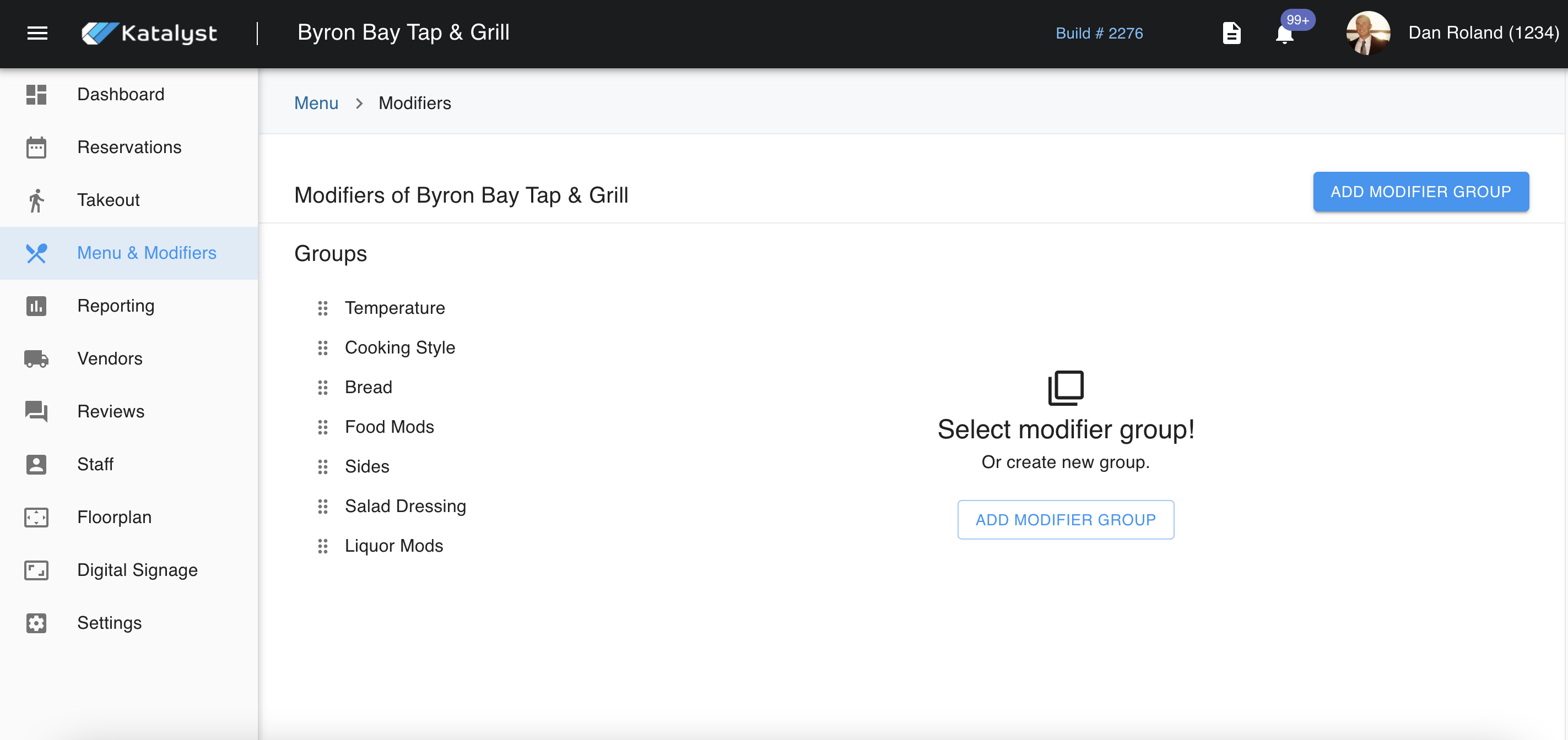
When you click into one of the modifier groups, you will see the options associated with the selected group. In this example, we see that Temperature has been clicked on. This opens up the options within this group. Here the modifier option can be named, and should there be an up-charge, we can add that in as unit price.
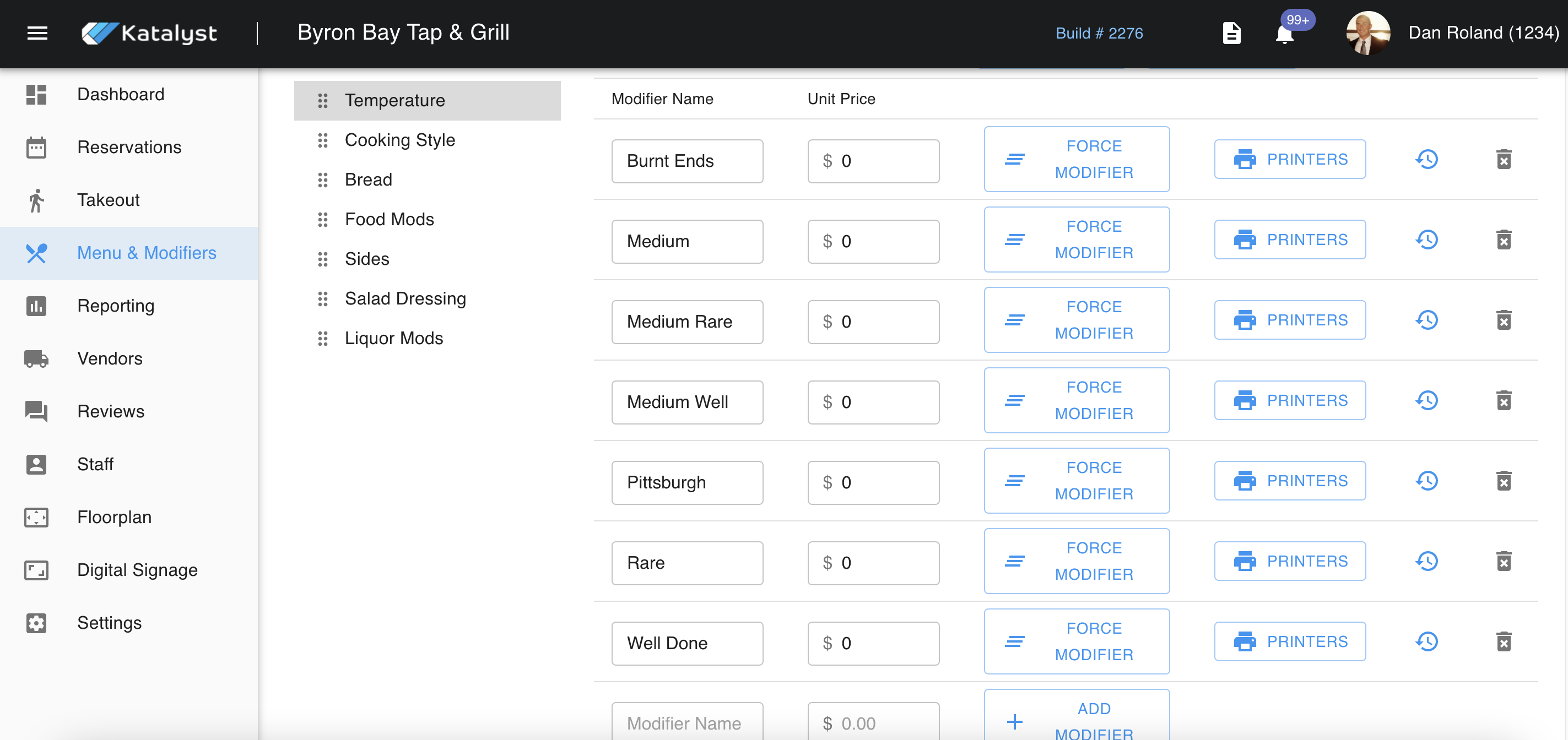
If we were to click into "Force Modifier", this is the menu that would pop up. For example, if someone is going to order a baked potato, they then get the choice to dictate how they want the potato. The force modifier will allow for optional choices. "Modifier for the modifier".
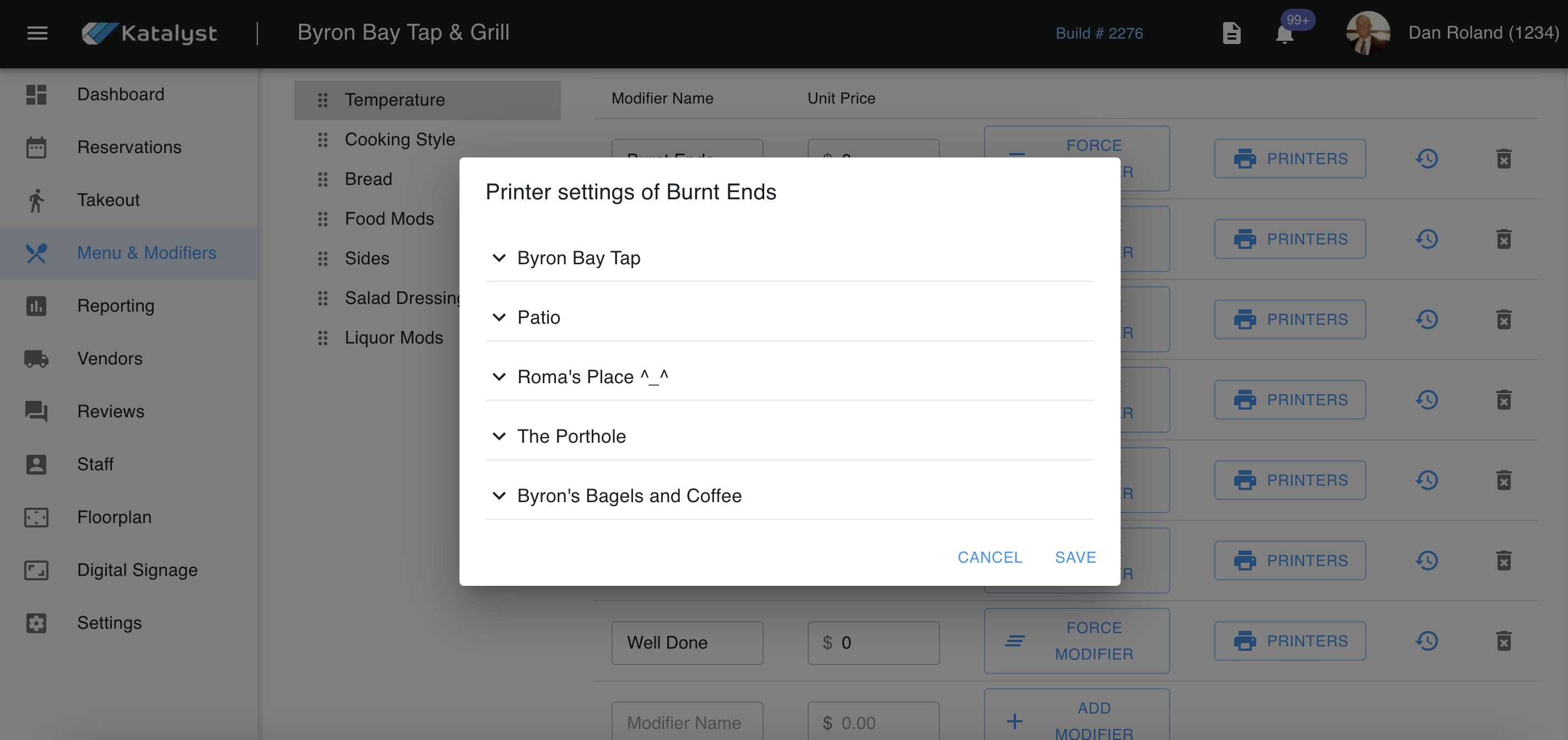
To the left of the Force Modifier is the Printers button. When clicked, this it will open up the Printer settings pop-up. From here you are able to select different revenue center printers. Once you click on a revenue center, it will show all available printers in the center. This is the printer assignment for the modifier. For example, if a patron were to order grilled chicken on their salad, the salad goes to the salad station, but the grilled chicken would go to the grill printer.
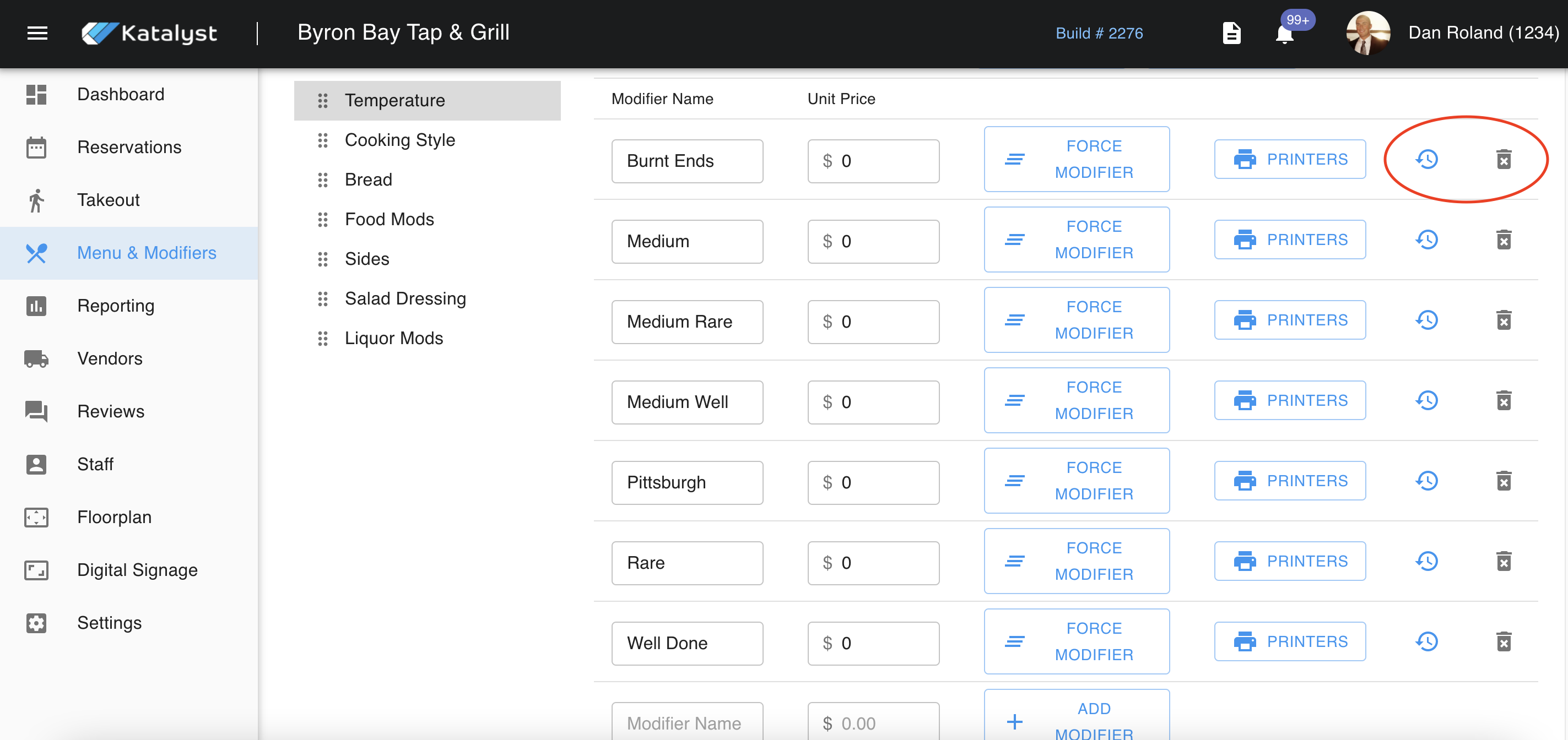
The two buttons to the far right will allow you to look at the history of the modifier or delete it completely. Once the modifier is deleted you can not retrieve it.
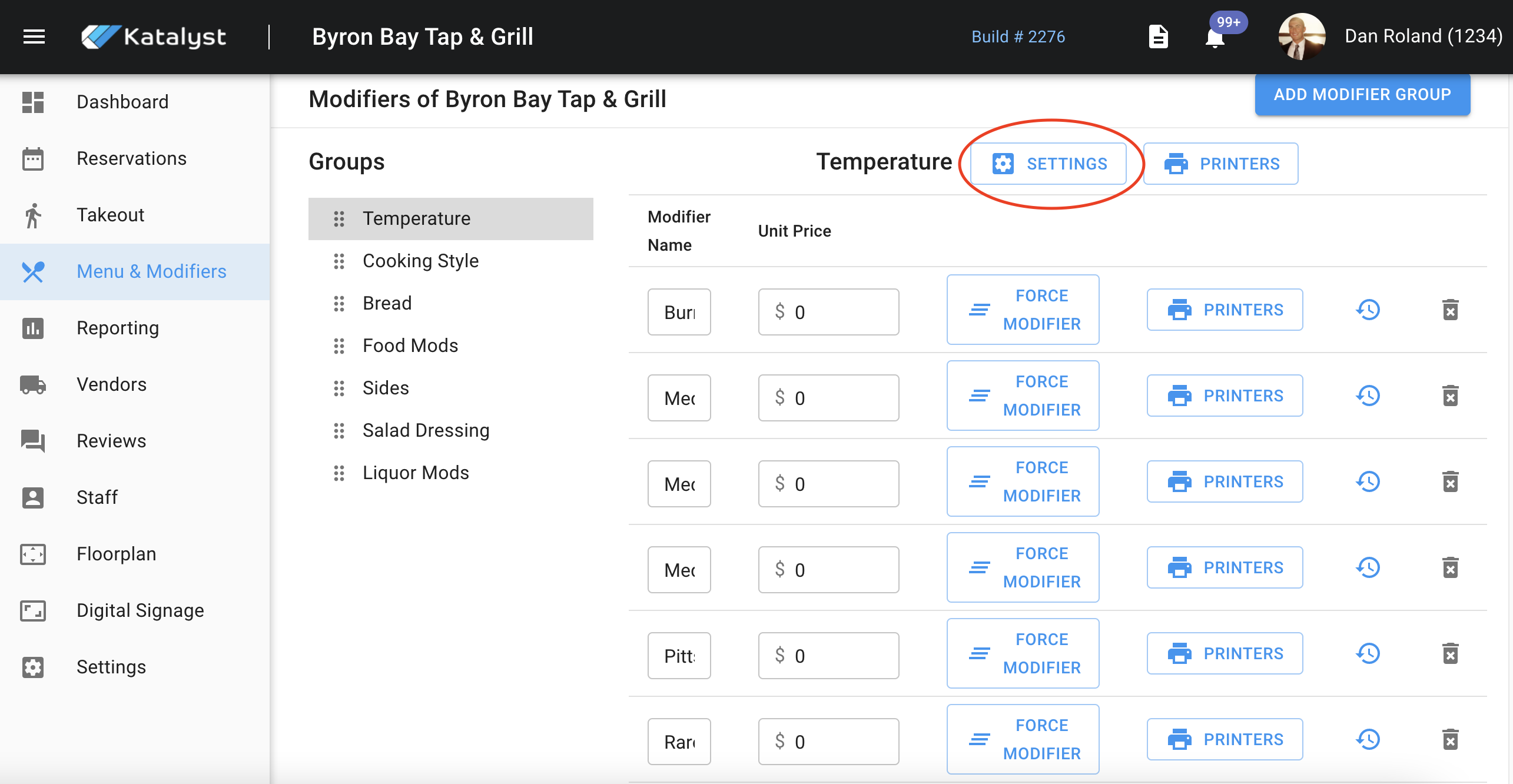
When you click into a modifier group, you will also notice that the settings button appears with another printer's button next to it. While the printer's button here may look similar, it is for the entire group, not just one modifier.
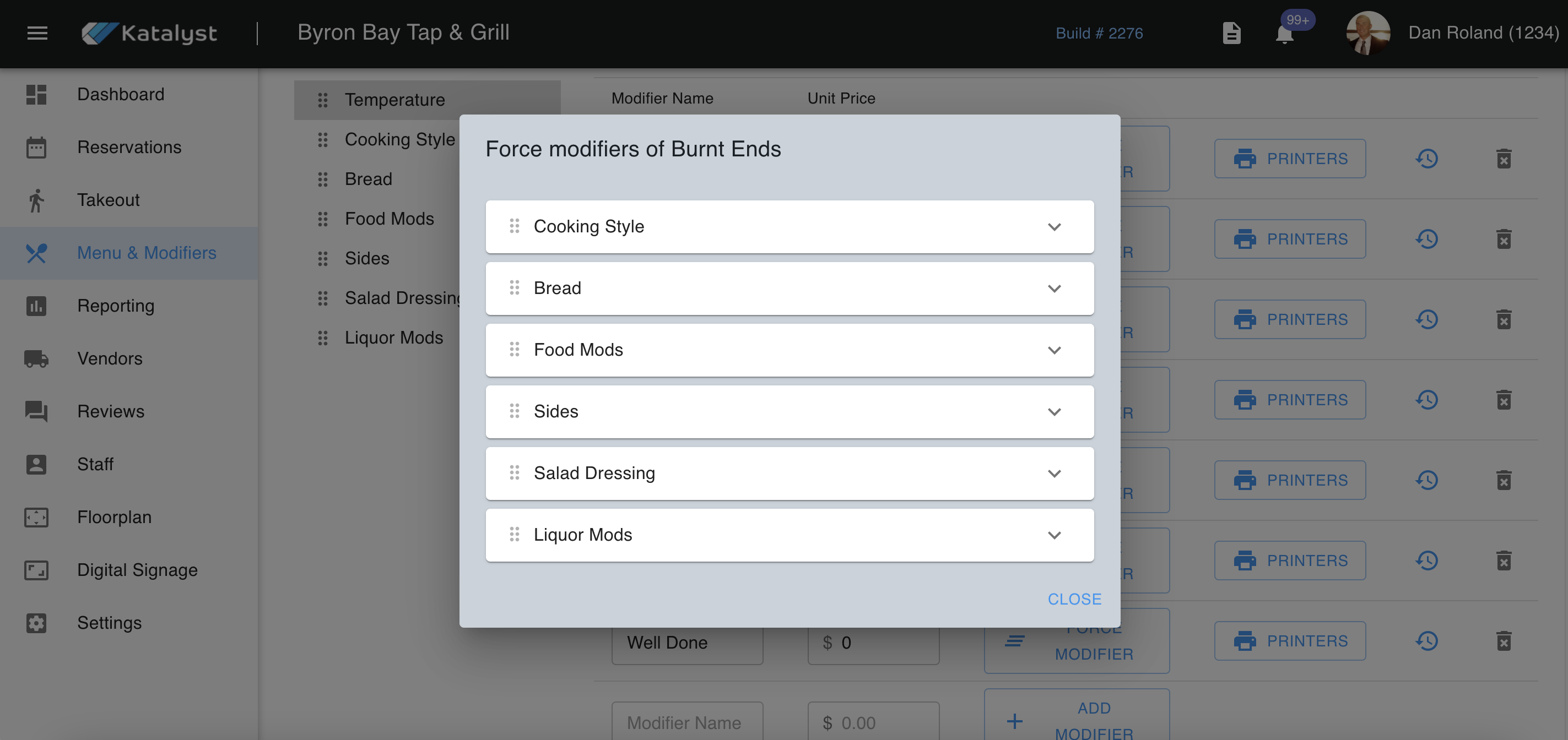
In Settings, you can change the mod group name and control how it is displayed.
- Display modifier name on guest receipt means that the itemized receipt will show the modification
- Combine with menu item price will combine an up-charge for mod to the price of the menu item
- Display group name on kitchen slip will display the group name, as well as what mode was selected. For example, if this were to be toggled to on, the kitchen receipt would read: Steak > Temperature > Medium Rare. If this setting is toggled off, it would show Steak > Medium Rare.
- Display group in customer online ordering will allow customers who are ordering online to see the group name or just see the modification options.
If any changes are made be sure to save them.