From Guest Checks, you're able to look at all checks that are open, paid, closed, or all. You can filter through these options by clicking on whichever view you desire using the selections at the top of the screen.
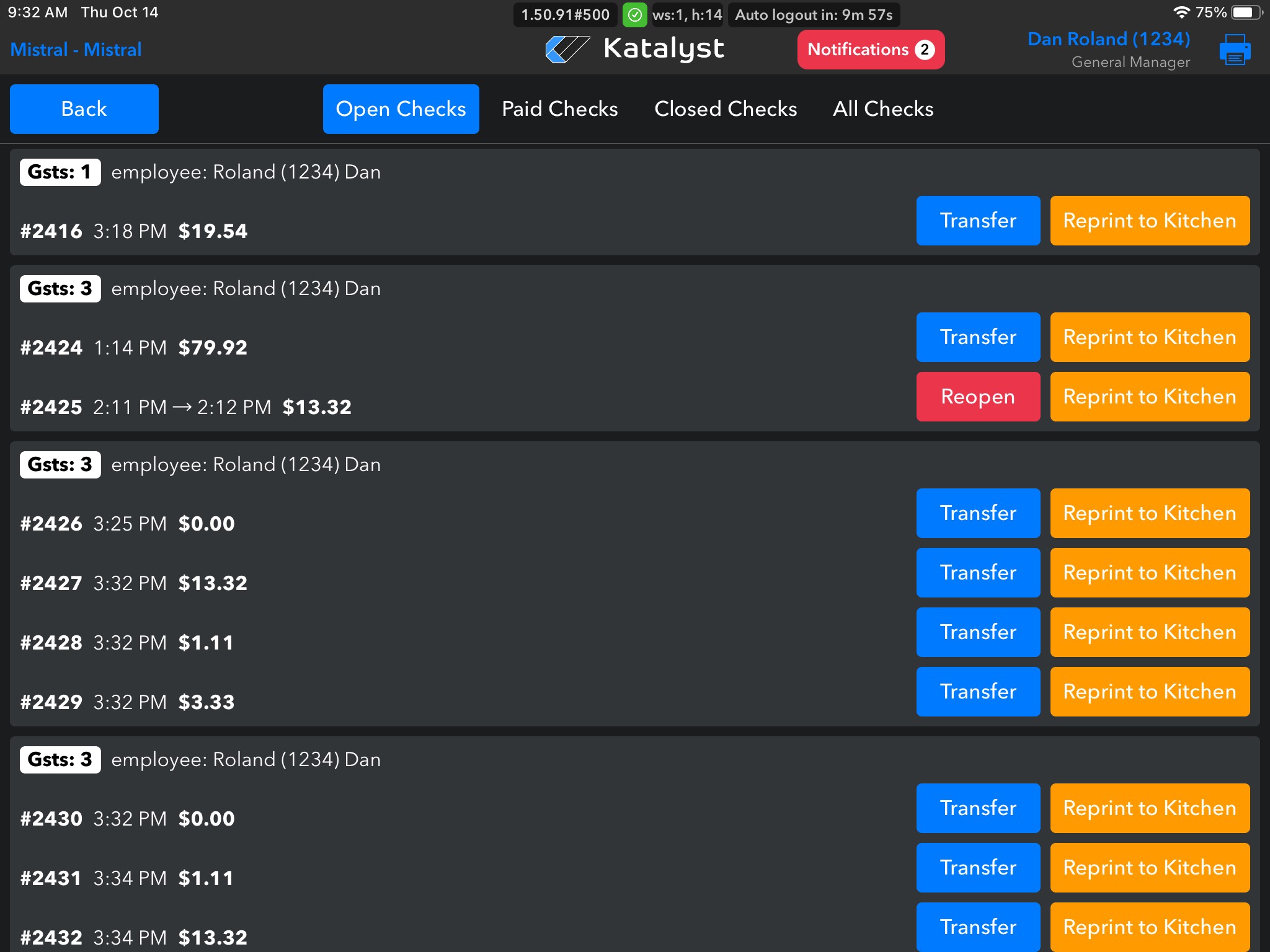
From Open Checks, you can see all checks that are currently open. From here you can transfer or reprint to the kitchen. A transfer will only be an option if the check is open.
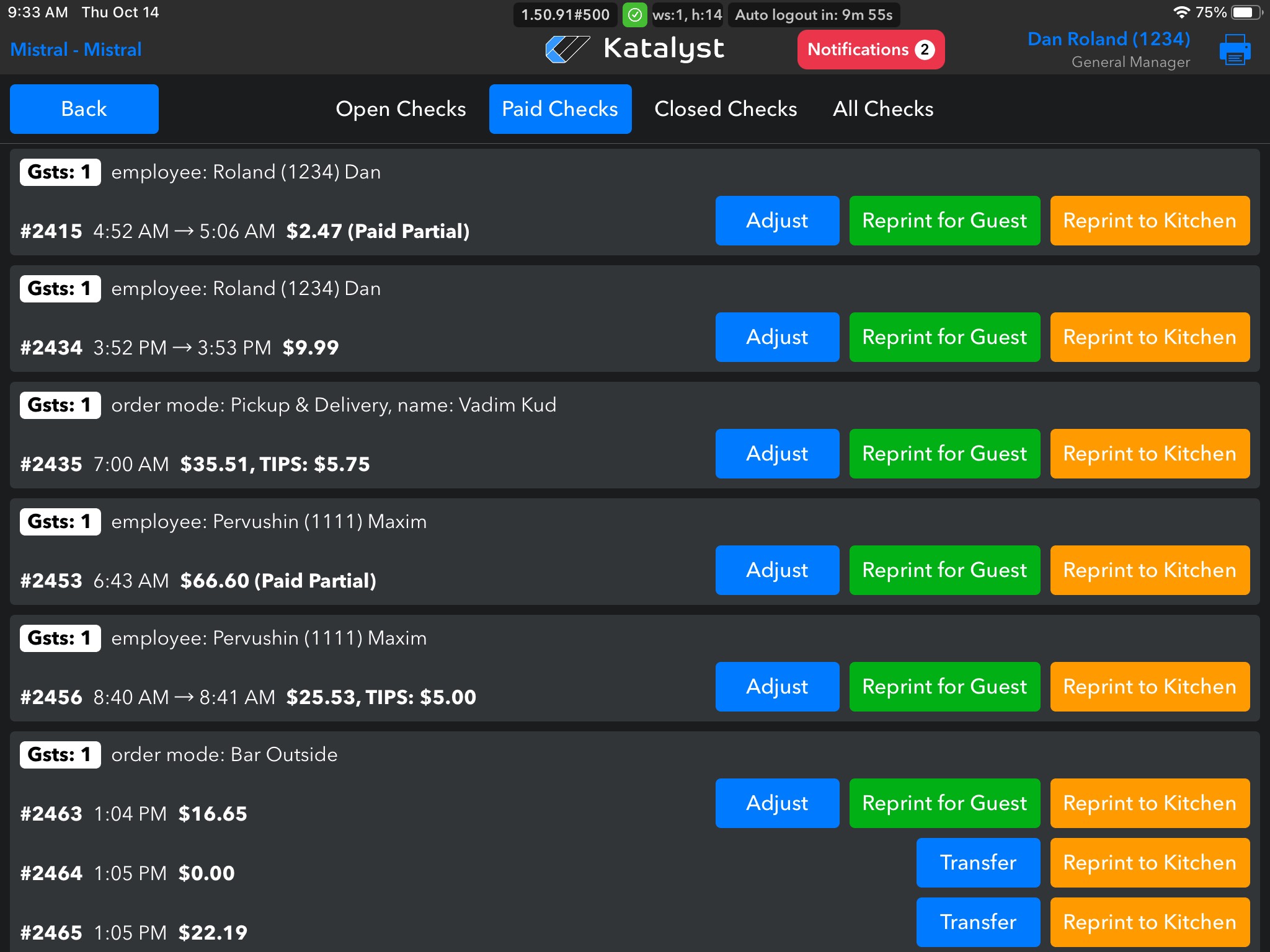
If the check is Paid but not closed, it will appear under Paid Checks. From here, you are able to Adjust, Reprint for Guests, and Reprint to Kitchen.
If you need to make an adjustment to the payment, you can click on Adjust and a new screen will appear that will allow you to show what the payment type was. Once selected, this will auto-populate the fields for the amount charged, tip, and total. From here, you can adjust a tip, but you can not make any changes to comps from here.
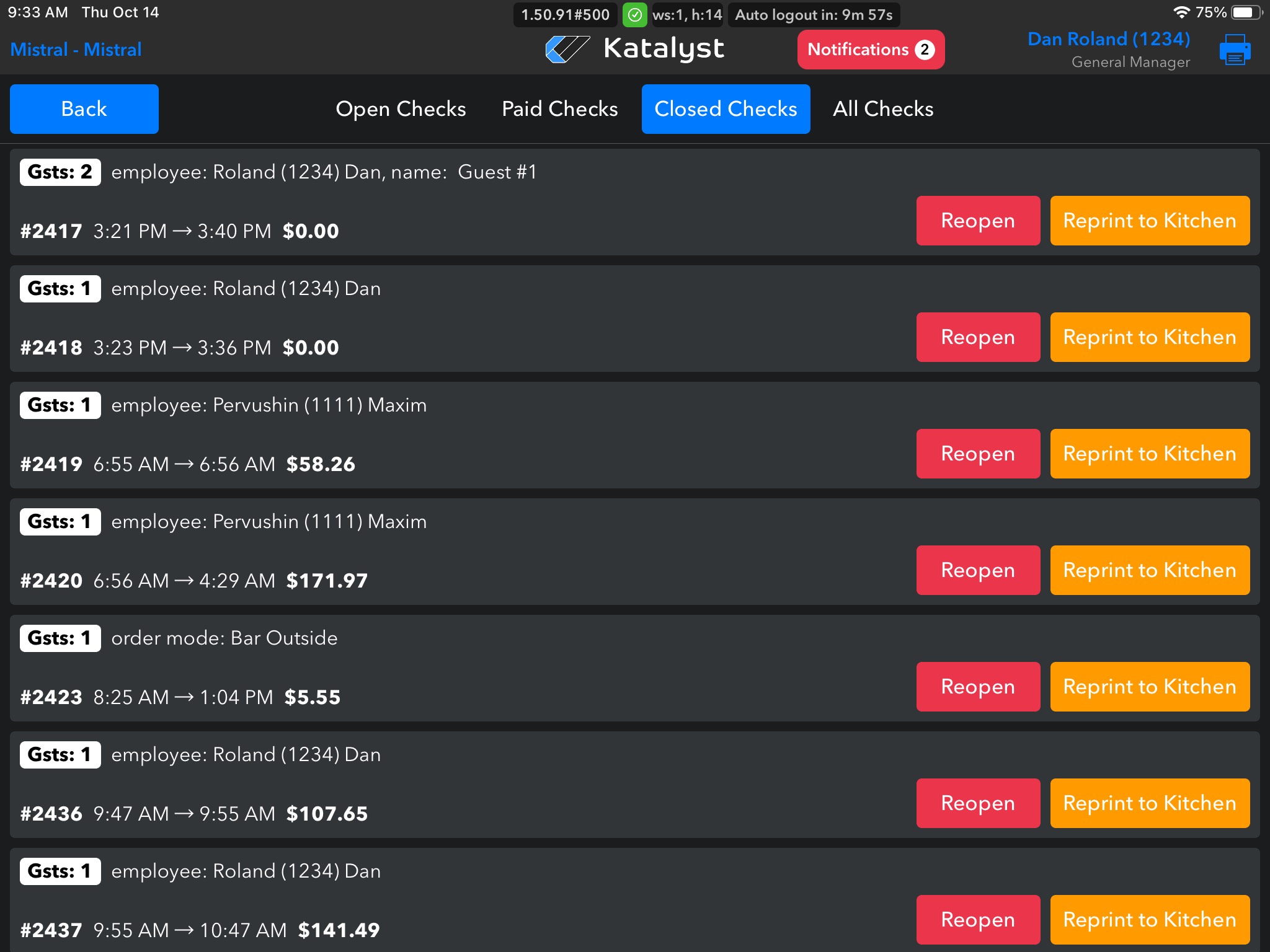
If you need to reopen a check, you can do so by finding it in either closed or all checks, and clicking Reopen. Once you click reopen, you will be able to see the check via the ordering screen and it will be moved from Closed Checks to Paid Checks. From here, you can treat the check pretty much the same as if it hadn't been closed at all.
Please note that if the check was batched, you will not be able to access the checks from here. In this case, you would need to access your restaurant web account to make the changes. If the changes are financial in nature, such as a refund, you may need to reach out to your processor. We are unable to issue refunds or make changes on this level as we do not store any customer financial information on our end.