There are Many Ways to Troubleshoot a Printer - If All Else Fails, Call Your Support Team for Help
Kitchen Printer - options to follow in order below:
-
- Check to make sure the iPad is connected to the correct WiFi network
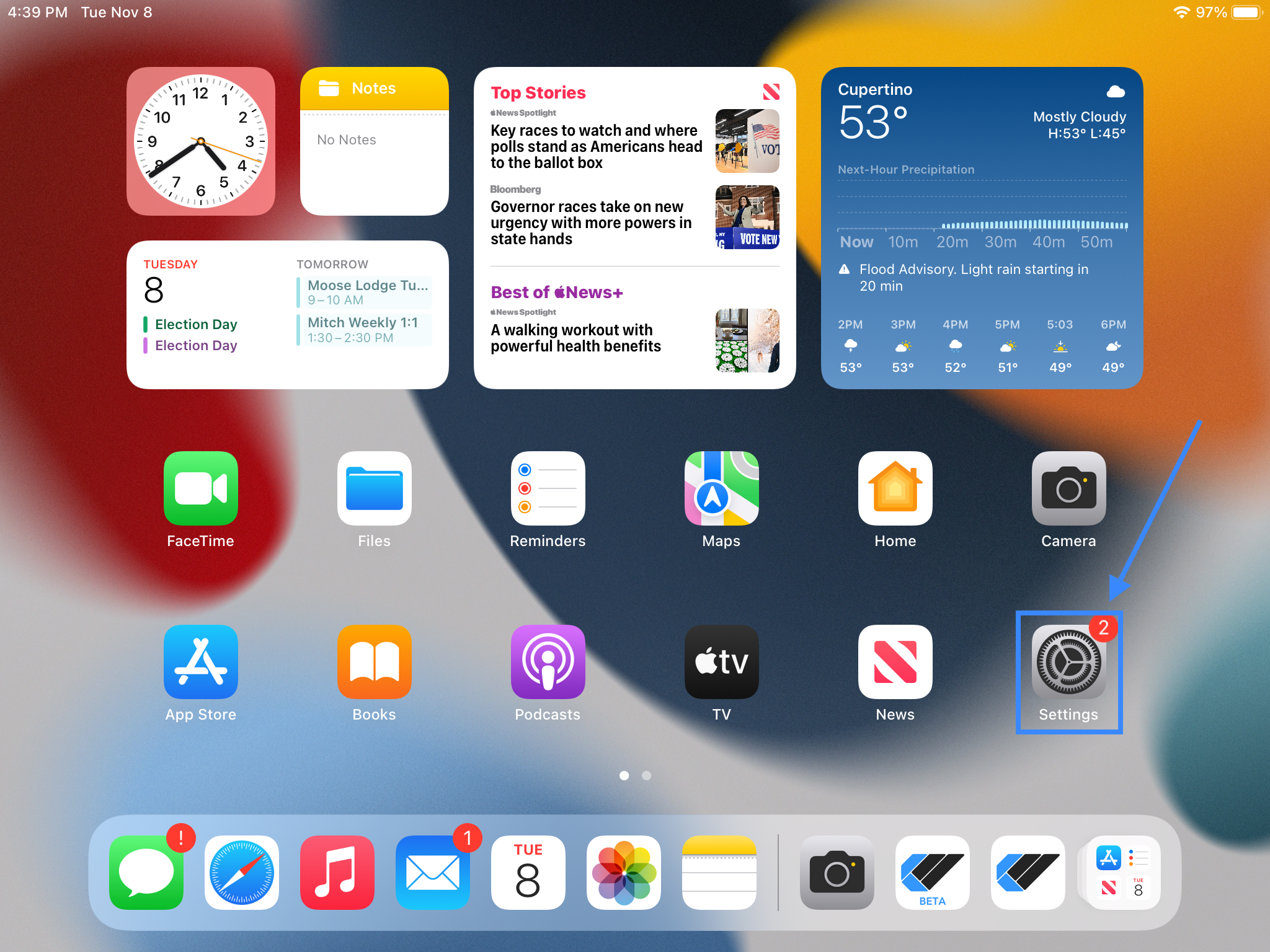
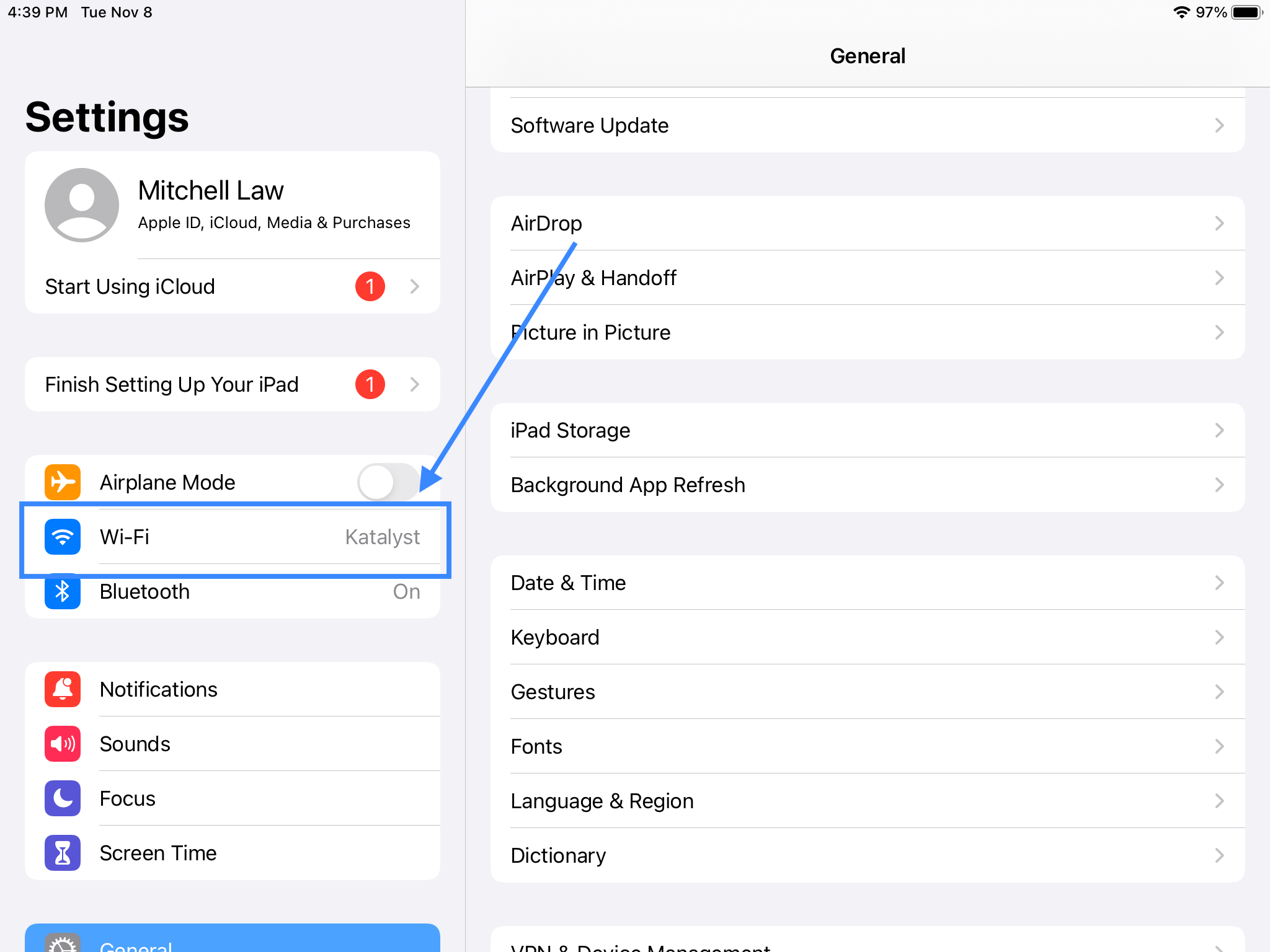
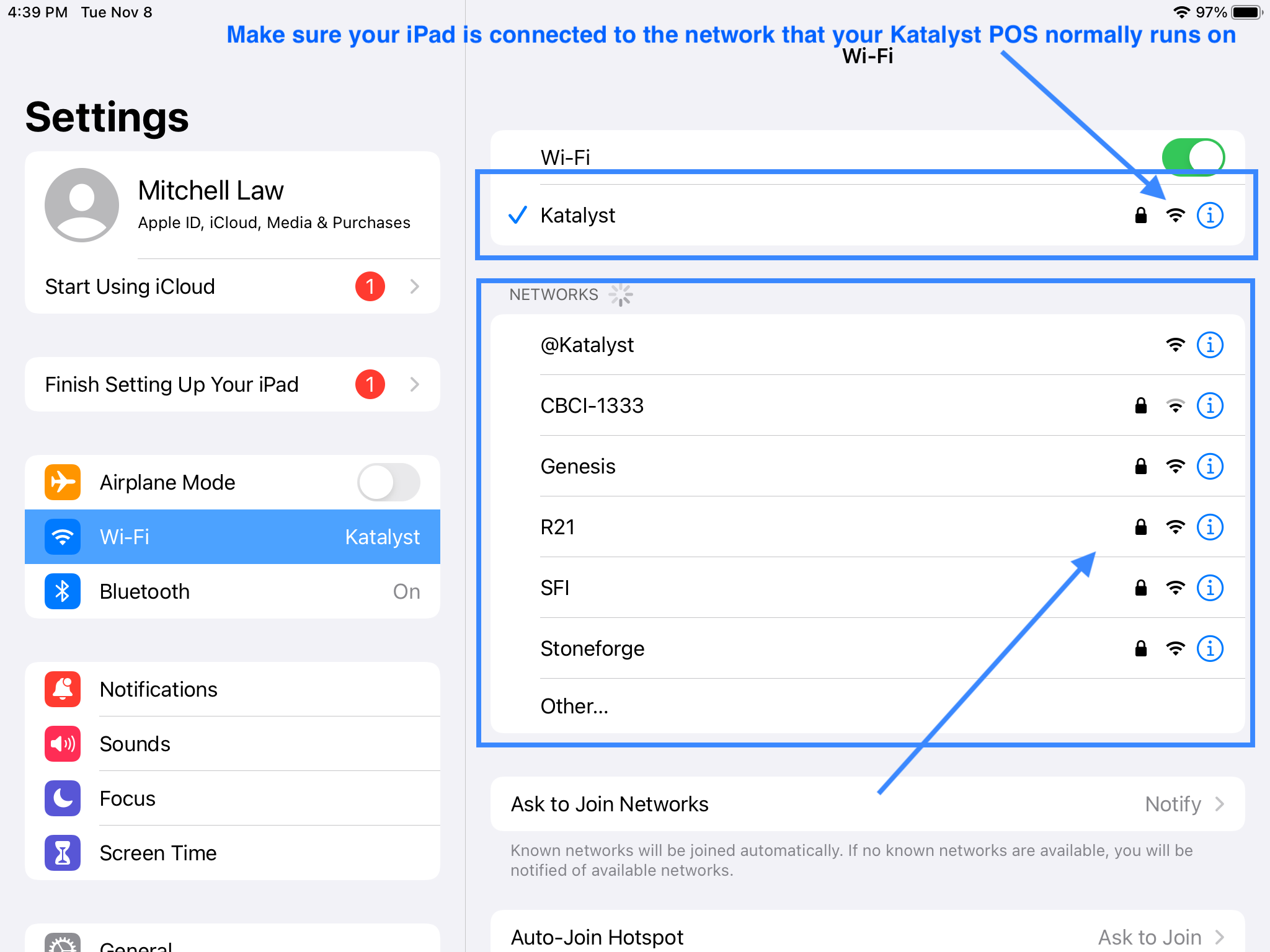
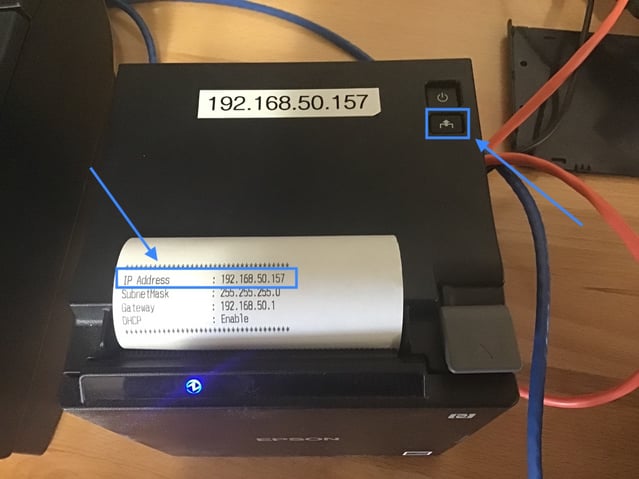
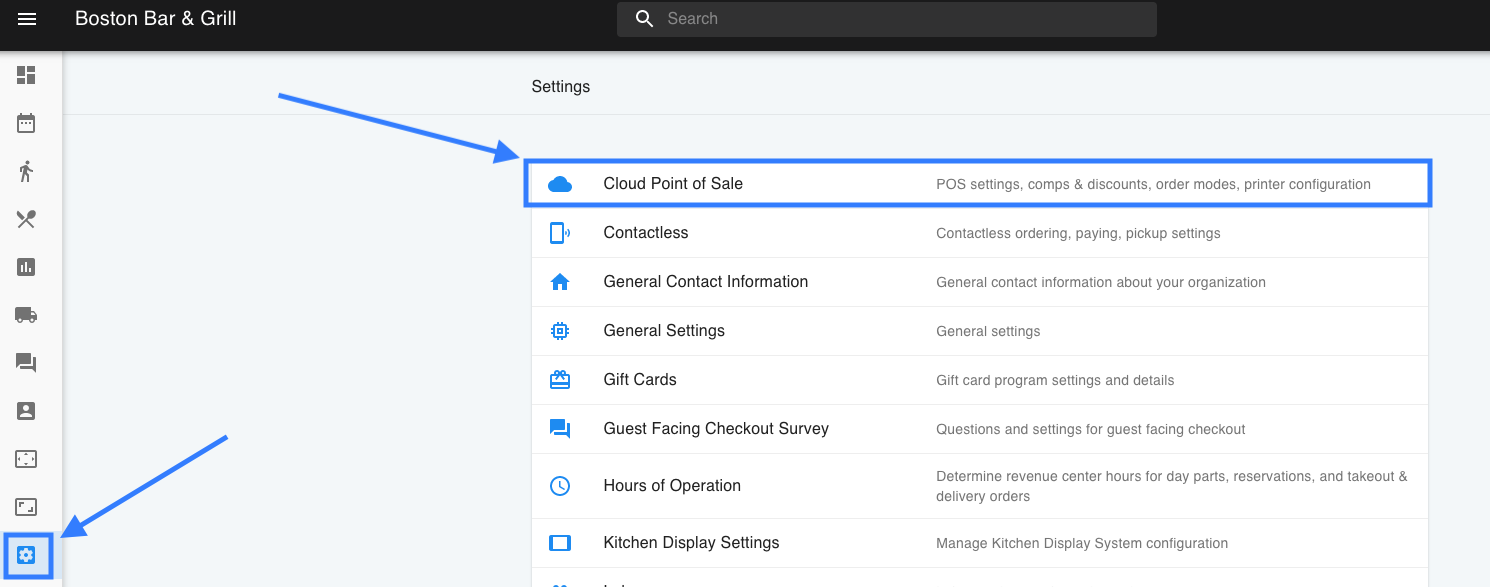
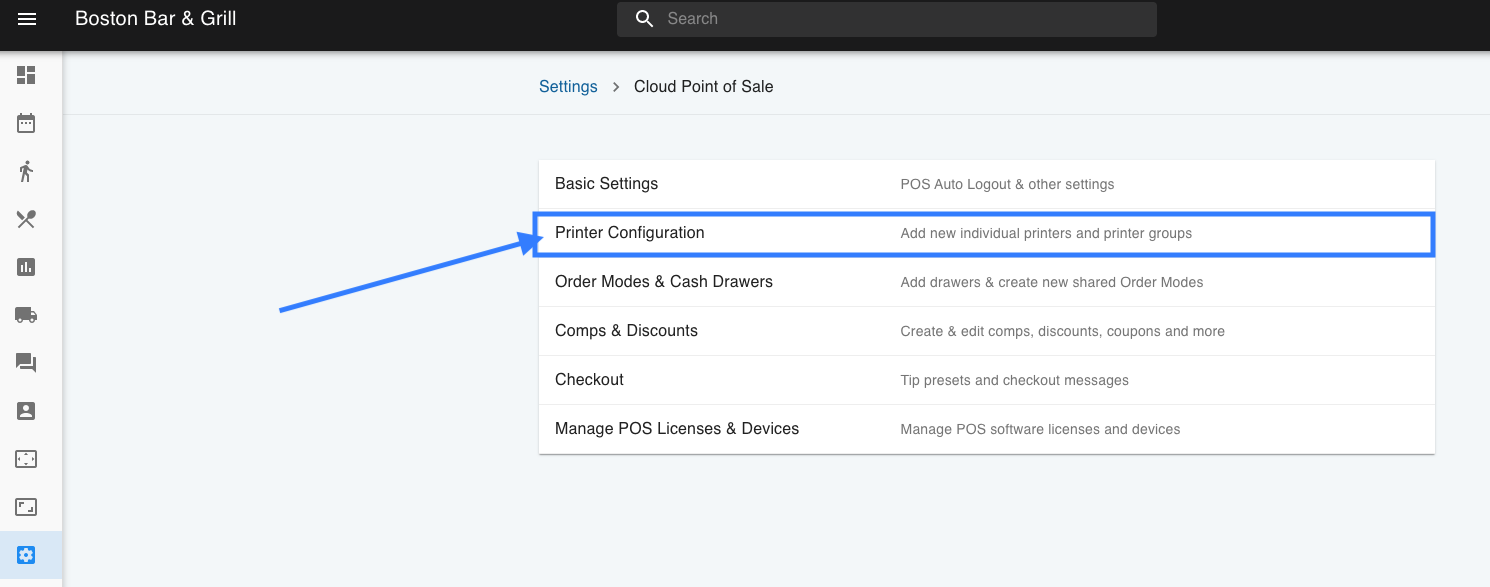
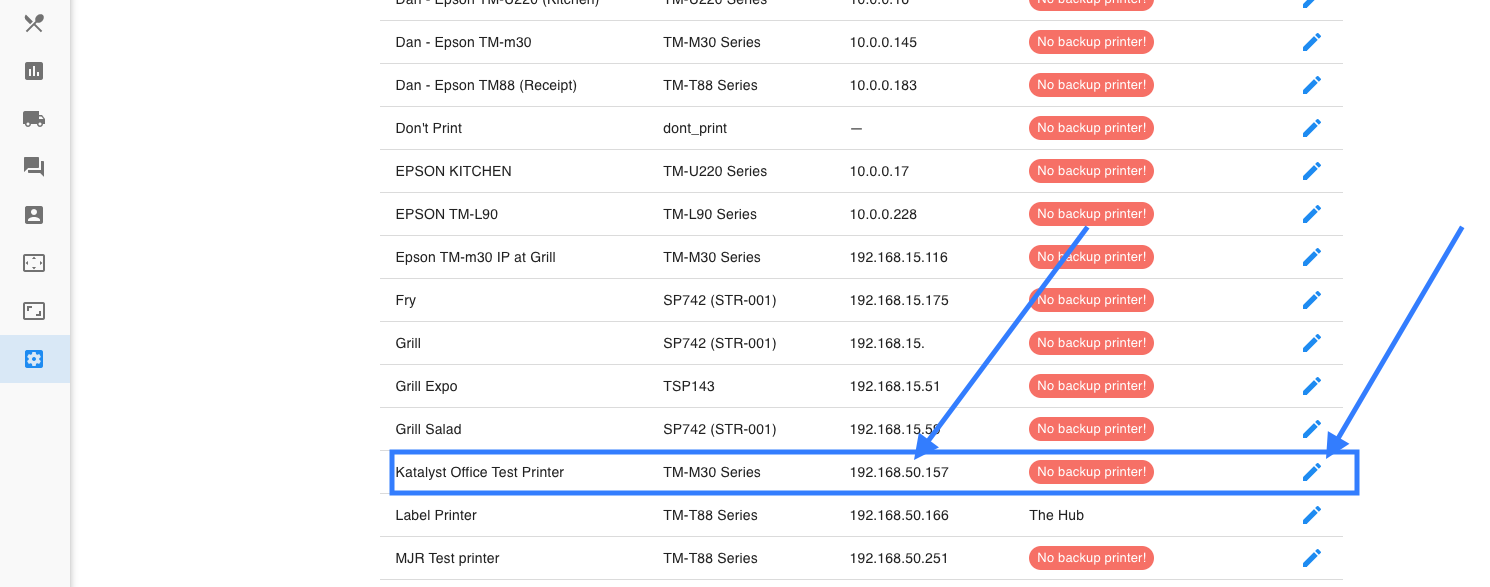
- Turn Off/On the printer; check that the IP address matches to the same printer in your web account. To get the IP address of the printer, turn off the printer. Wait 5 - 10 seconds. Then press and hold the feed button on the printer. Keep holding the feed button and turn back on the printer. Keep holding the feed button. A first slip will print out. After the first slip prints, press the feed button again and a second slip will print out that contains the IP Address. See below screen shot for verification of what the second IP address slip will look like
- Check to make sure the iPad is connected to the correct WiFi network
 c. Check to make sure there is (the correct type of) paper and no paper bits inside the printer itself (blow out the pieces if necessary)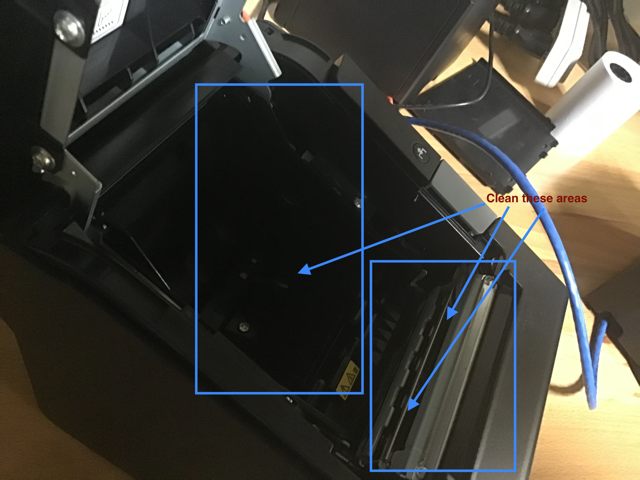
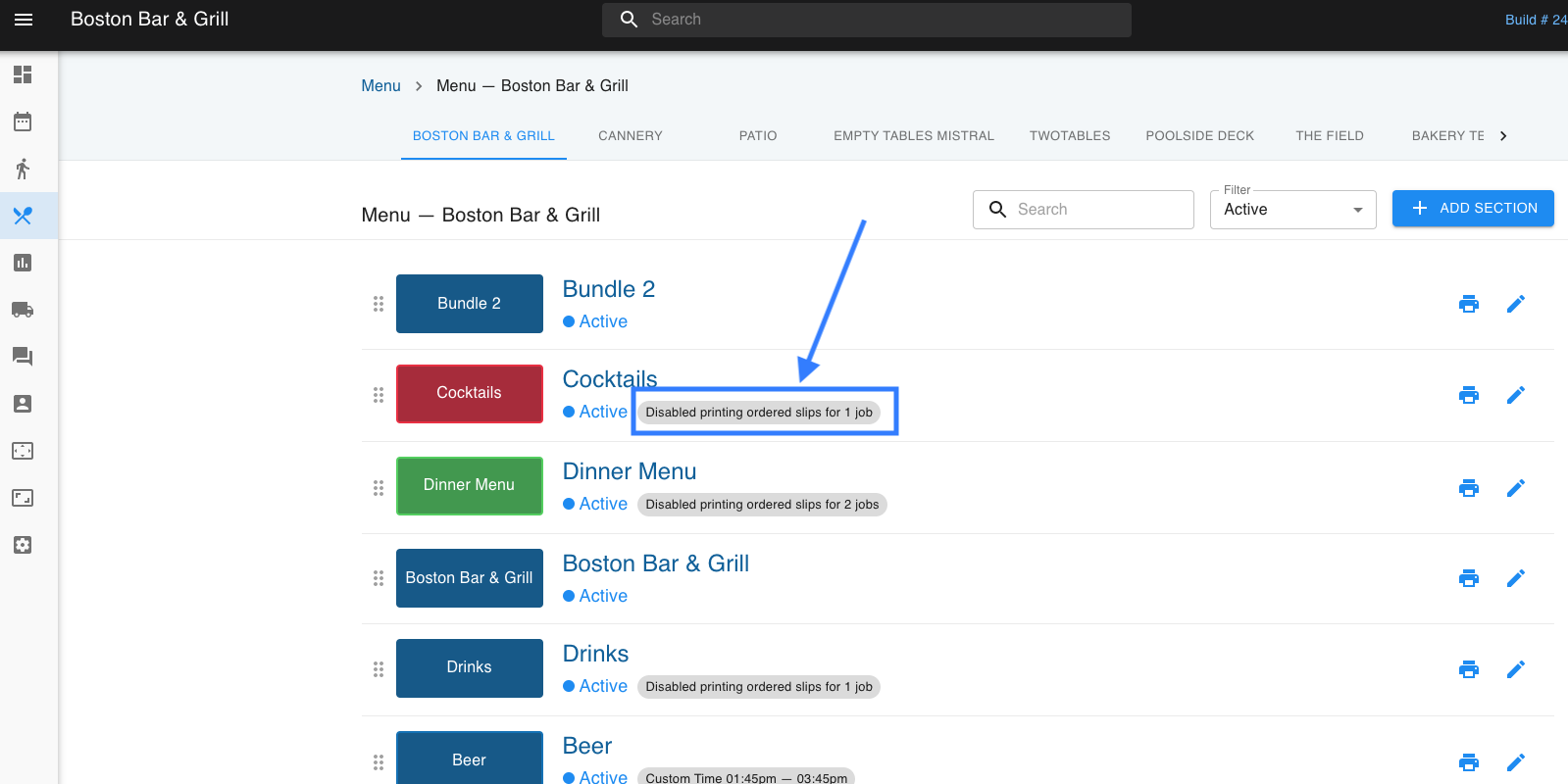
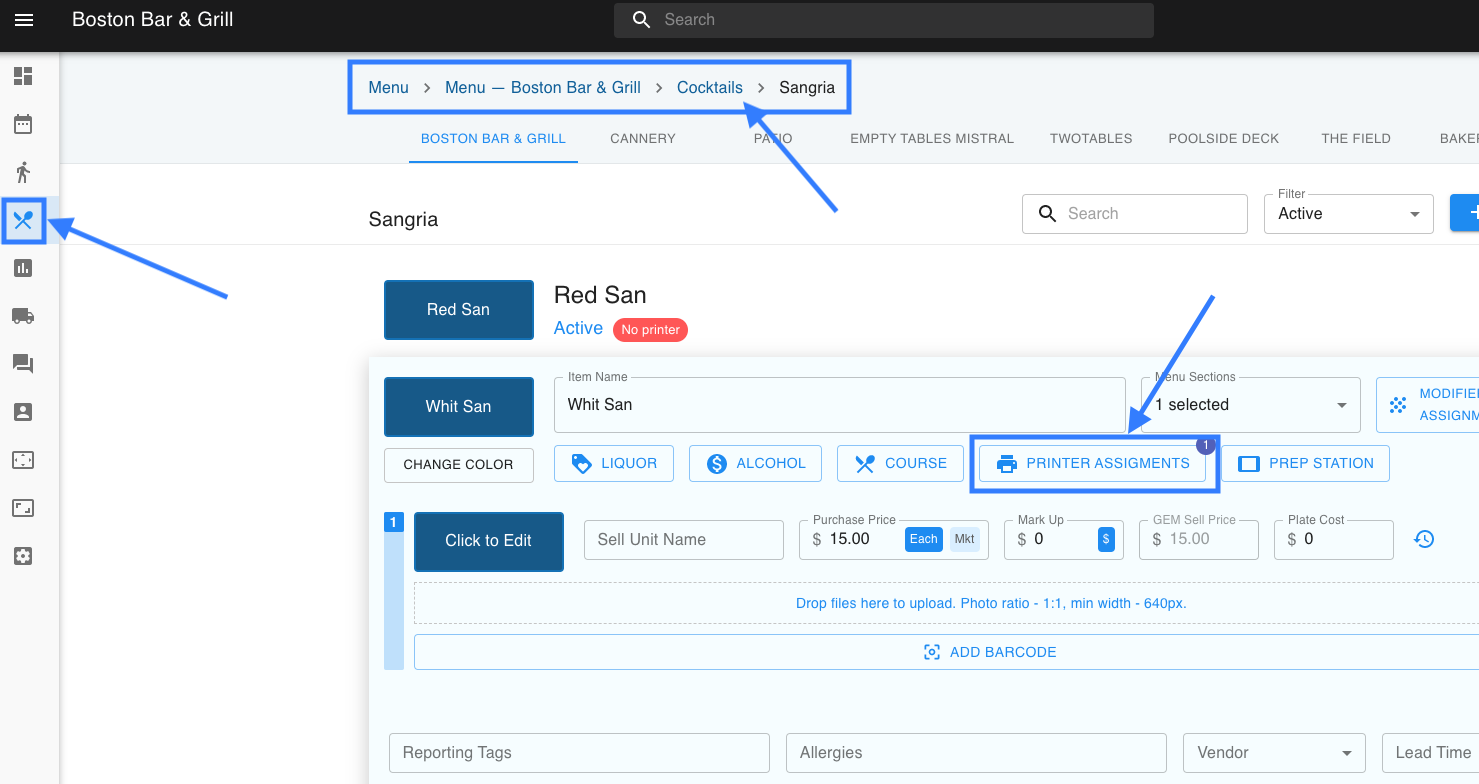
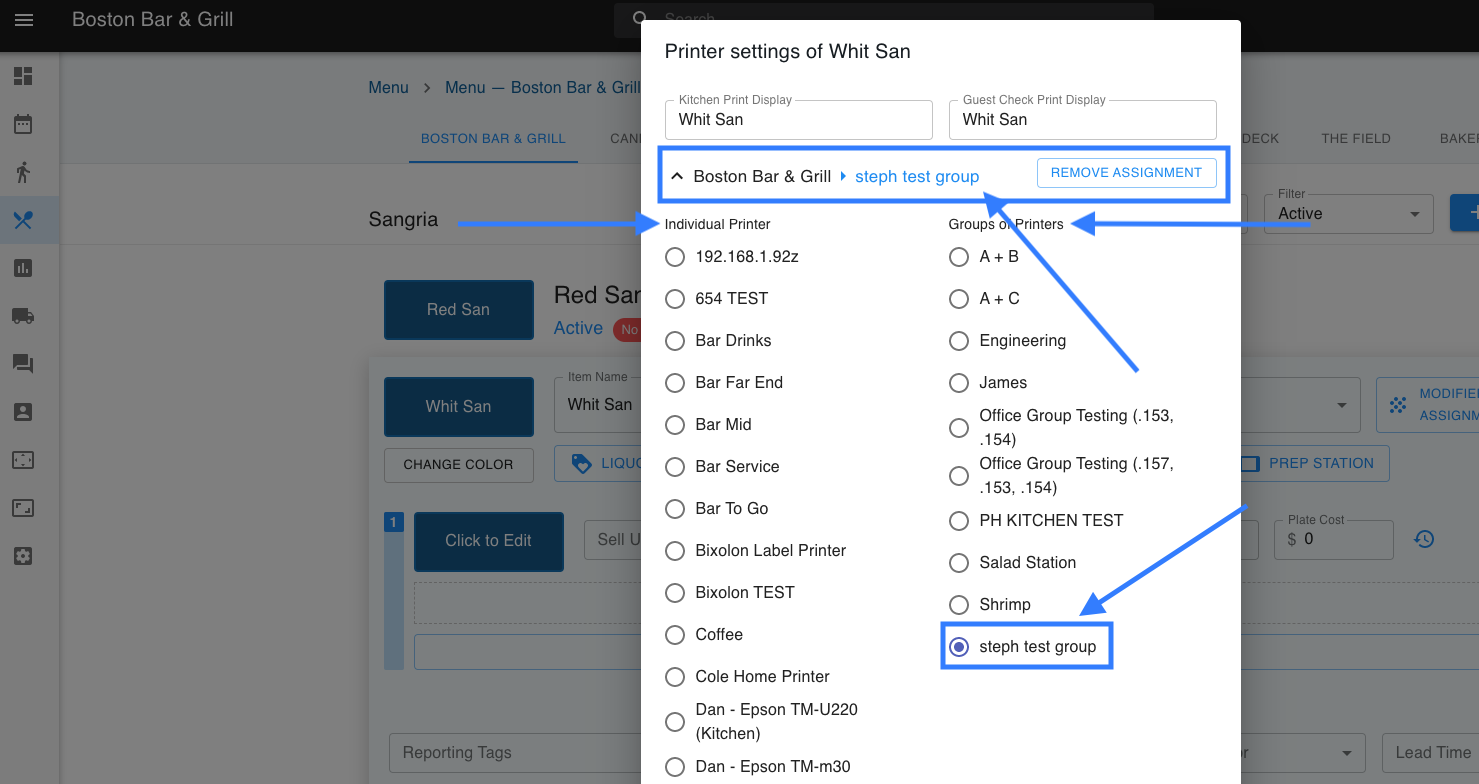
d. In your Restaurant web account, check to make sure the items have the correct Printer Assignment
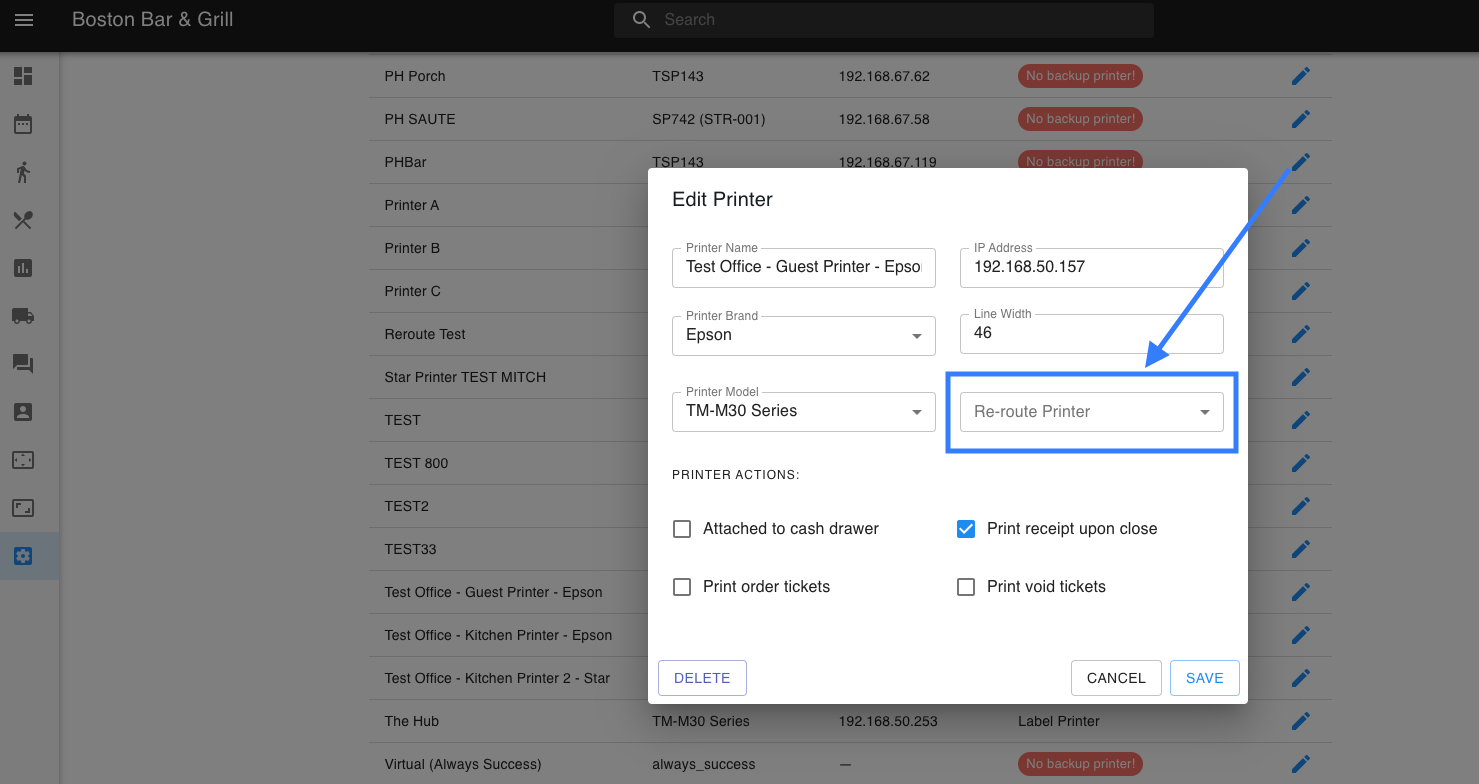
 e. Try selecting a backup printer in the Restaurant web account
f. We recommend getting the cabling checked out; it could be a bad wire.
g. Is there ink on the ribbon? If this is happening, the complaint will be that the printer will spit out the blank paper
Guest Printer - options to follow in order below:
-
- Check to make sure the iPad is connected to the correct WiFi network (See above screenshots for reference)
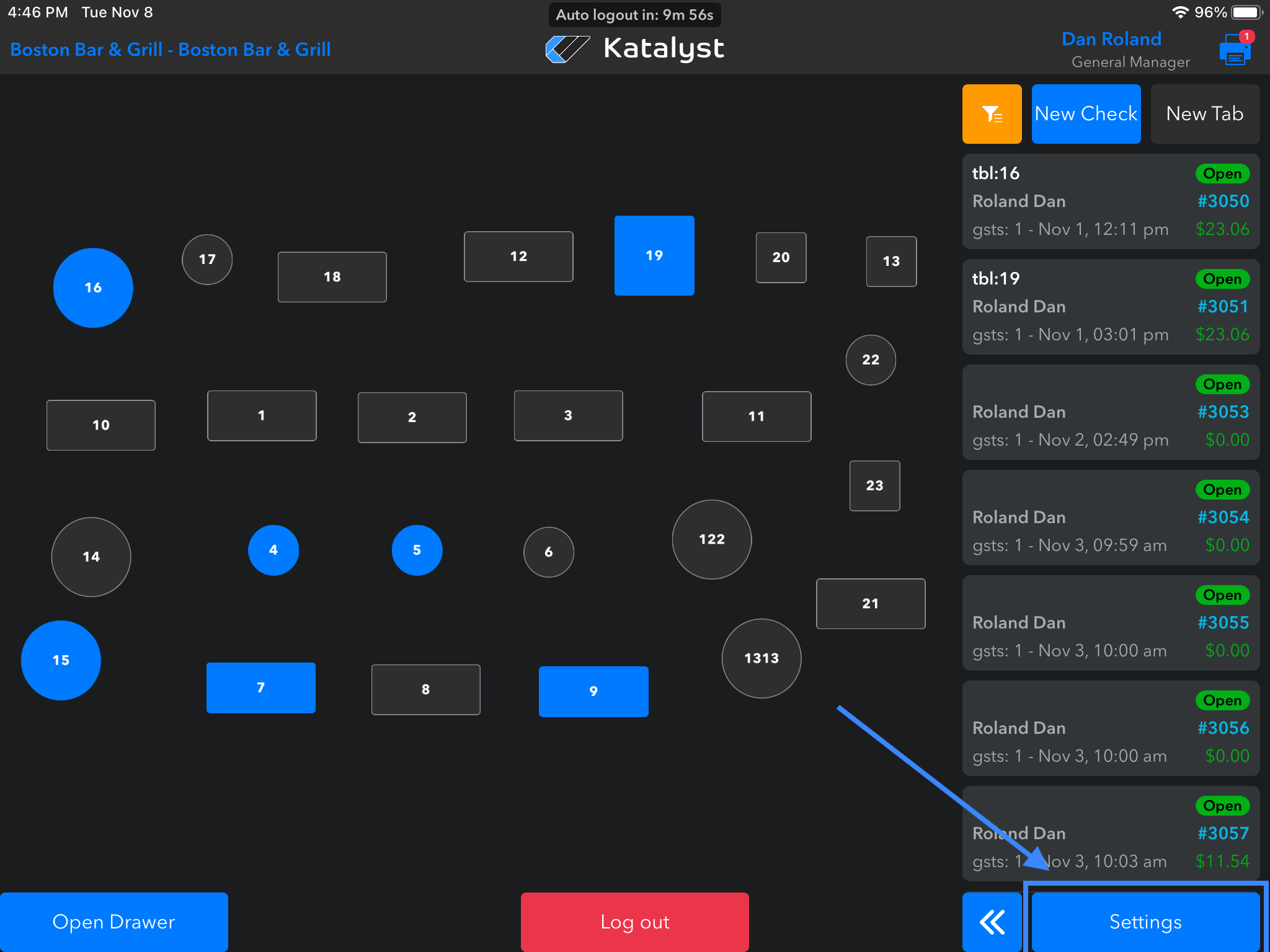
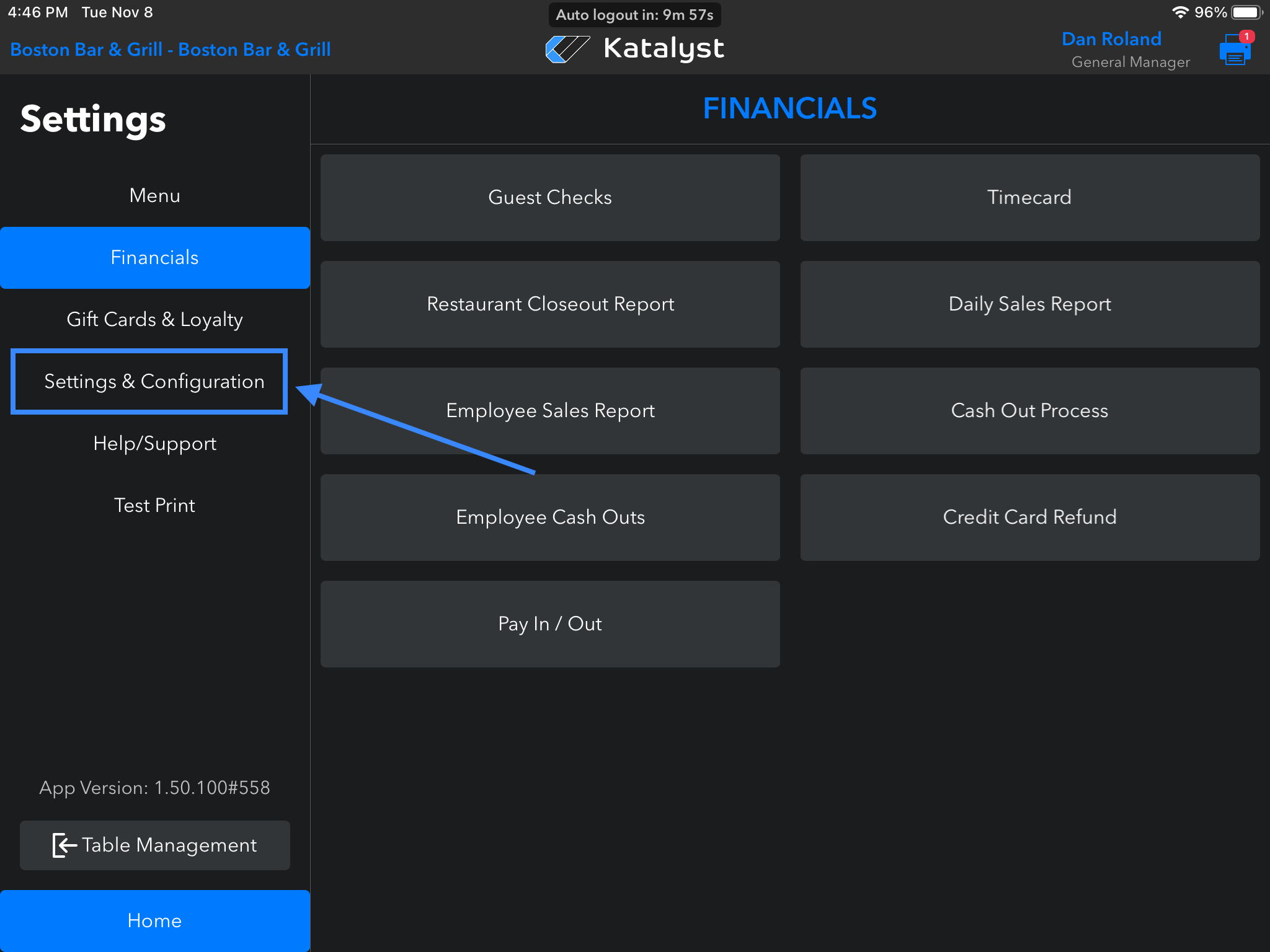
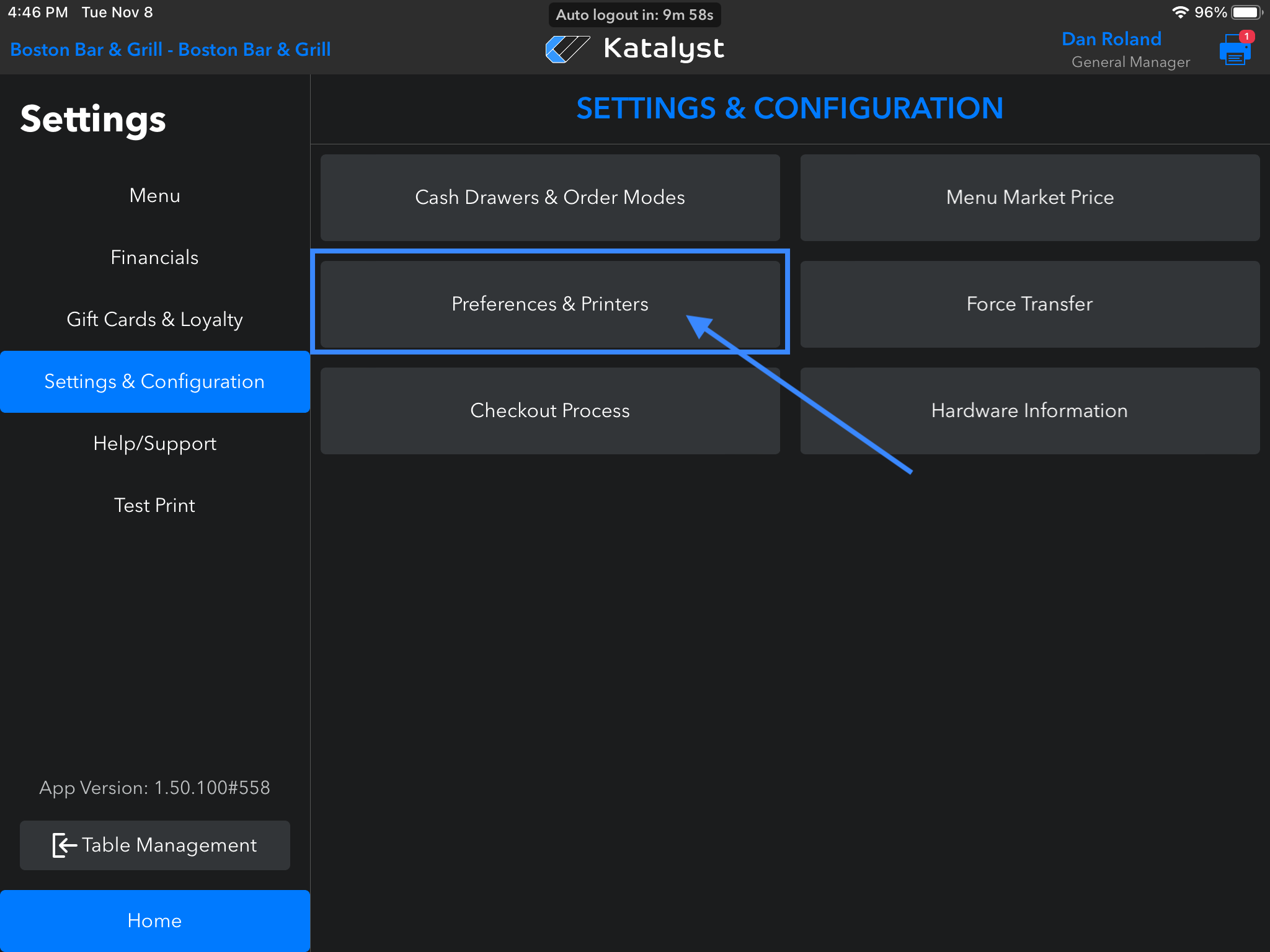
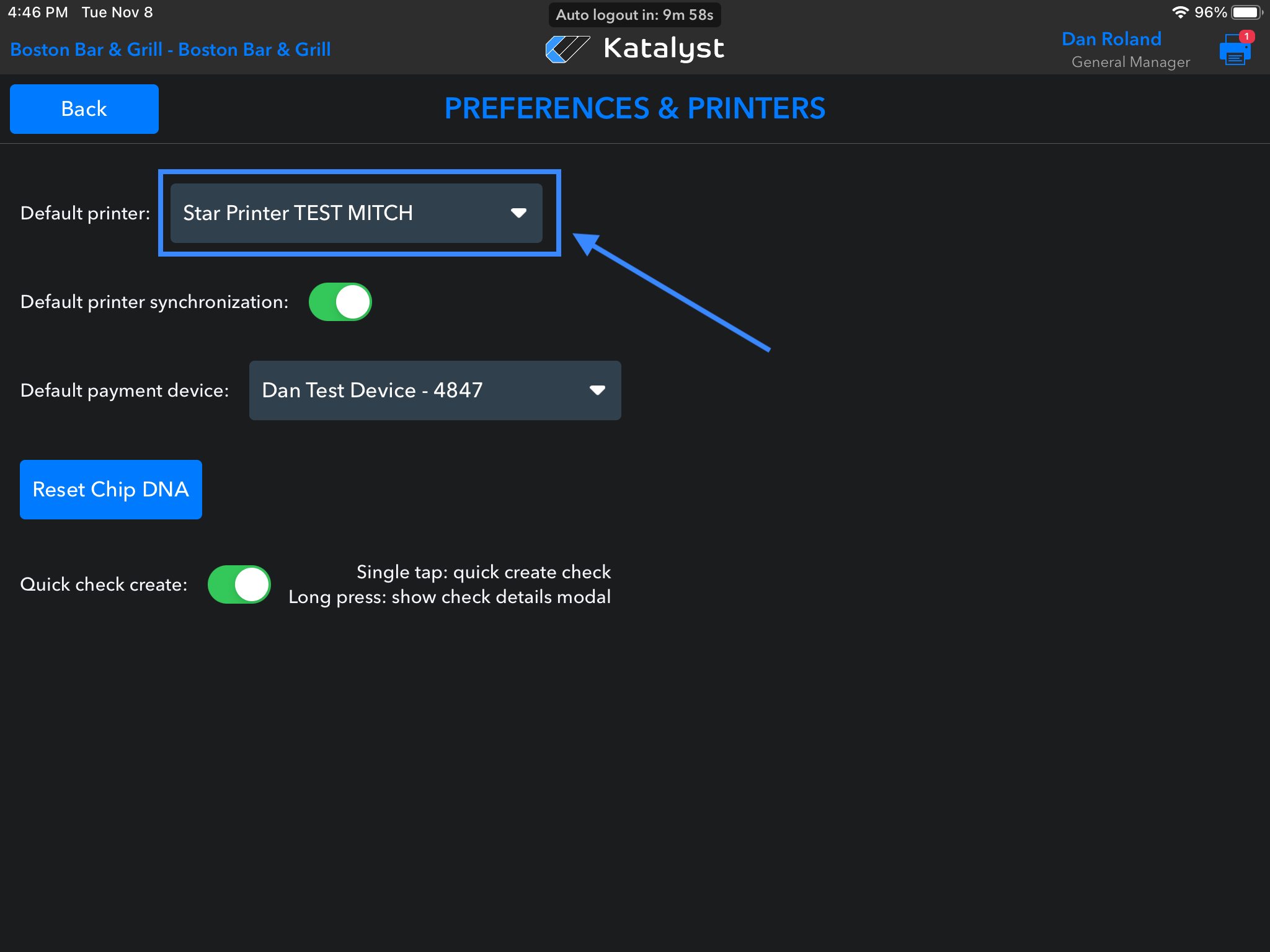
- Check on iPad that the correct Guest printer is selected in: Settings > Settings & Configuration > Preferences & Printers > Default Printer dropdown
-
- Turn Off/On printer; also check to make sure there is paper
- Check the printer icon in the top right of the app; what error is it saying? If it says ‘Fail to Open Port’ it likely is a network or wiring issue
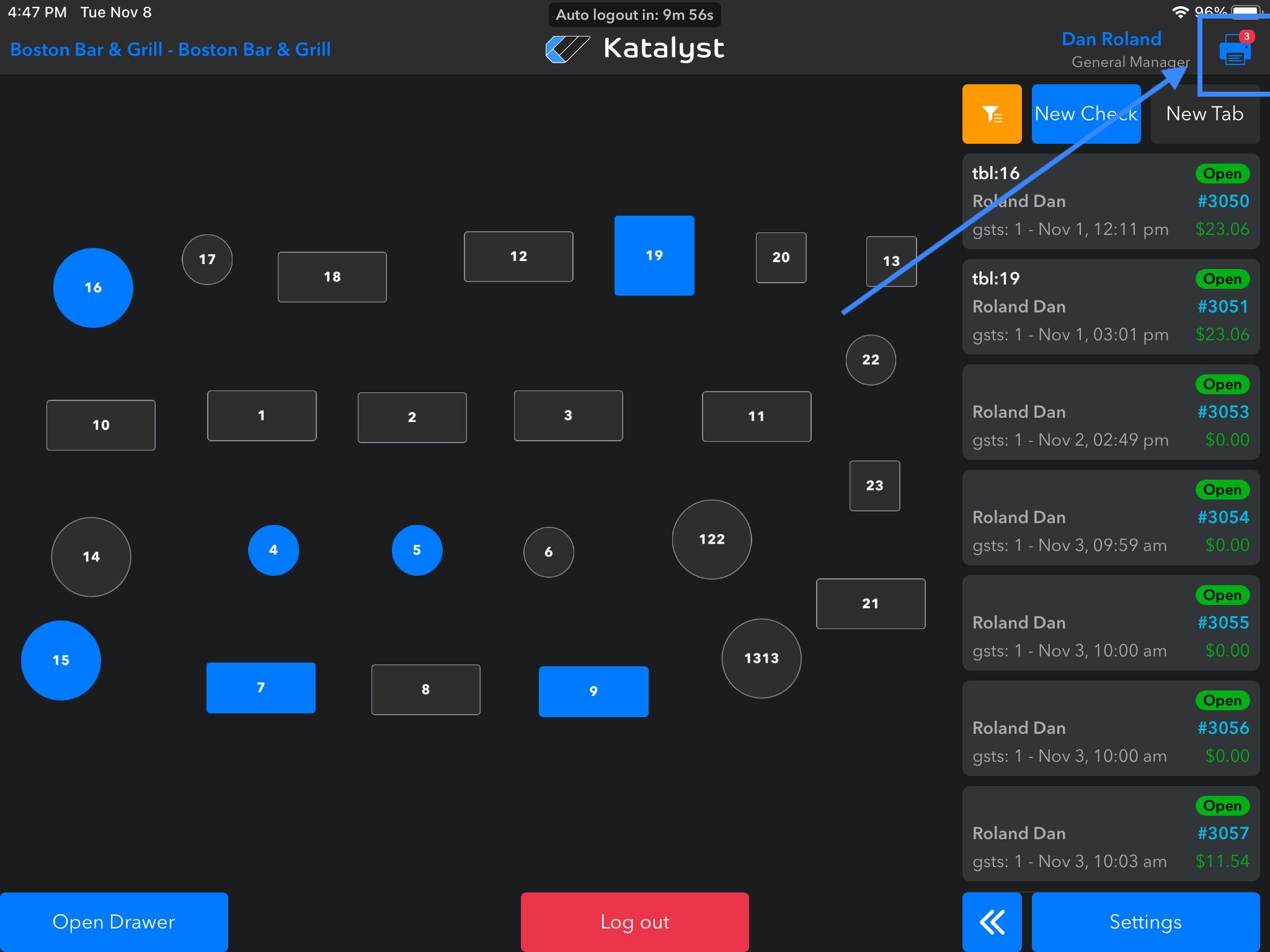
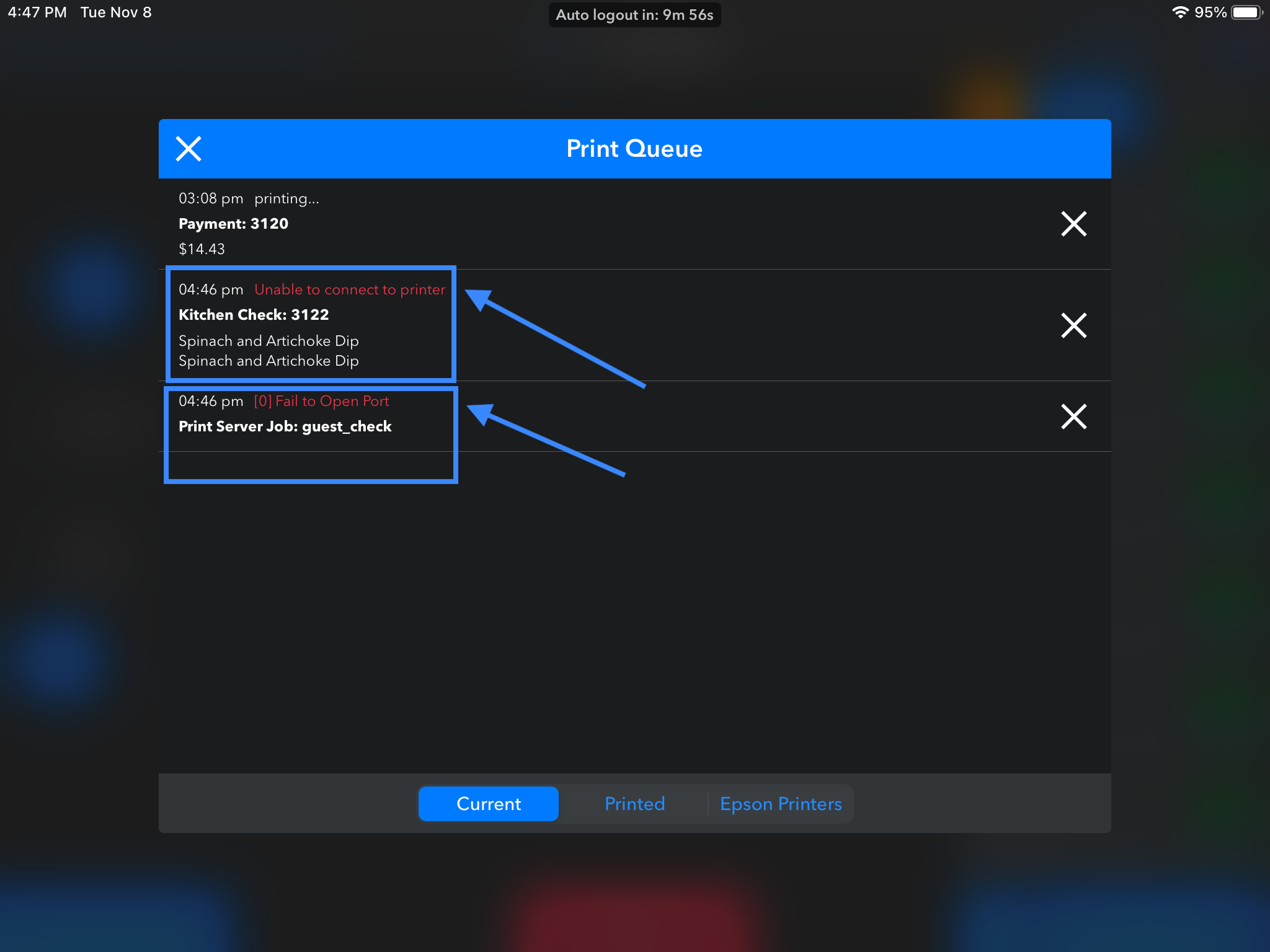
- Recommend getting the cabling checked out; it could be a bad wire
Other things to check:
- Is the printer showing an orange icon? This is a general icon that usually indicates that the printer is out of paper, not connected to the network, or just broken
- Is the printer showing a red icon? This general icon usually indicates a paper jam. If you see a solid red light or flashing red light, check inside the printer to verify there is no paper jam or paper blocking the feeding mechanism
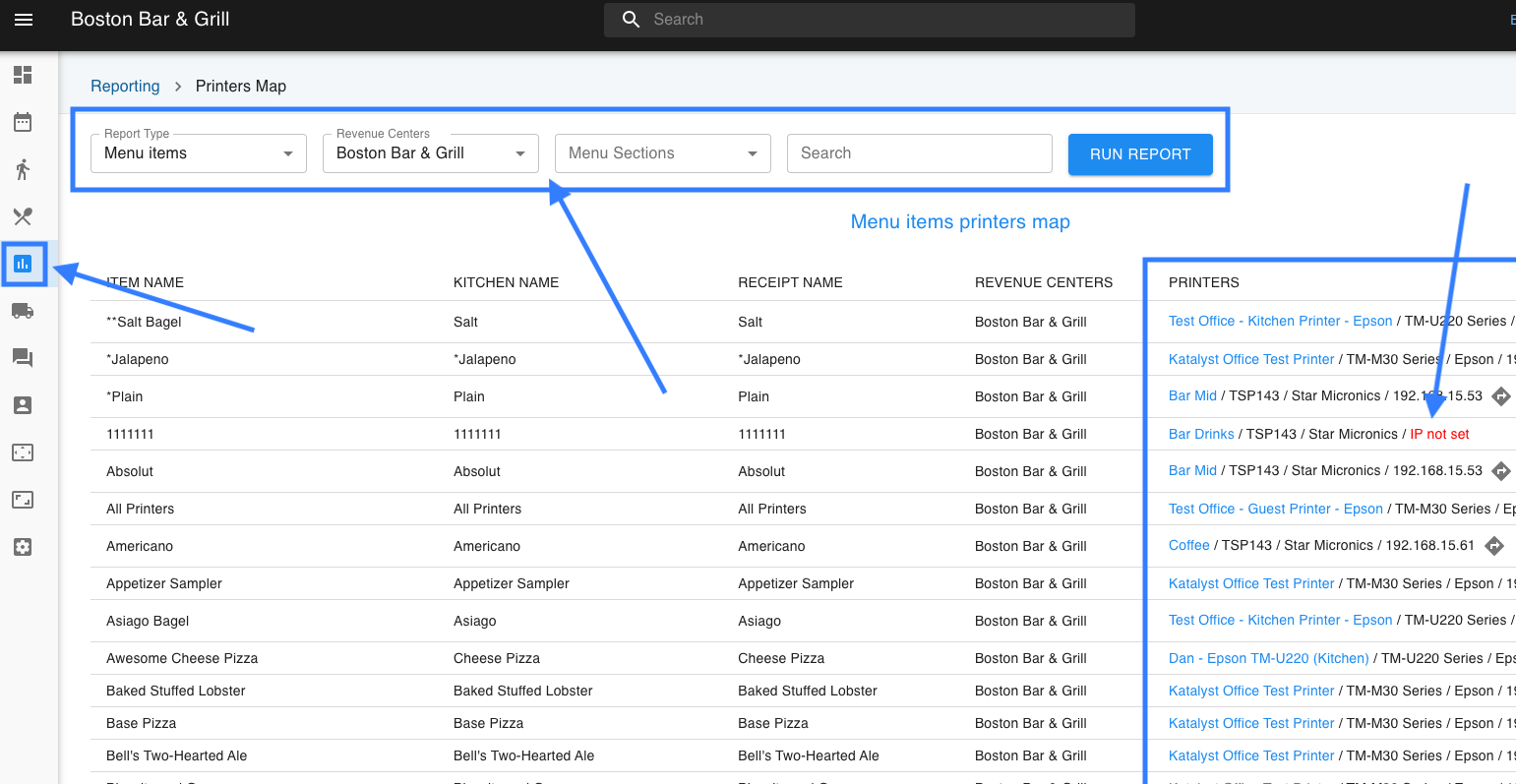
- In the web portal check Reporting > Printers Map. In the printer map, is anything in red? This means that there may be items that are not assigned or working correctly
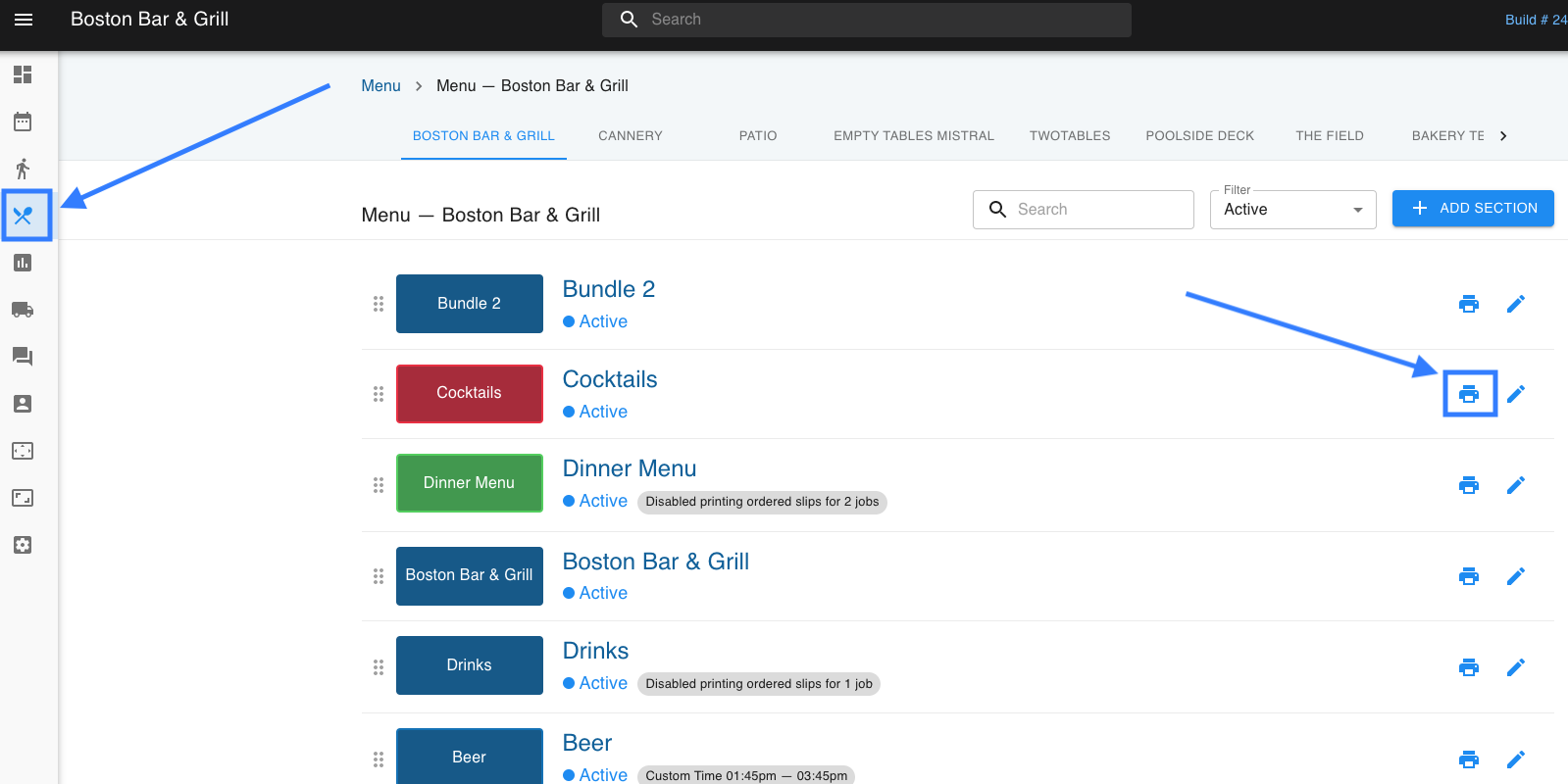
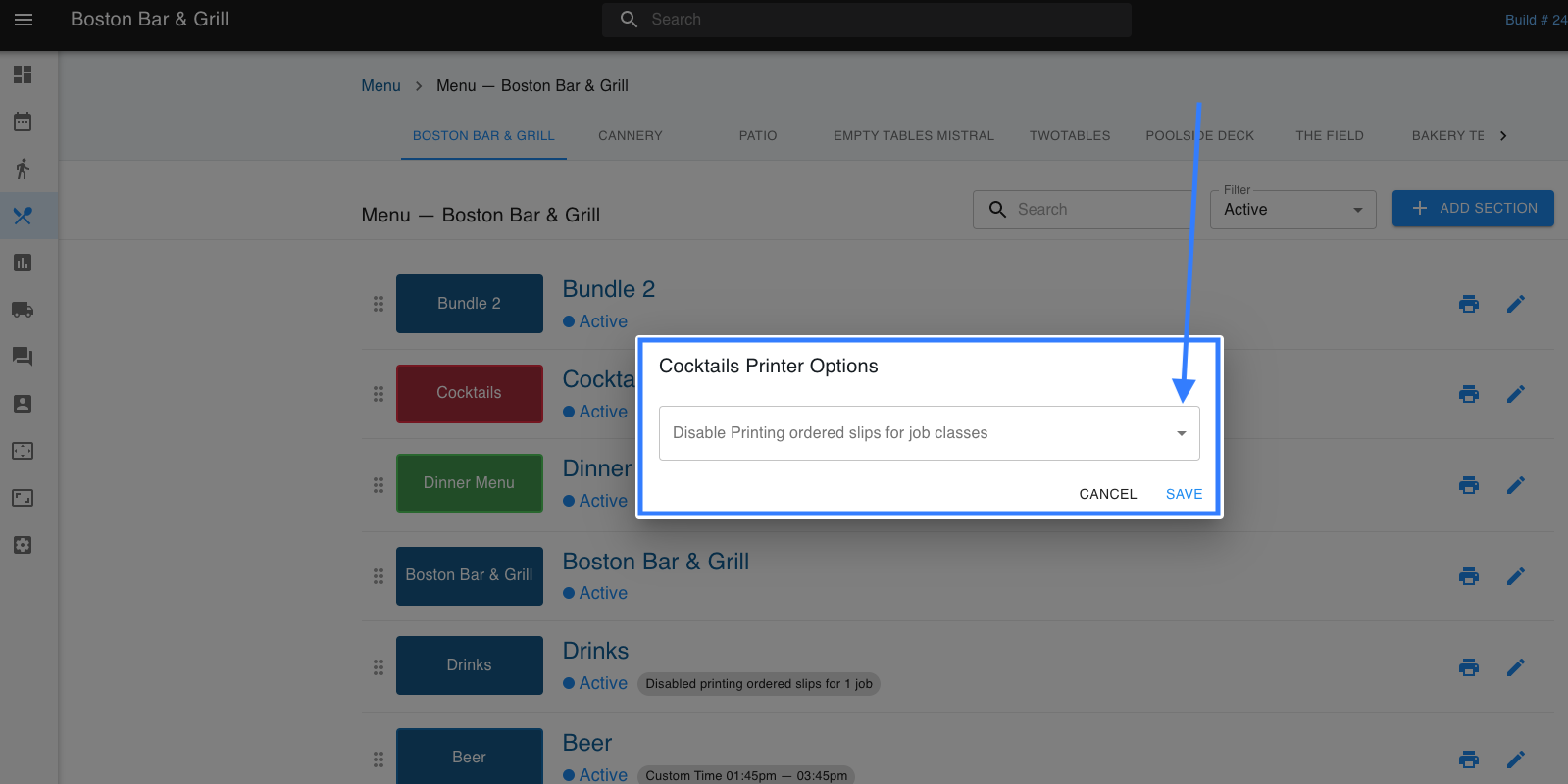
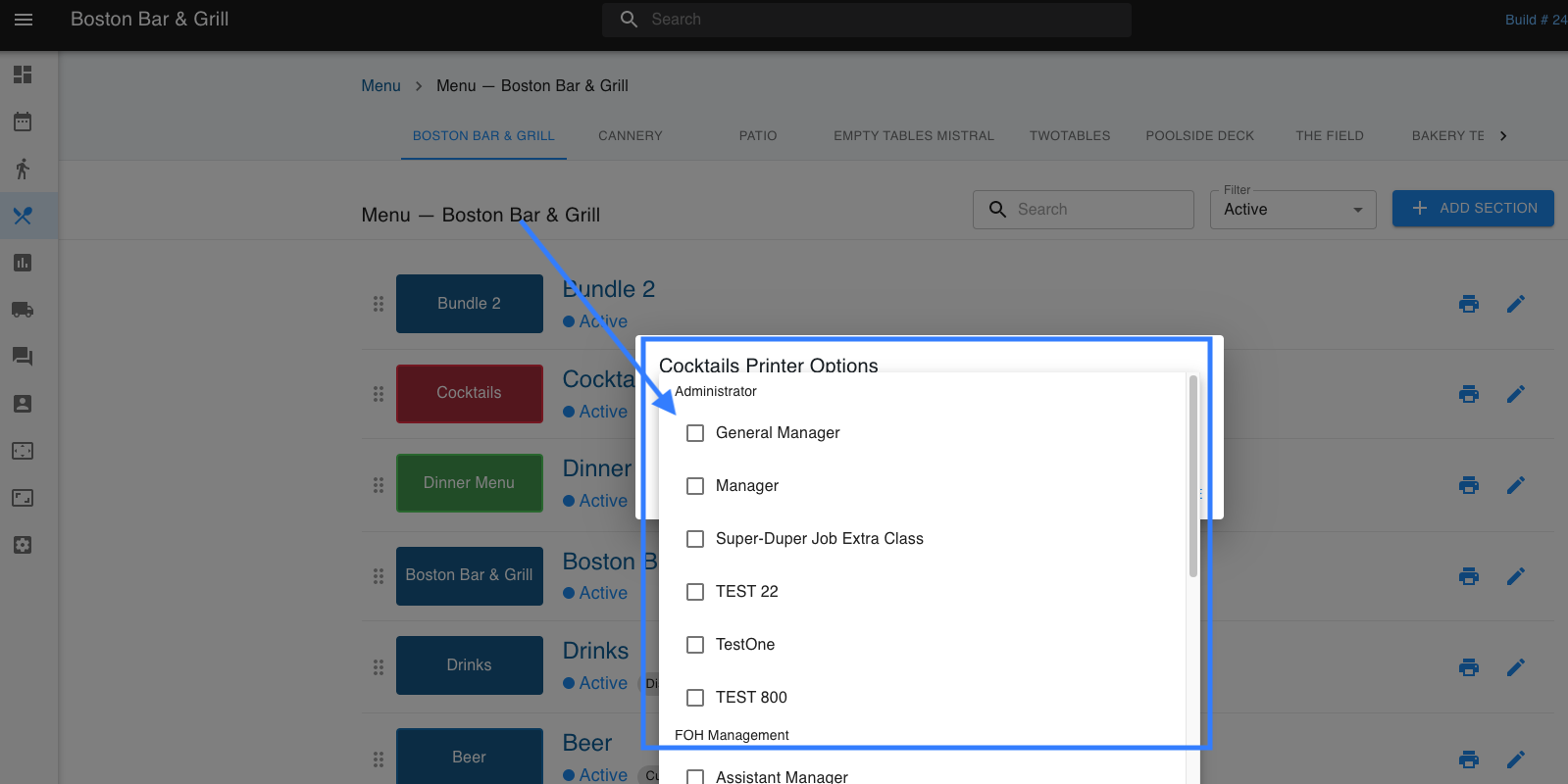
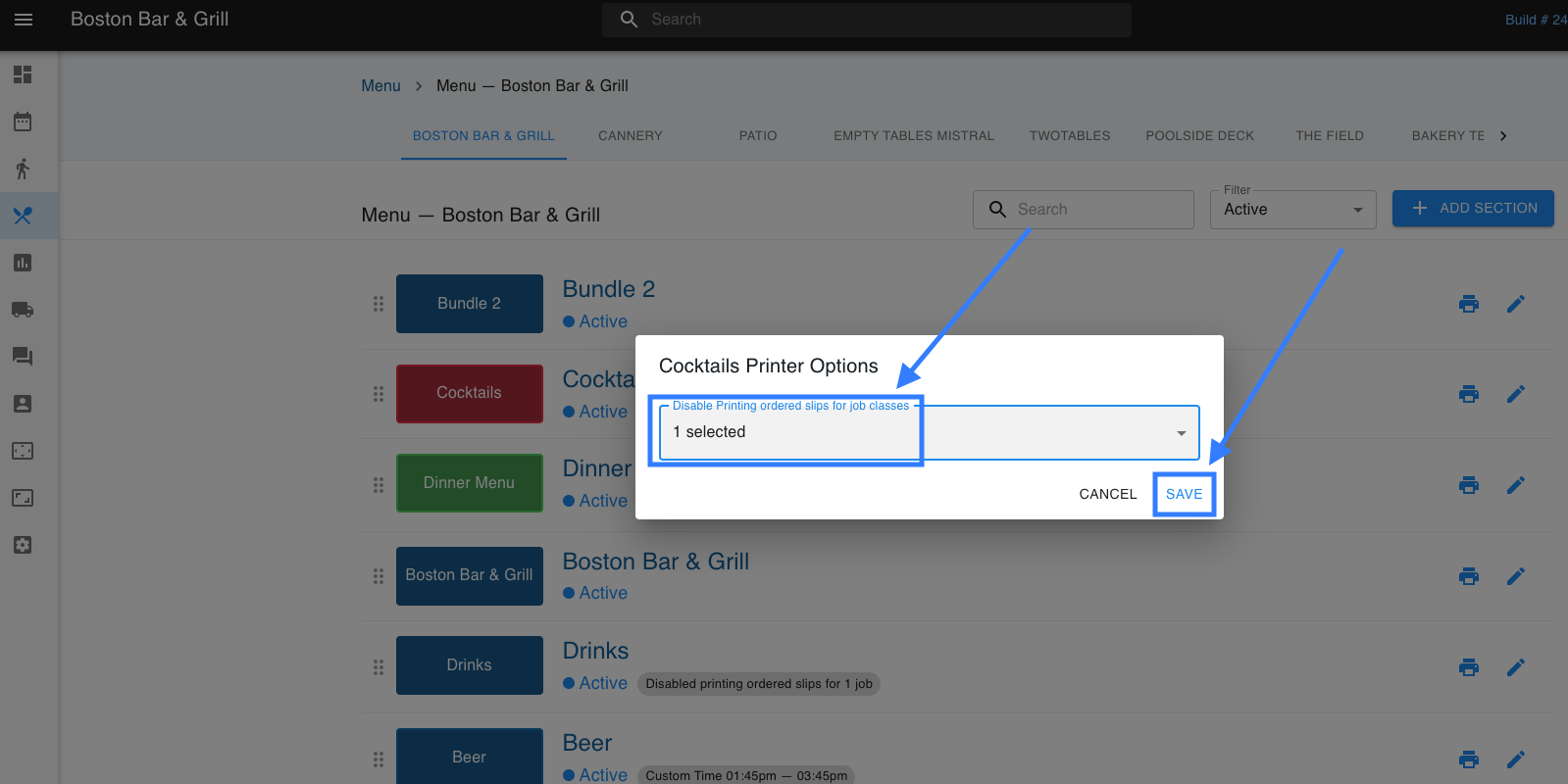
- Another place to look is in job classes. Some job classes will be set up to not print in certain places. For example, if a bartender doesn't need a bud light to print because they will just go get the beer, they would not be set up to print. Make sure job classes are set up correctly through menus