If the cash drawer is not operating correctly, you will need to follow a series of troubleshooting steps to identify the issue. In some cases, the cash drawer may need to be replaced
If the answer is yes and the keys are present in the drawer then the drawer key may be turned to lock. Turn the key and try again. If that is not the issue check the following solutions:
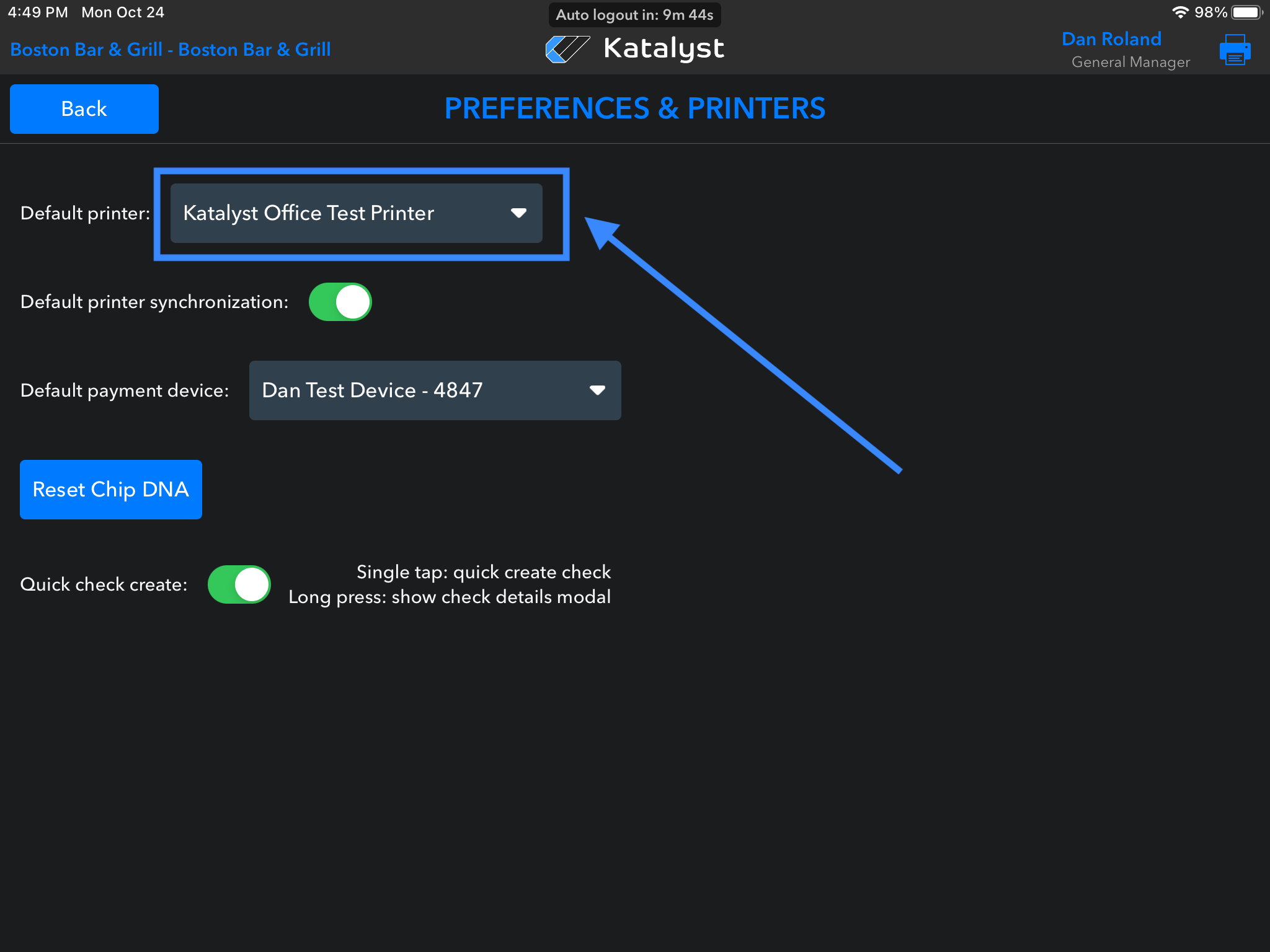
Is the default printer correct?
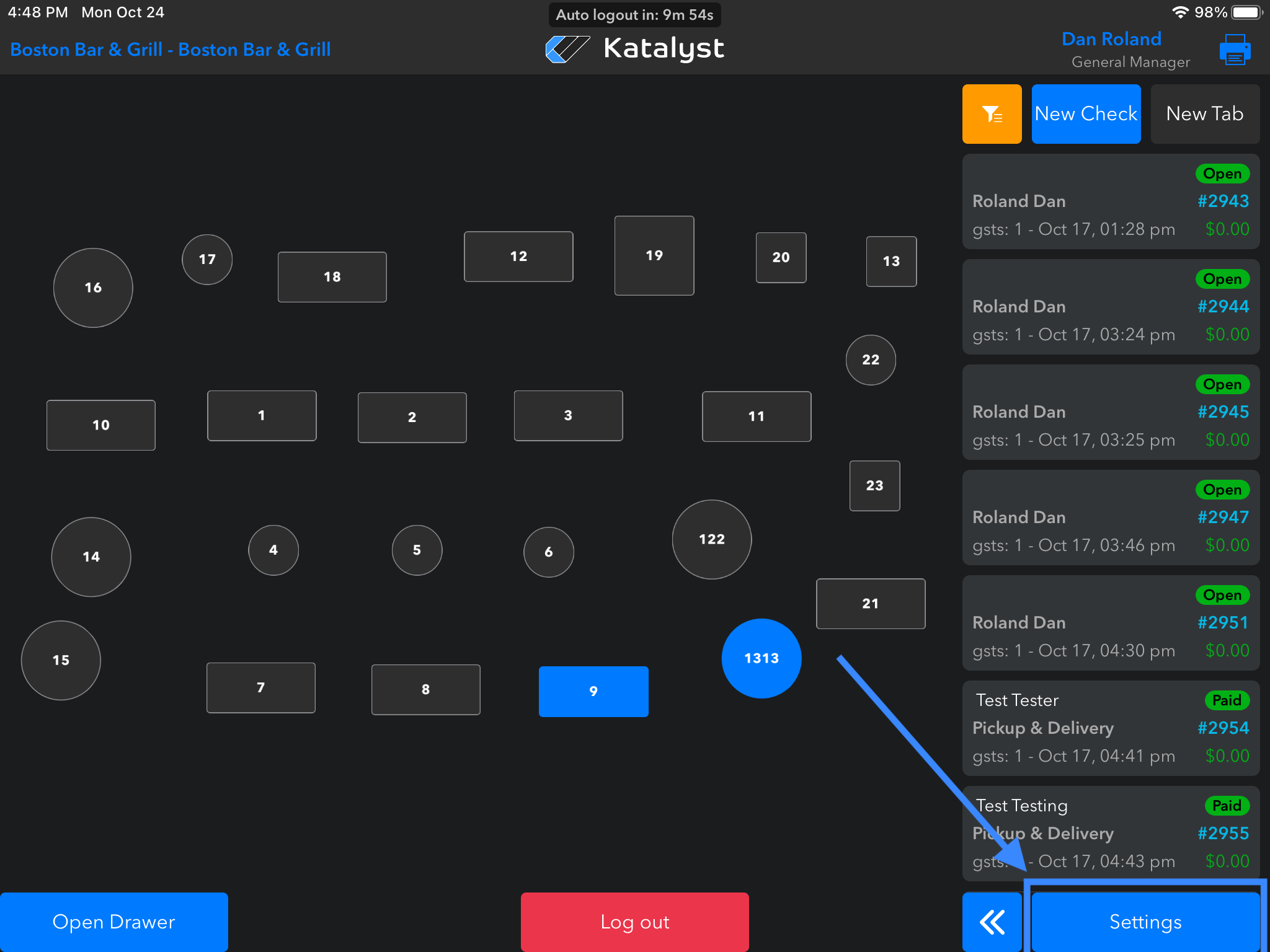
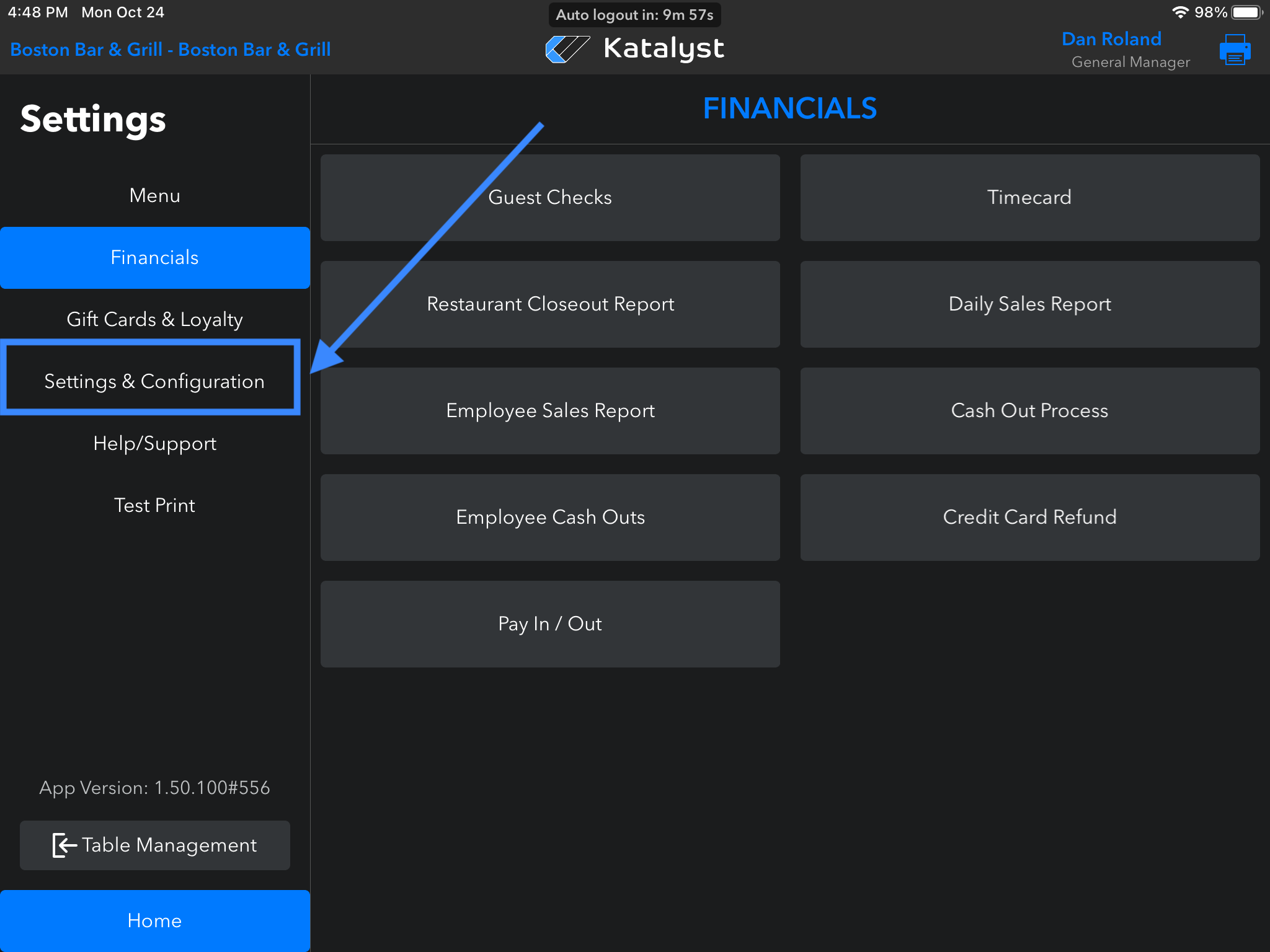
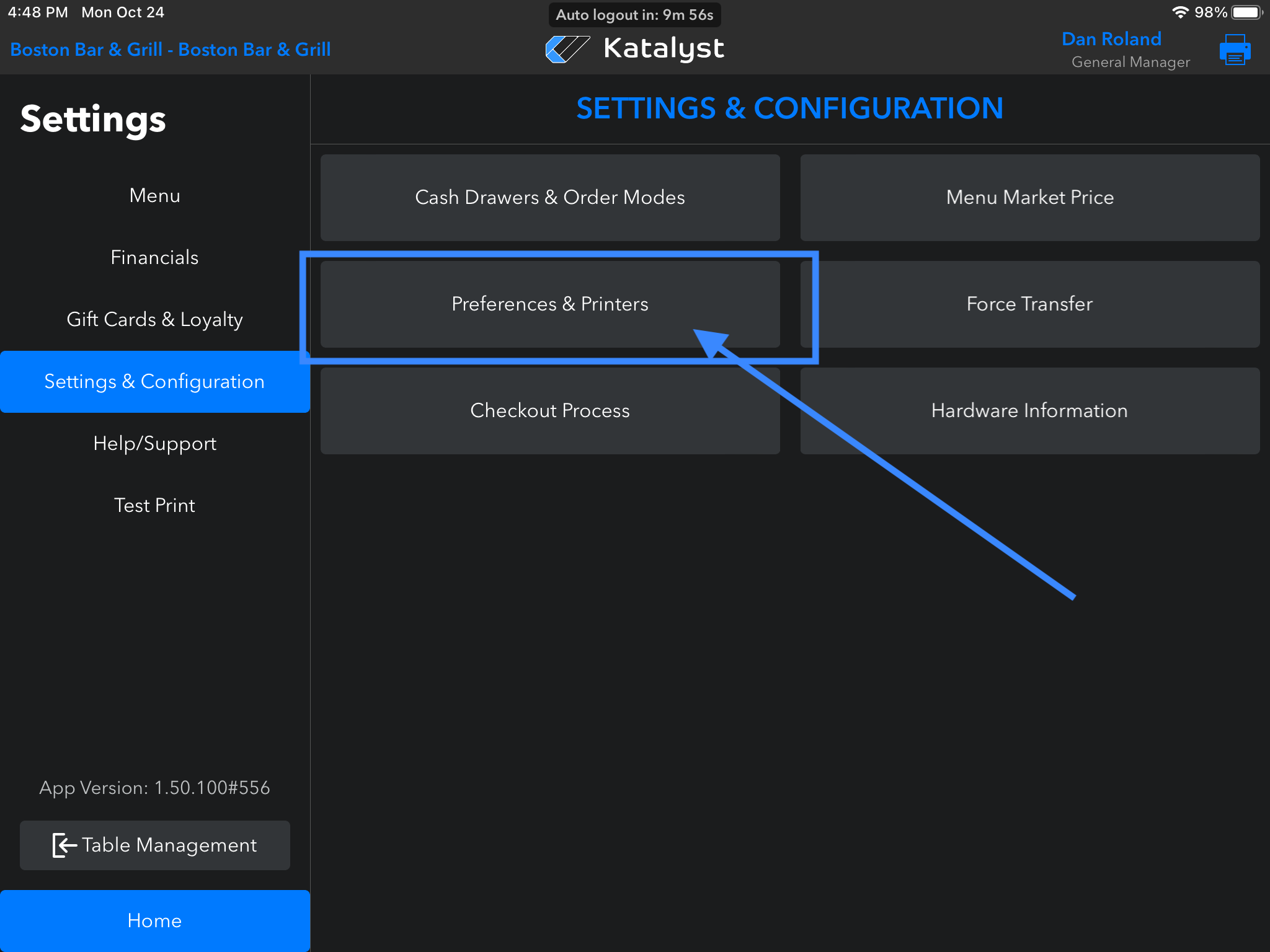
In the iPad app go to Settings > Settings & Configurations > Preferences & Printers. Is the correct default printer set up?
Check the Network.
In the iPad settings, make sure that the device is on the correct network.
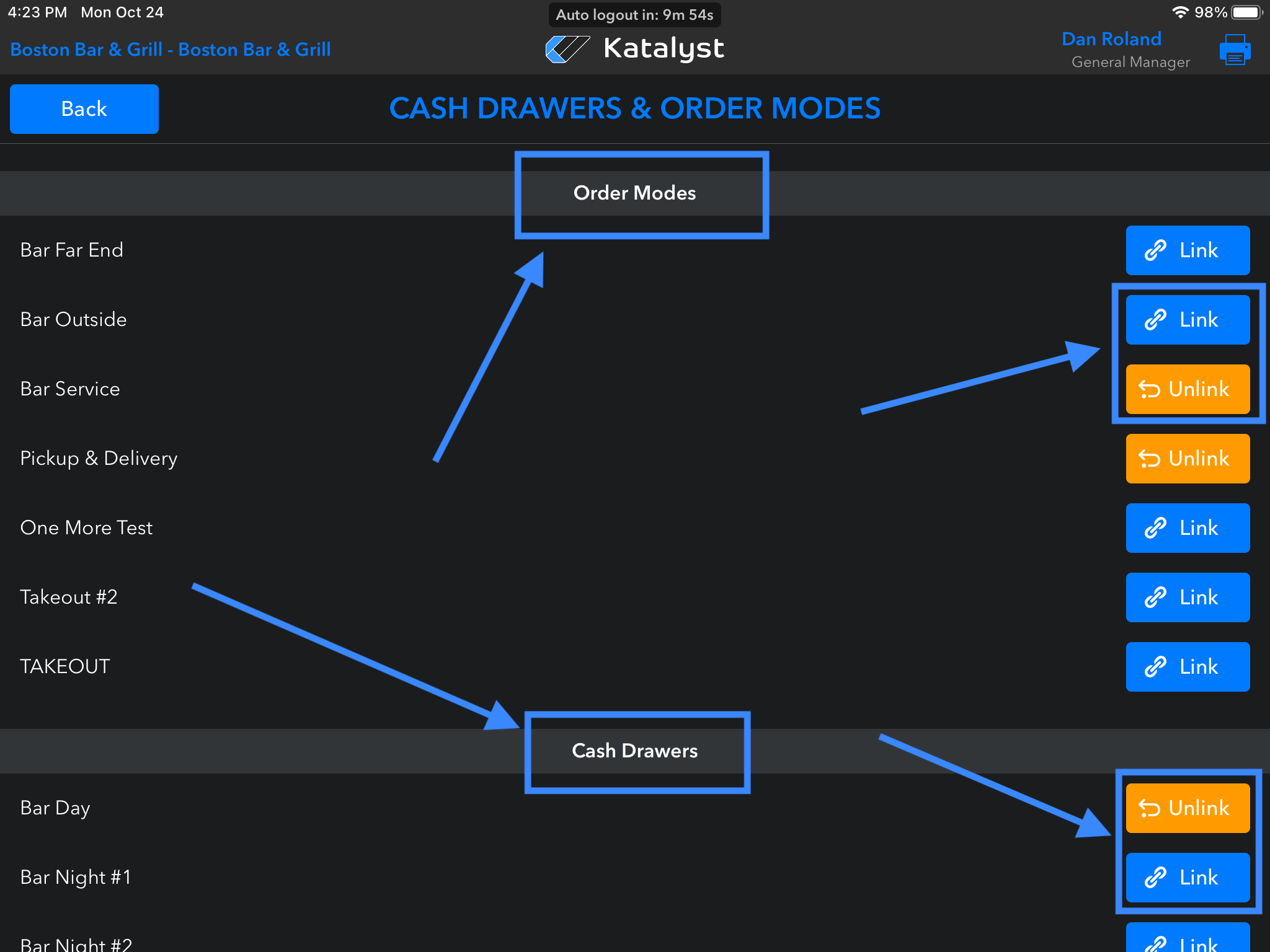
Is the drawer linked correctly?
In the iPad app, go to Settings > Settings & Configurations > Cash Drawers & Order Modes. Make sure that the correct cash drawers are linked.
Check the Bluetooth settings.
In the iPad settings, use the settings menu on the left to scroll down until you find the Katalyst POS app. After clicking into the app, check to make sure the Bluetooth setting is toggled green.
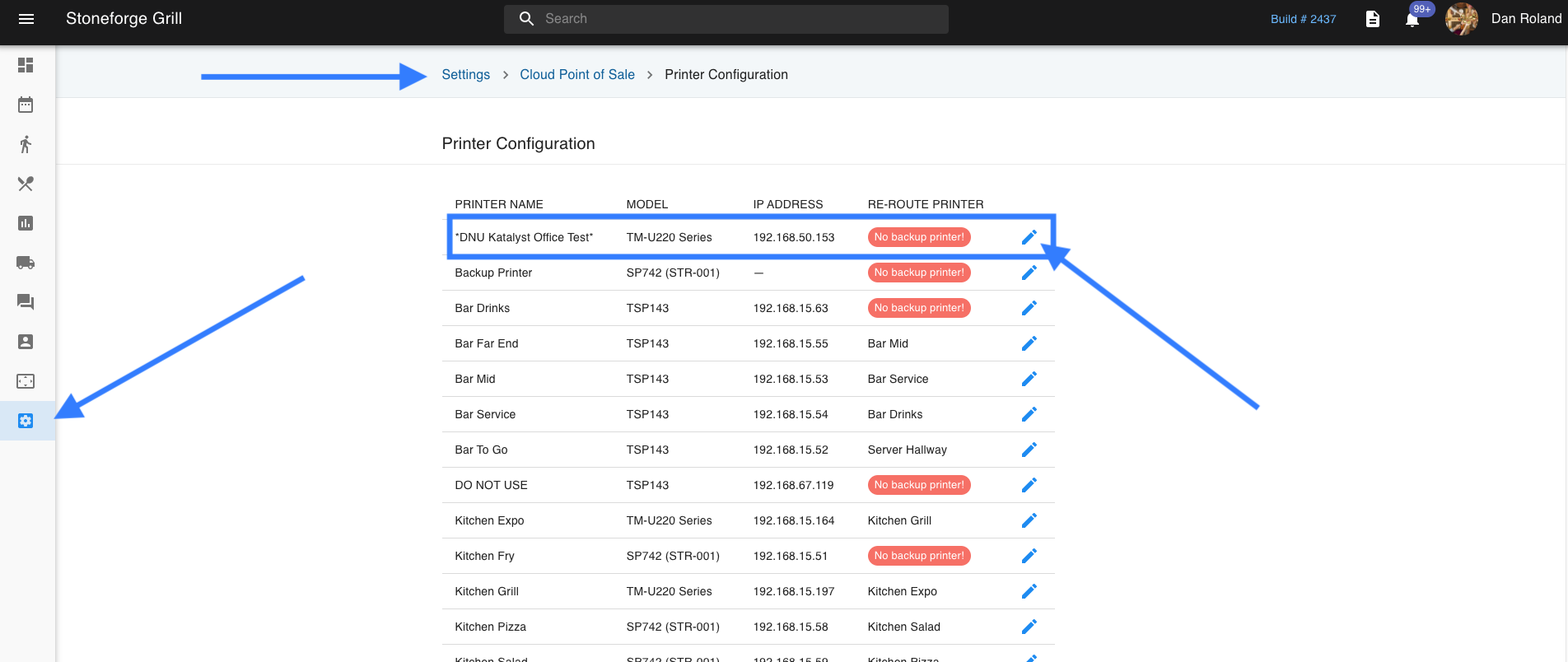
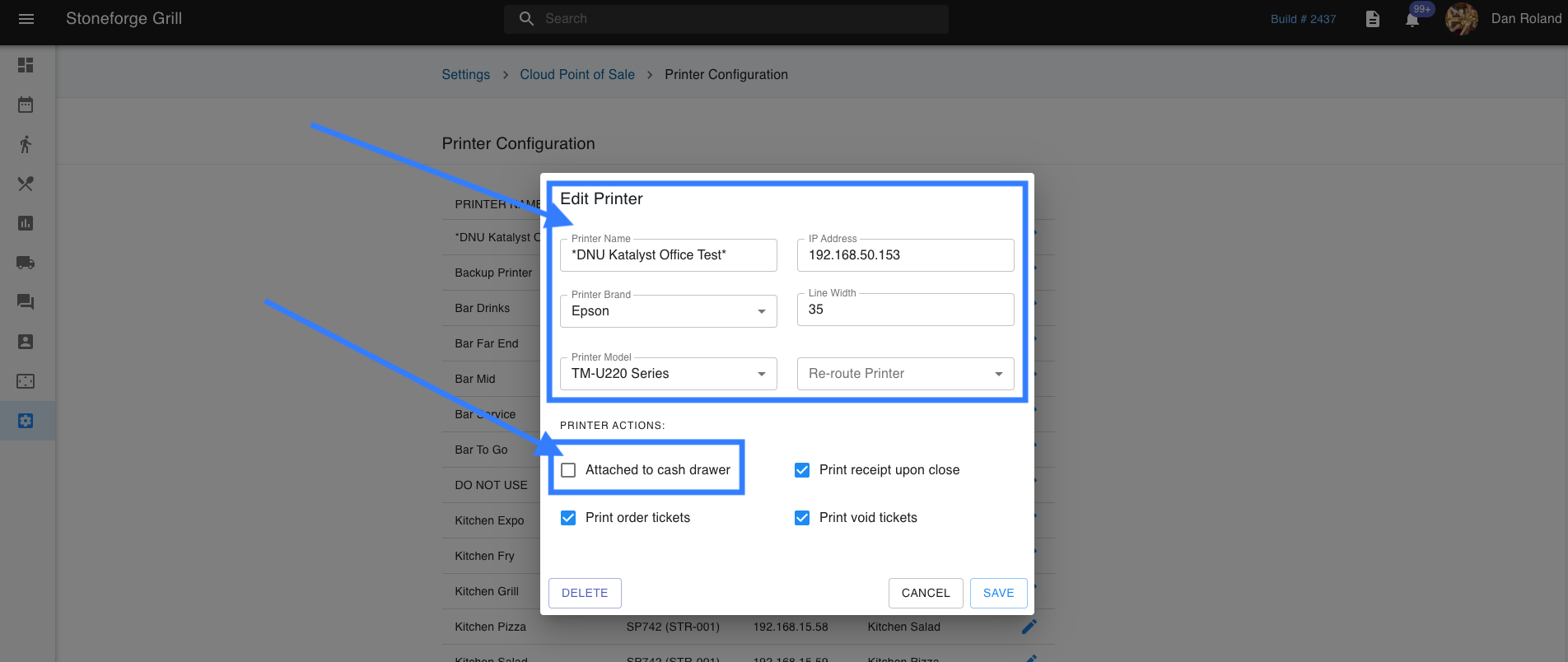
Check the Printer Configuration.
Go to your Admin portal and go to Settings > Cloud Point of Sale > Printer Configuration. Then click on the blue edit pencil of the printer you are checking and make sure that it is attached to the correct cash drawer.
Check the wires/port for loose or frayed connections.
If the wires are loose or frayed, it is the responsibility of the restaurant owner to replace these.