Here we get into POS navigation of the Table Management portion of the app. When you open your device, you will land on the Revenue Center Home View. This is the main page used to create tickets. To move to the Table Management portion, you should select settings in the bottom right-hand corner of the screen. This will open the screen to all settings, as well as the access point to Table Management. From Table Management you can manage reservations, walk-ins, waitlist & call-ahead, server section assignments, and floor plans.
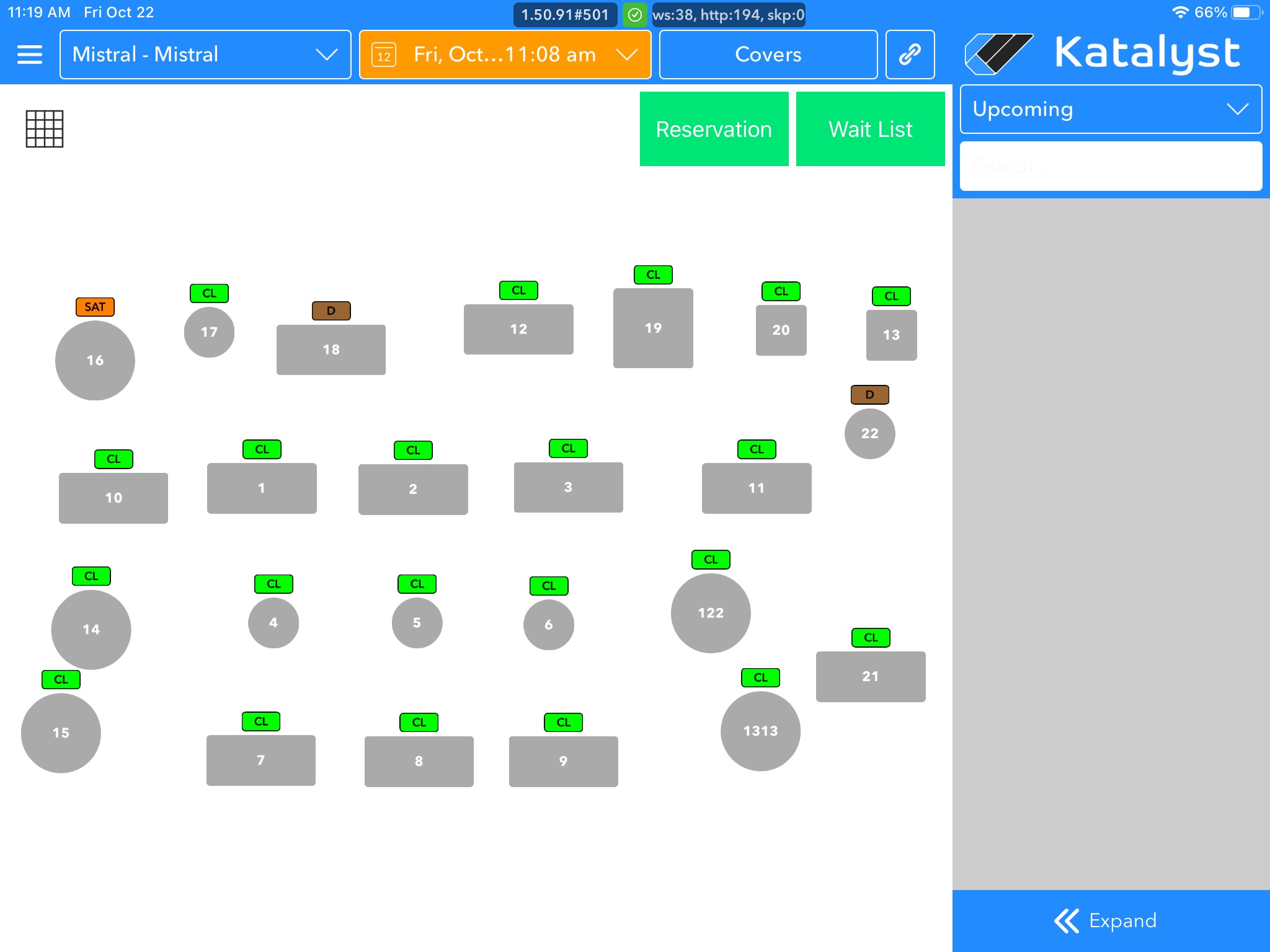
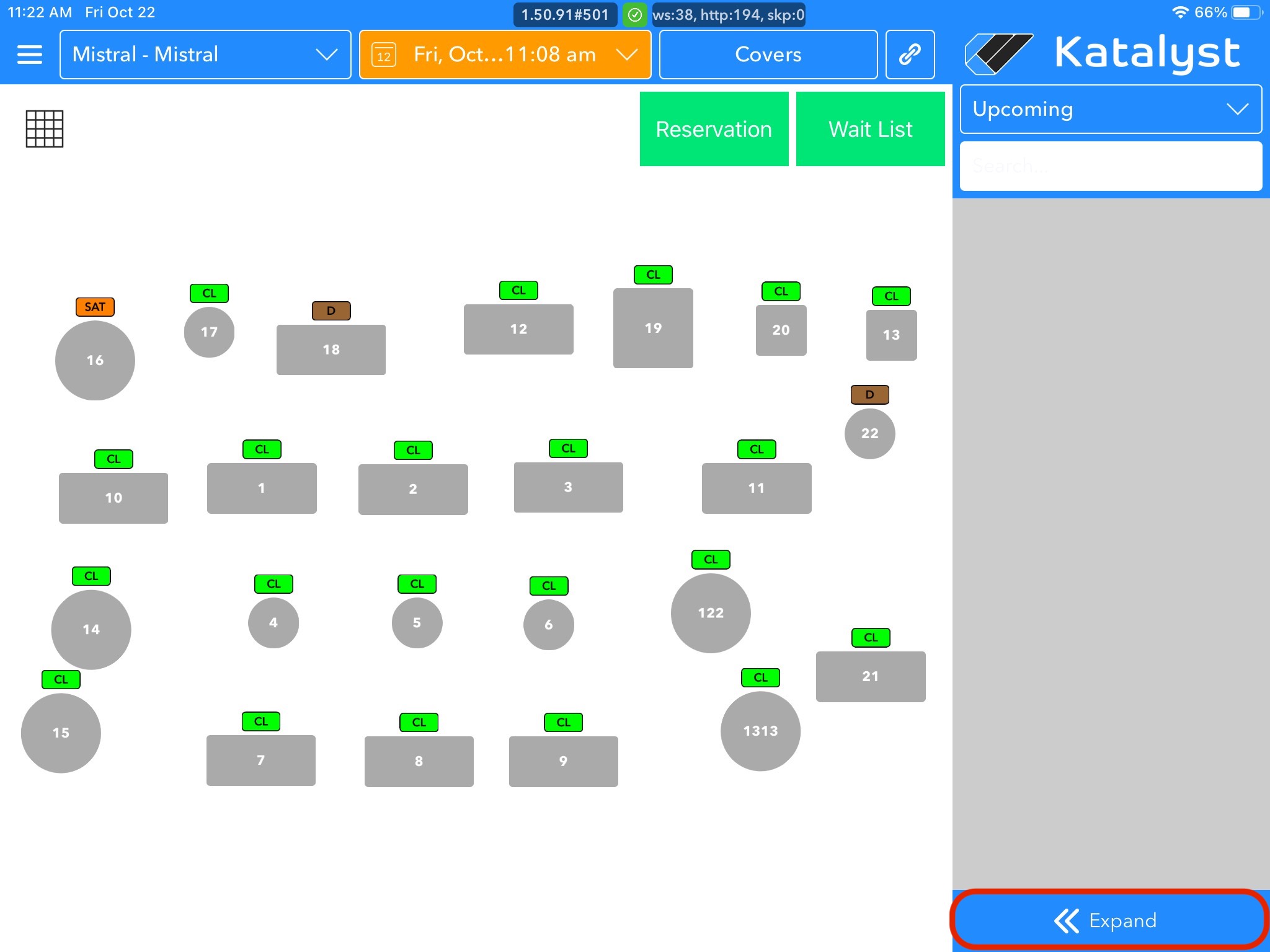
At the top, you can see which revenue center you are on actively. If a user has access to multiple revenue centers, they are able to use the drop-down menu here to switch between them. To the right of the revenue center drop-down are the date and time drop-down, covers, and a link button. This link button is a quick tool that allows the hostess to mark all dirty tables as clean.
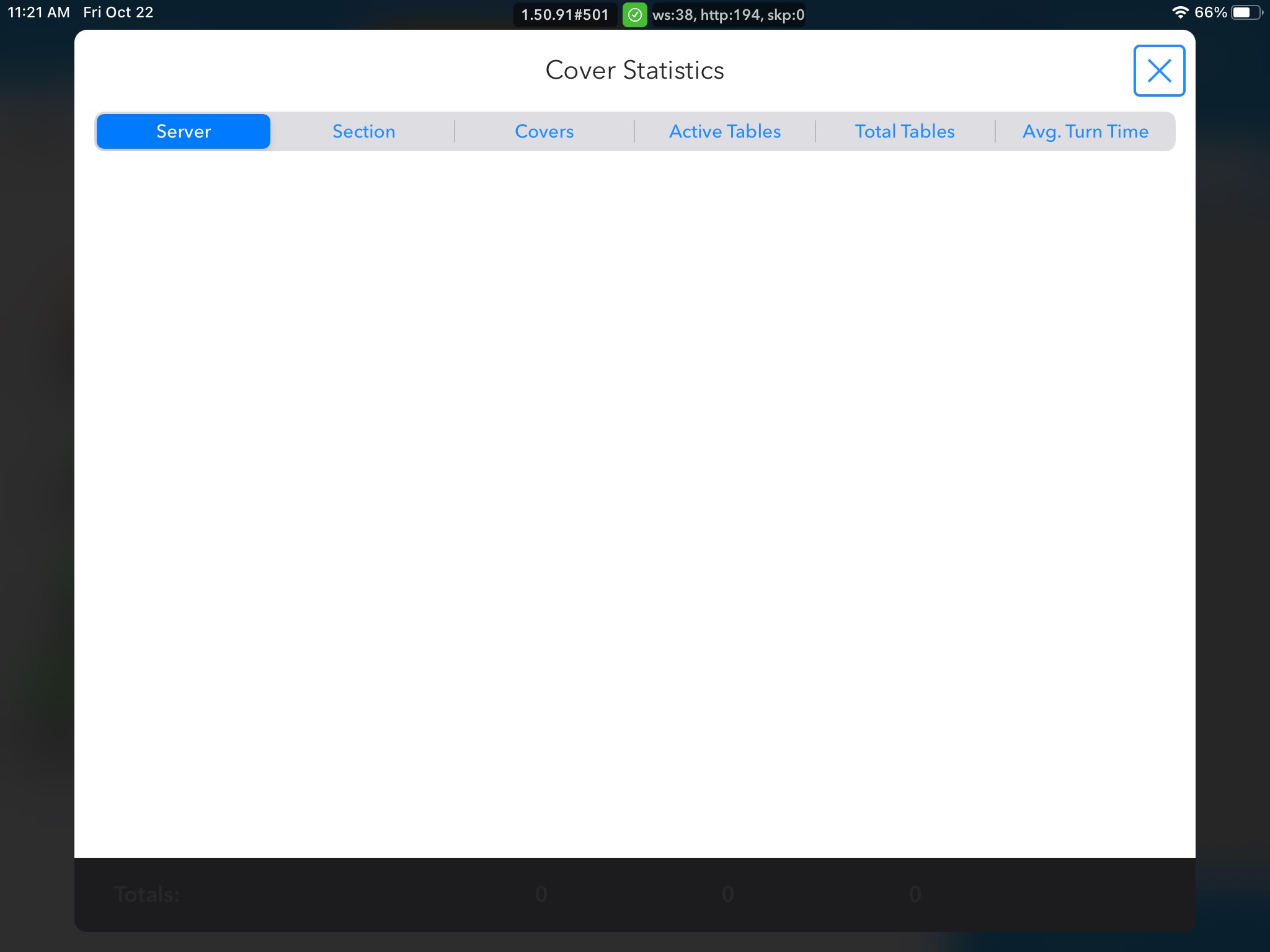
Clicking into covers will allow you to keep track of the covers per section, as well as their average turn time. Covers are different from tables, as it refers to the total number of meals or persons served. By tracking covers as well as active tables, we are able to give you the average table turn in real-time. This is helpful for knowing how long to expect a table to take on any given night to ensure smooth operations.
To the right of the covers, you will see the Guest Management Menu Bar. This is where any upcoming reservations will be listed. Tapping on the drop-down menu will allow you to filter reservations by upcoming, reservation, waitlist, current, completed, and all.
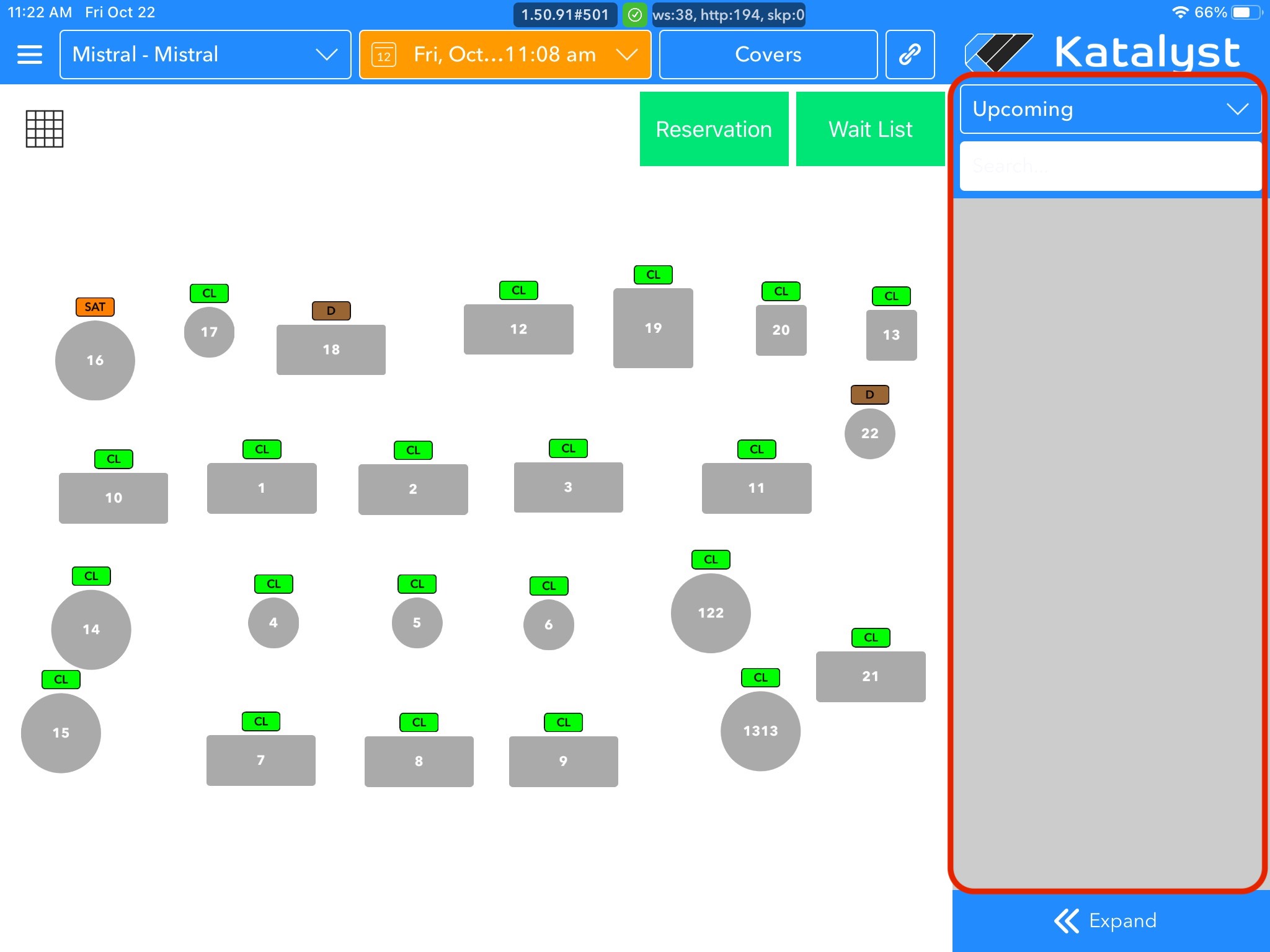 This screen is a search bar that you are able to use for quick reference searches. If you have a lot of reservations, this can be really helpful when trying to edit a reservation on the fly.
At the bottom of the Guest management Menu Bar, there is an option to expand, which allows the reservation lists to take over the screen. To close this, you can just collapse it back.
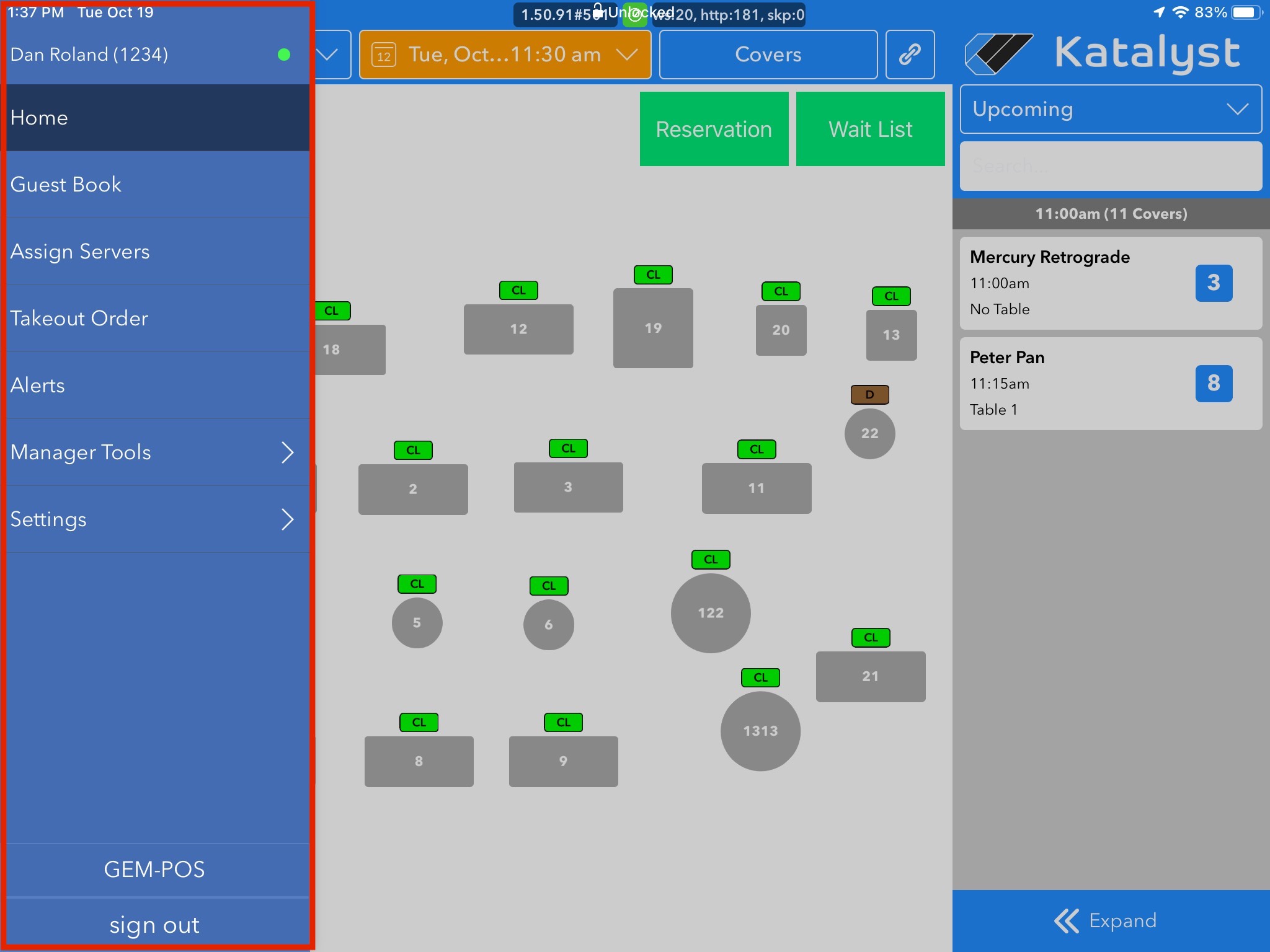
 If you slide in from the left-hand side, you will see the Restaurant Management Menu Bar.
 This is where you will manage the back-of-the-house details for your restaurant.
The Revenue Center Management Menu Bar contains:
1. Guest Book
2. Server Section Assignments
3. Takeout Order Summary View
5. Restaurant Alerts & Reminders
6. Manager Tools
• Section Creation
• Server Statistics
• Restaurant Analytics
7. Settings
• Pausing Reservation Ability
8. GEM Point of Sale