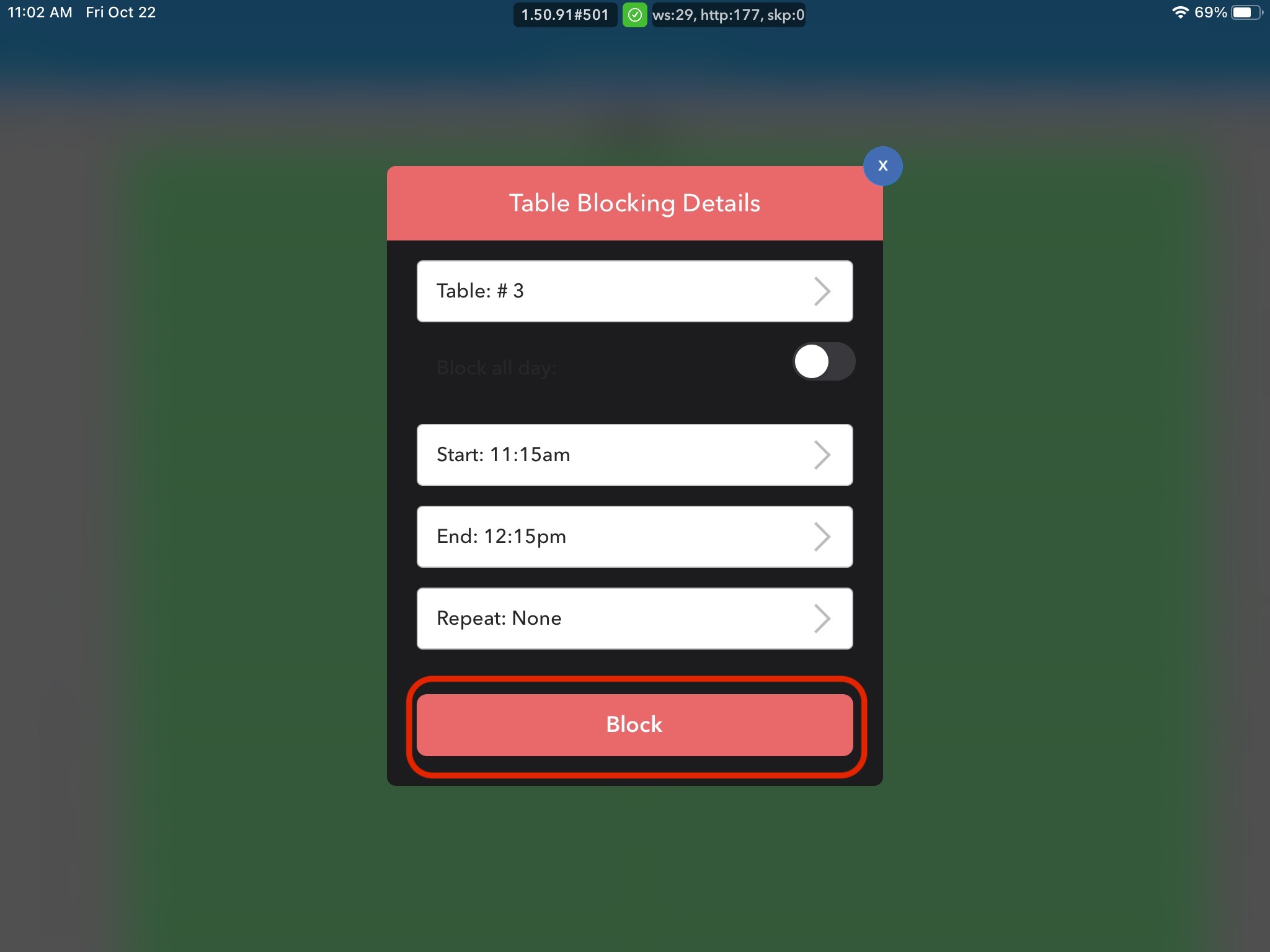
How to Easily Block a Table Using Katalyst's Reservation Software
Along with the Grid View icon, you are able to tap and long hold on individual tables right from the main floor-plan view to block and unblock specific tables.
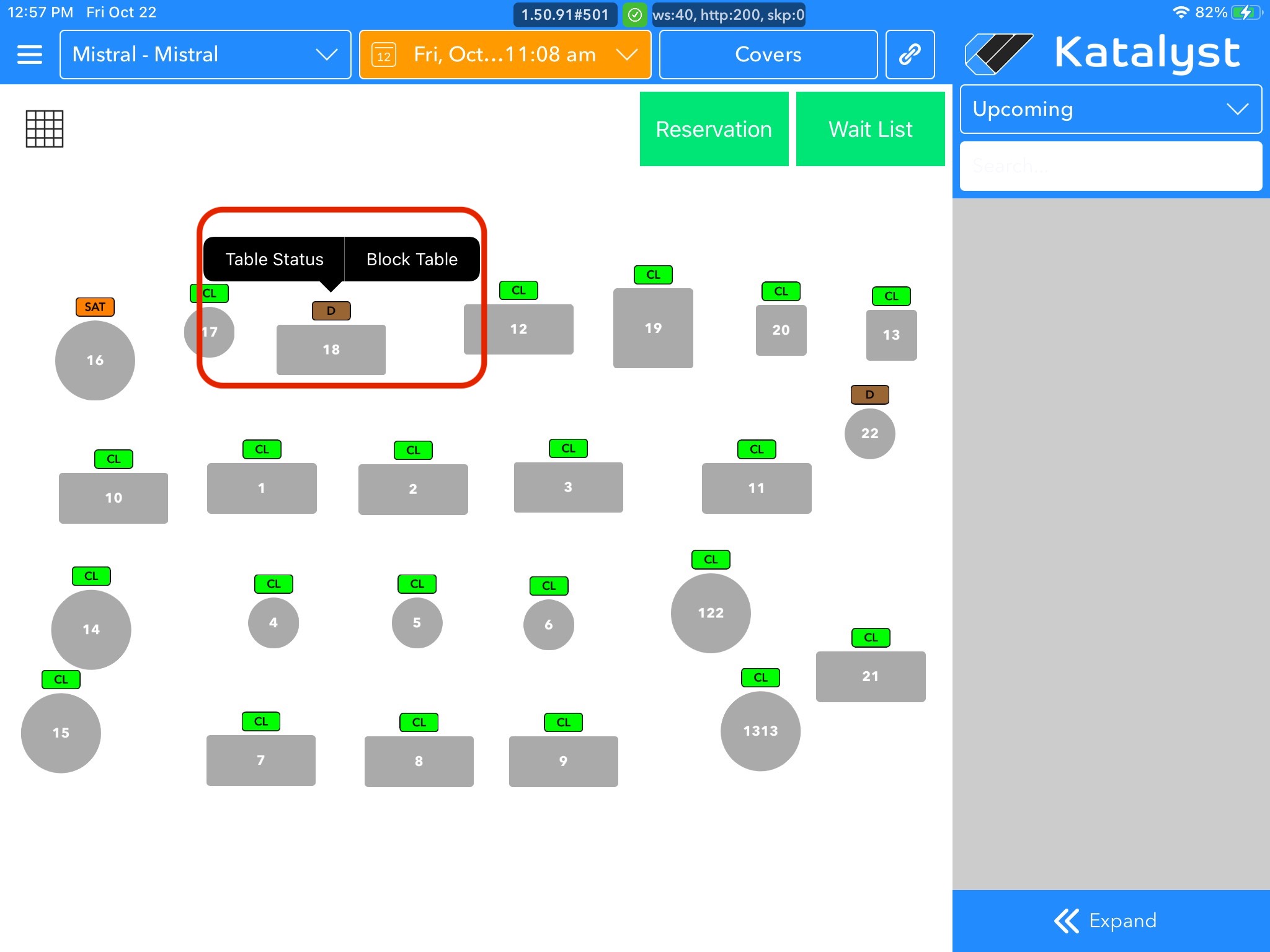
1. On the main Revenue Center floor-plan view, tap and long-hold on a specific table
2. You will see a small black menu appear above the table; tap Block Table
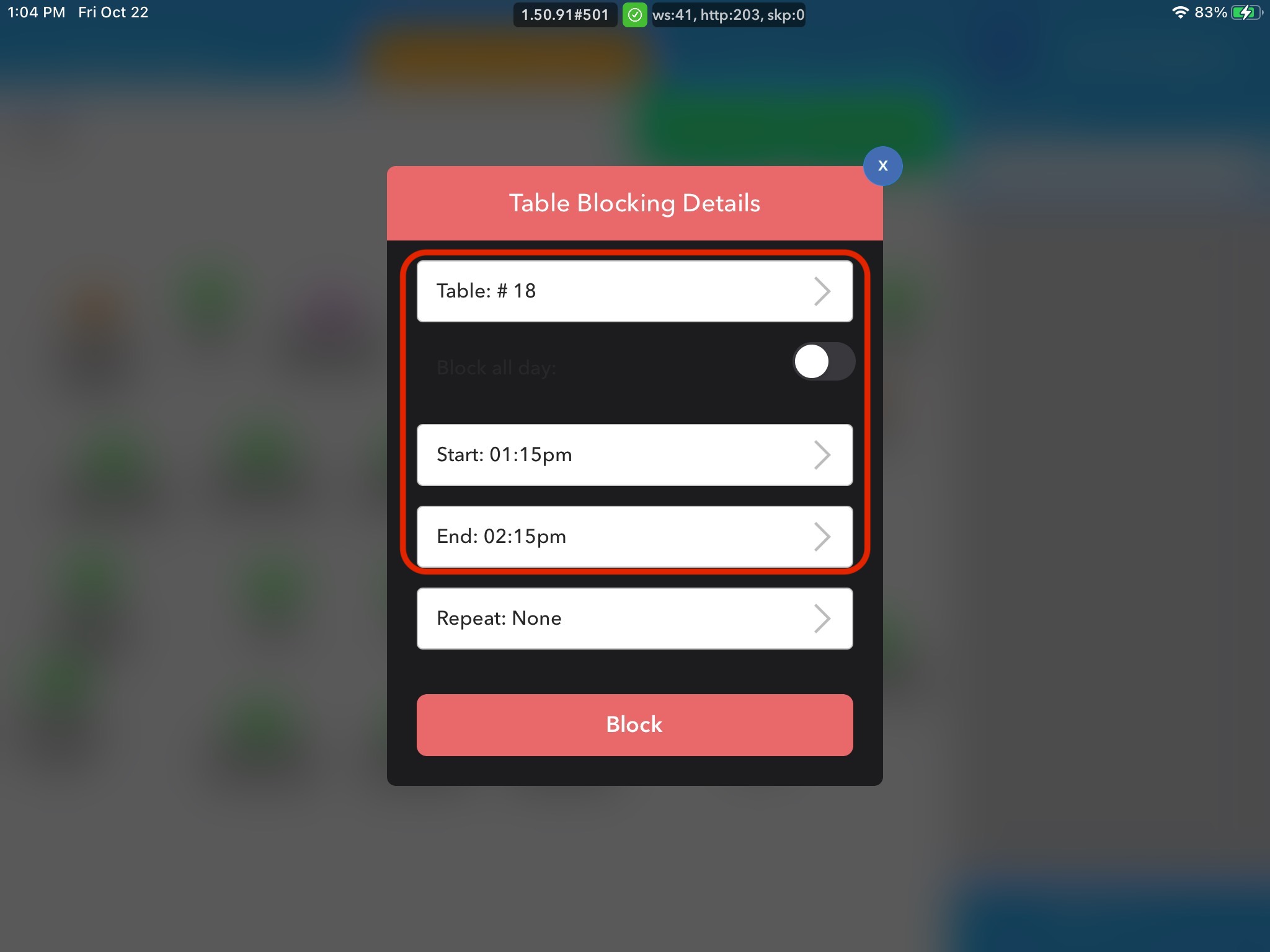
 3. In the Table Blocking Details Box, select the Start and End times for table blocking. To block the table for the entire day, check the Block all-day toggle
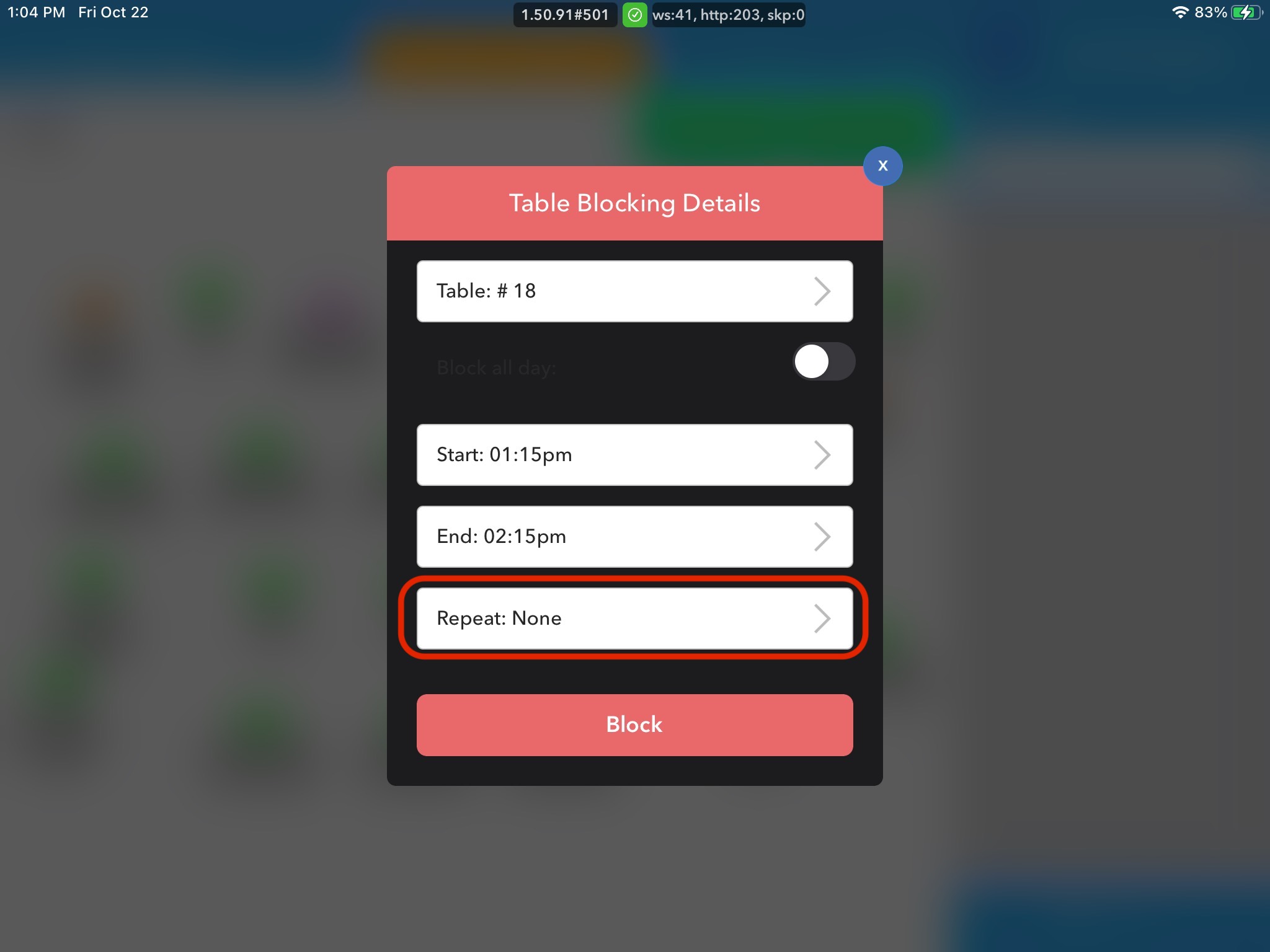
 4. Select the frequency you want that table to be blocked. You can choose between: None, Daily, and Weekly. If you want to block a table just for that specific date, make sure Repeat: None is selected
  5. Click the Block button