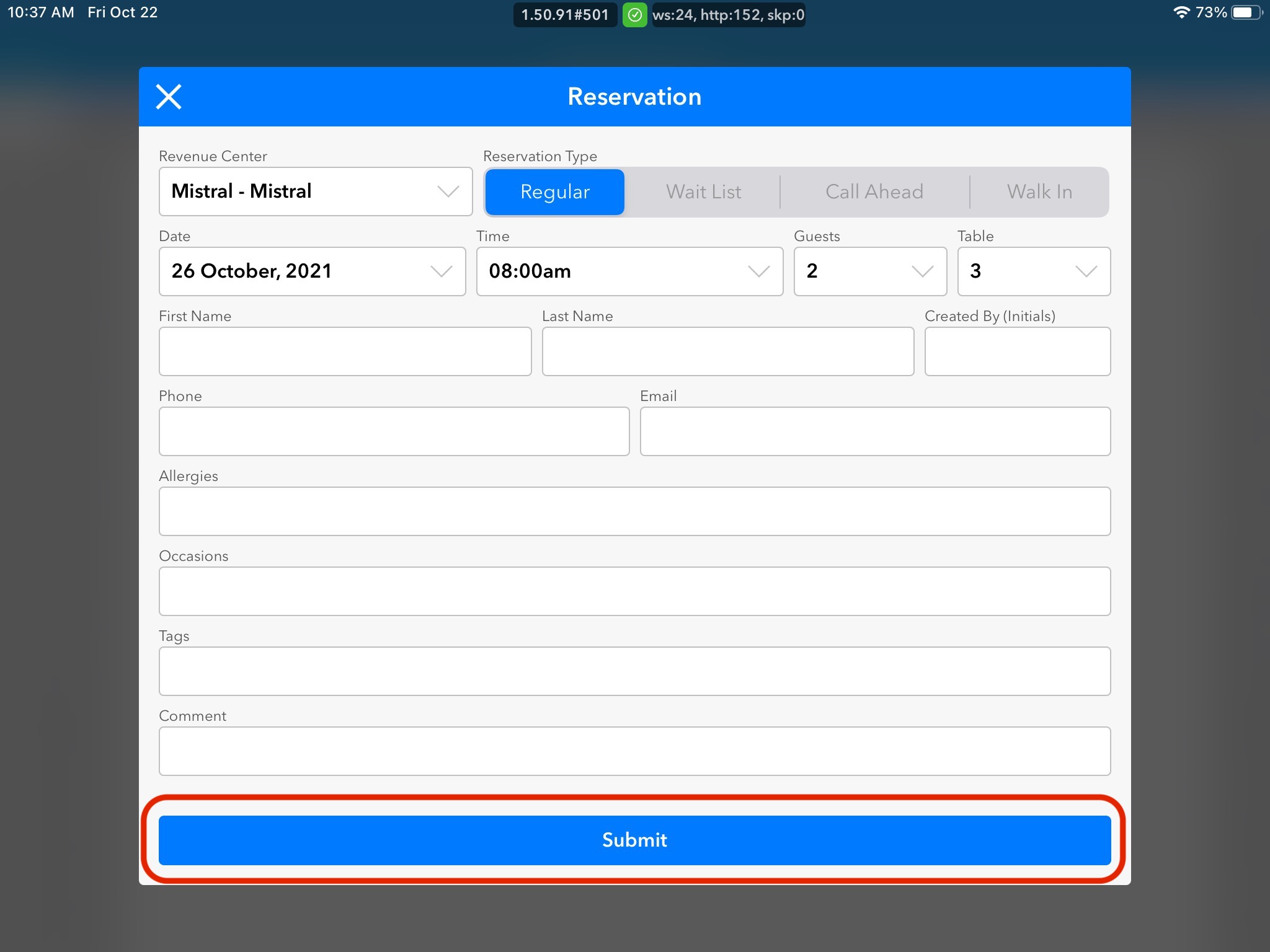
1. Select the correct date for the reservation you wish to create using the date picker on the floor-plan homepage, then tap the Grid icon in the top left.
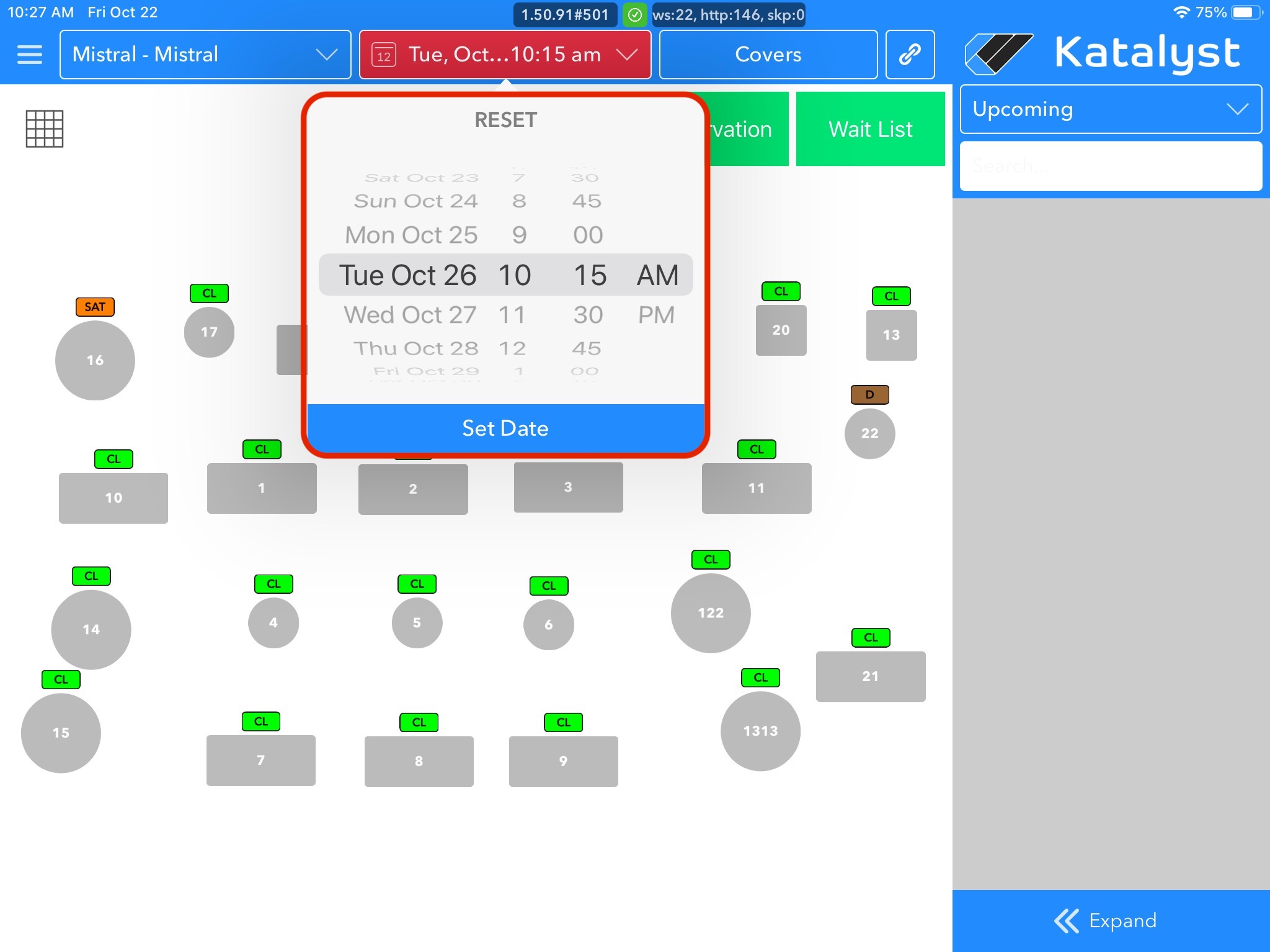
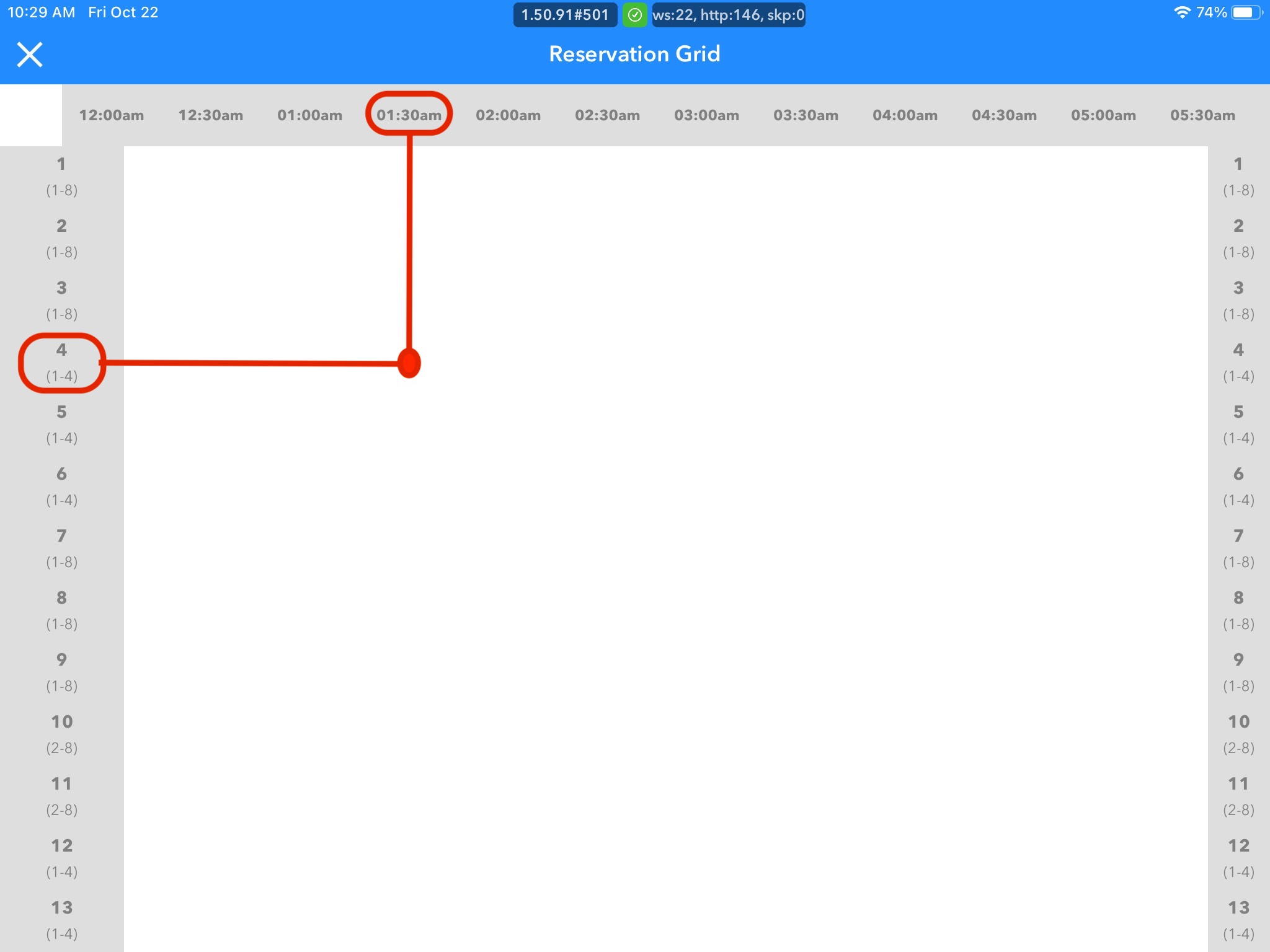
2. In the grid, tap the selected table & time you wish to add a reservation on, then tap New Reservation in the new pop-up box.
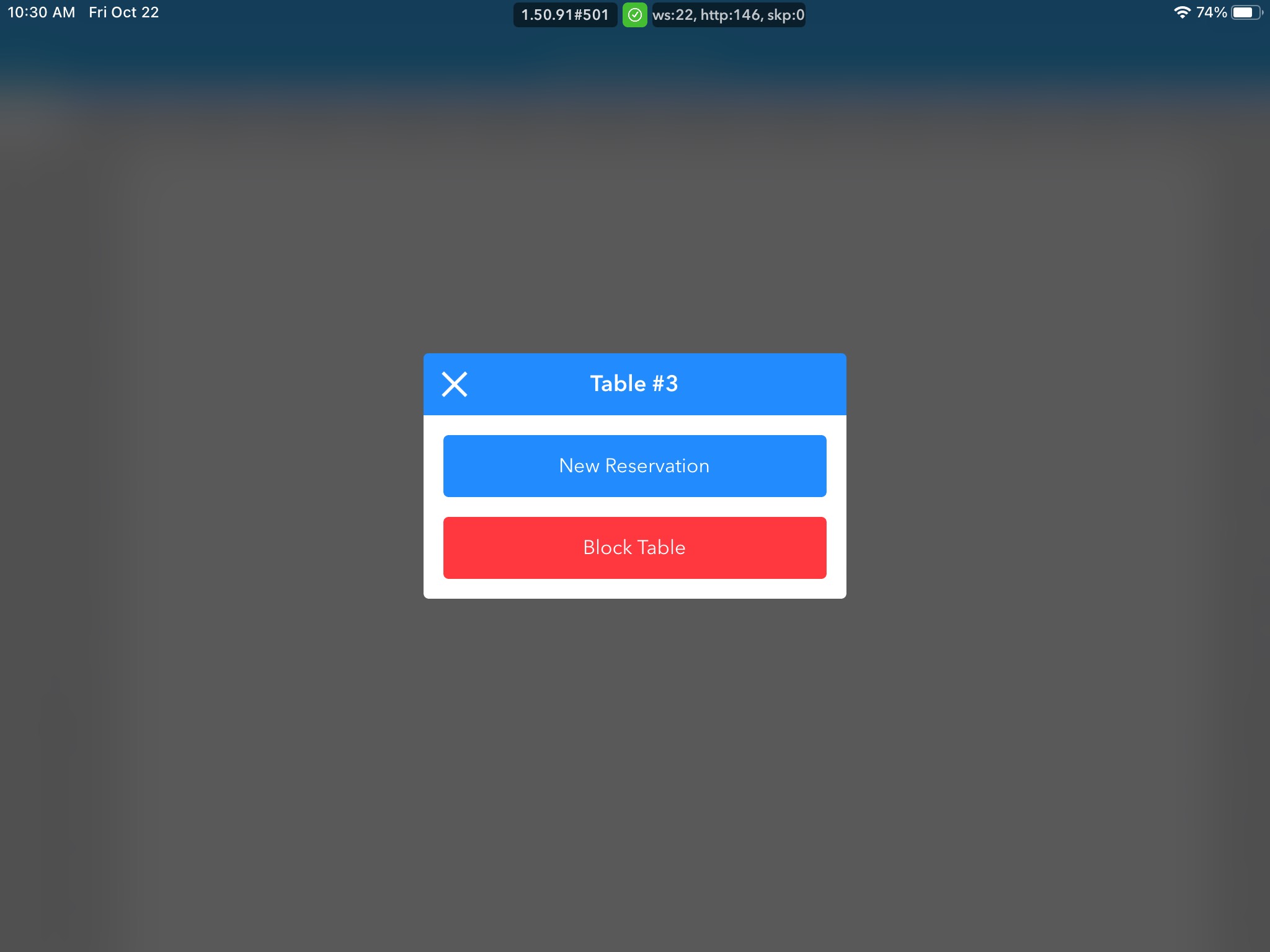
3. Select the Guest Total.
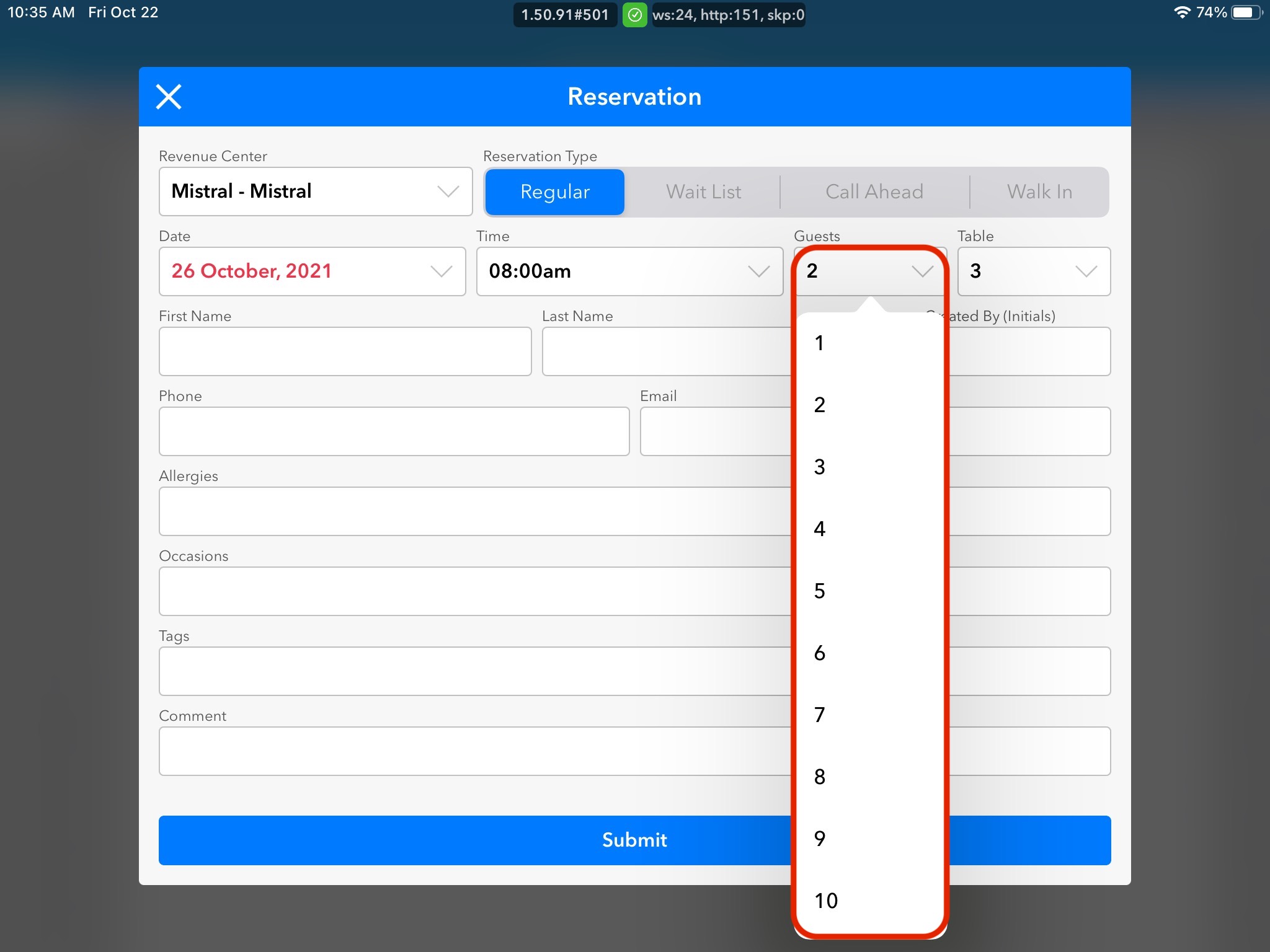
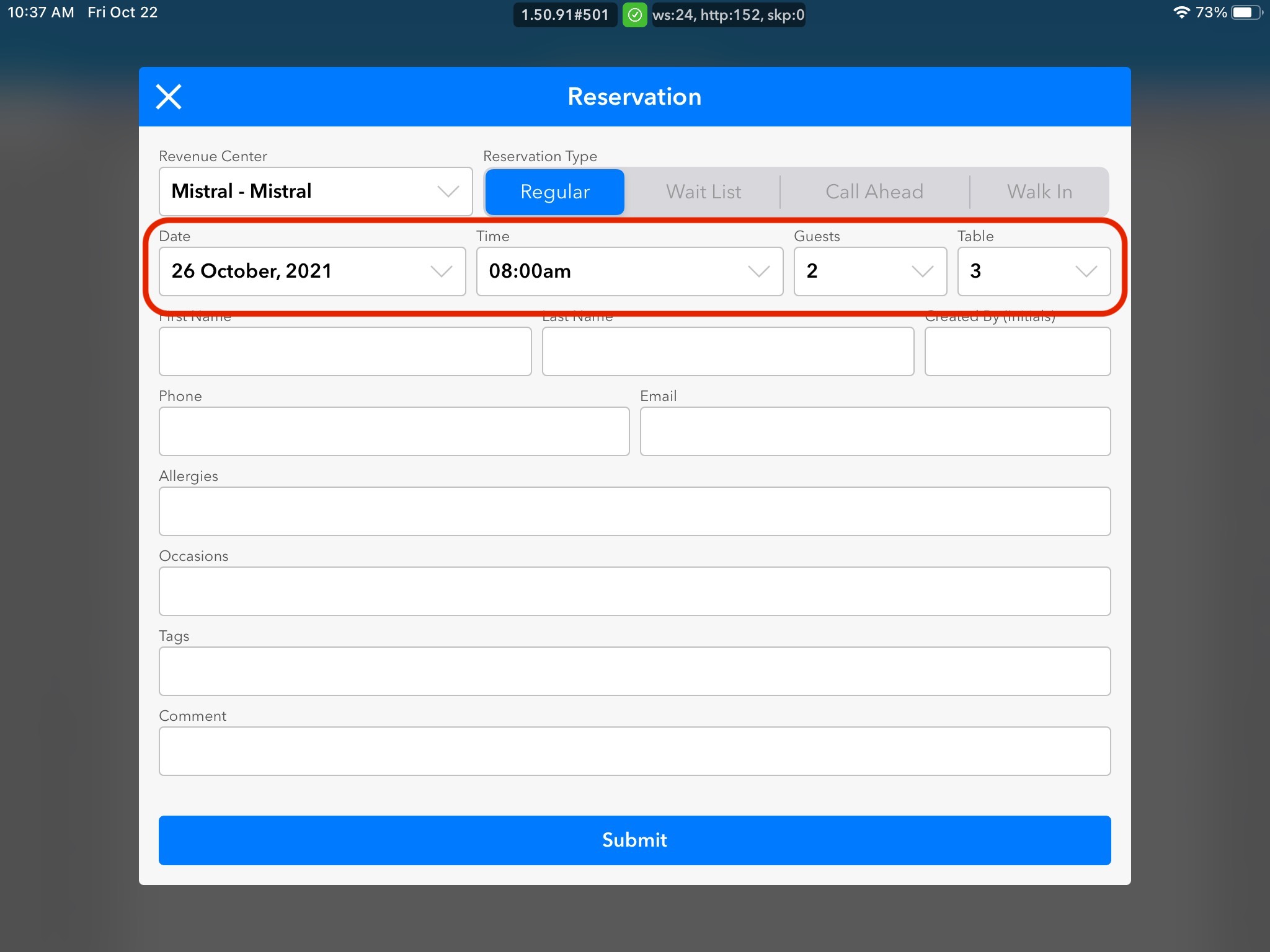
4. Table and Date & Time of Reservation will be automatically filled out based on the area of the grid you clicked to create the reservation. Make sure to double-check if the pre-populated information is correct.
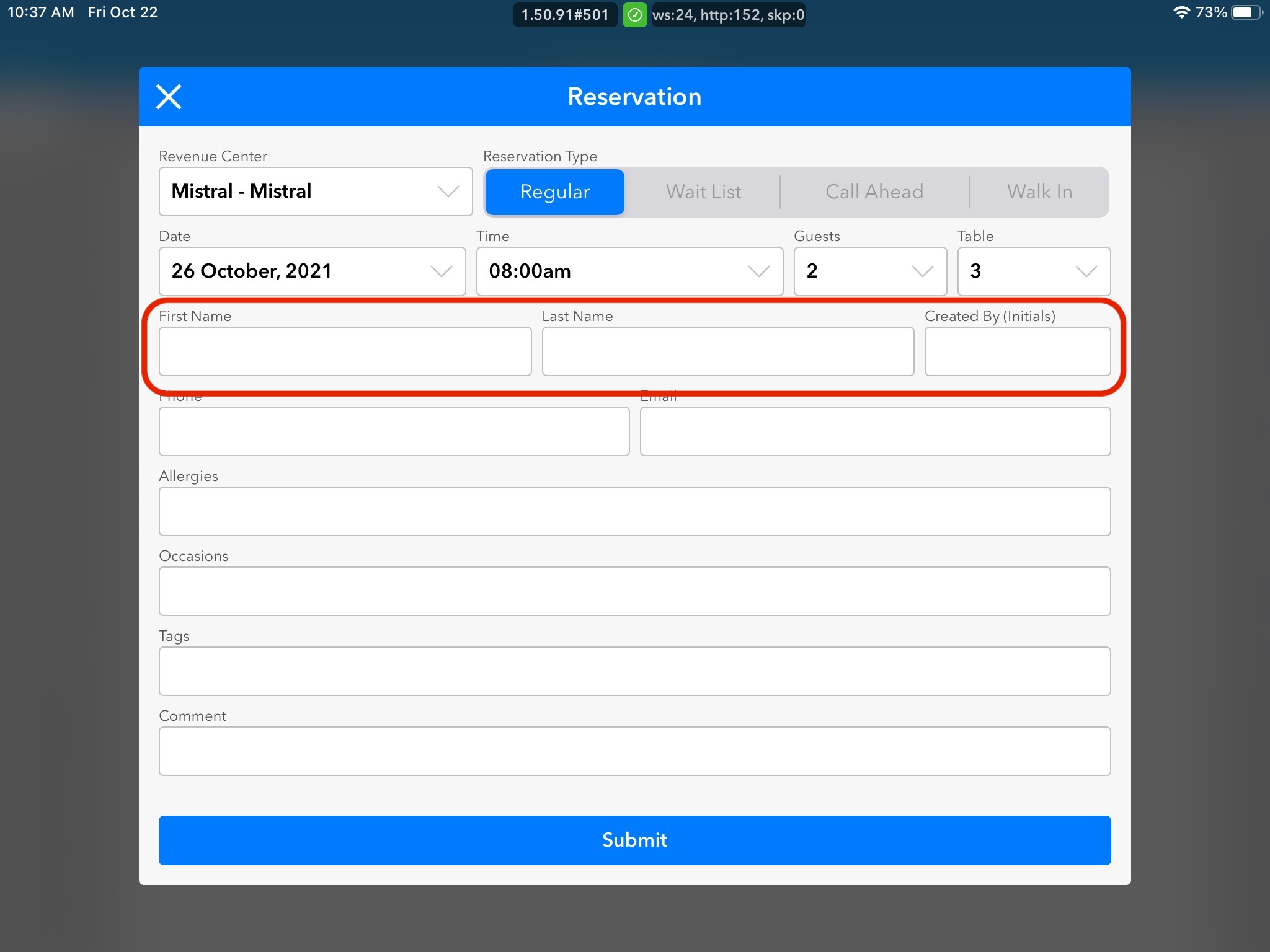
5. Fill out First and Last Name.
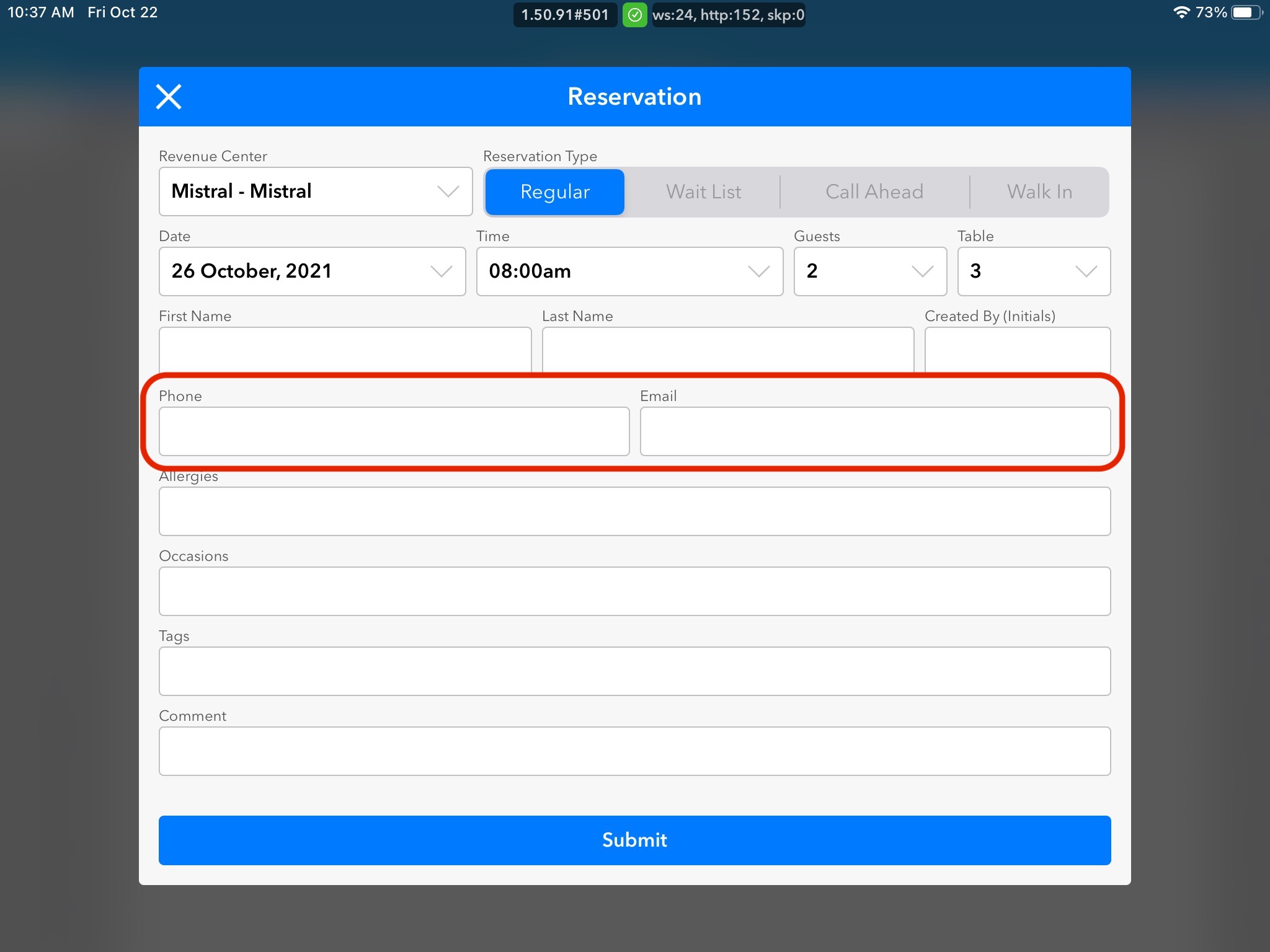
6. Fill out Phone Number and Email Address.
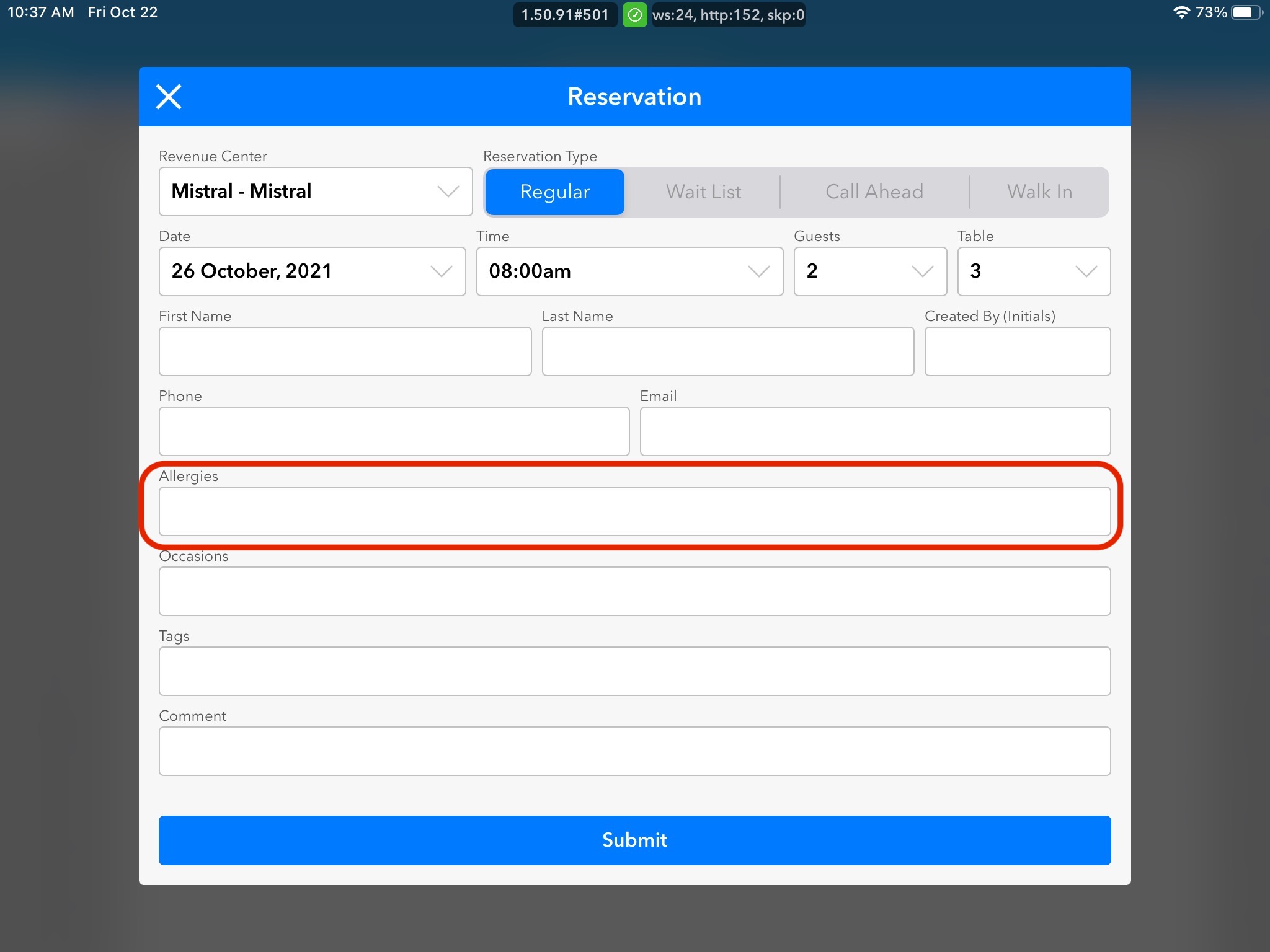
7. Add in any Allergies for Guests. This row will automatically populate with Allergies if there are any associated with the Guest making the reservation.
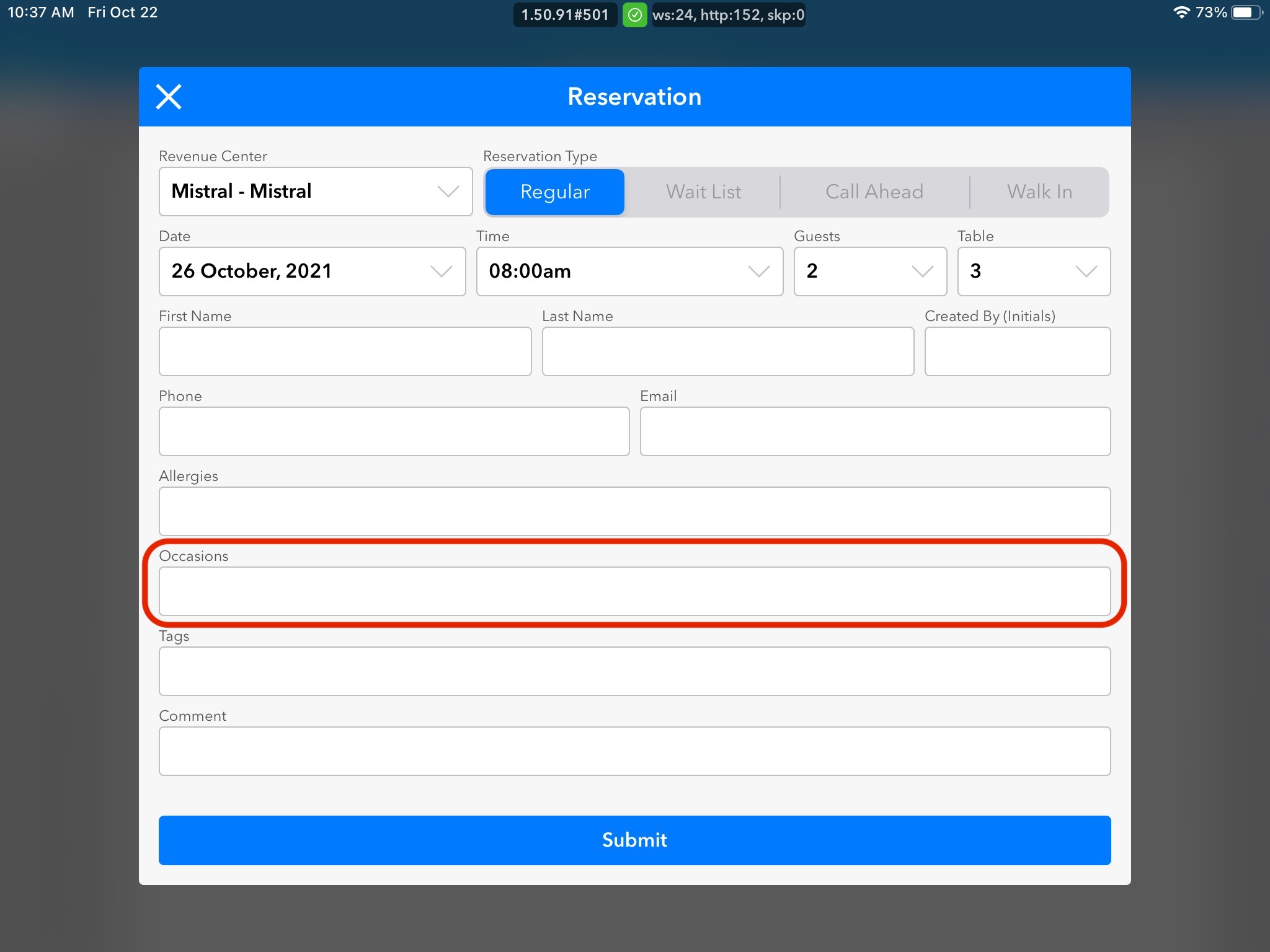
8. Add in any applicable Occasion notes such as "Birthday", "Anniversary", or "Graduation".
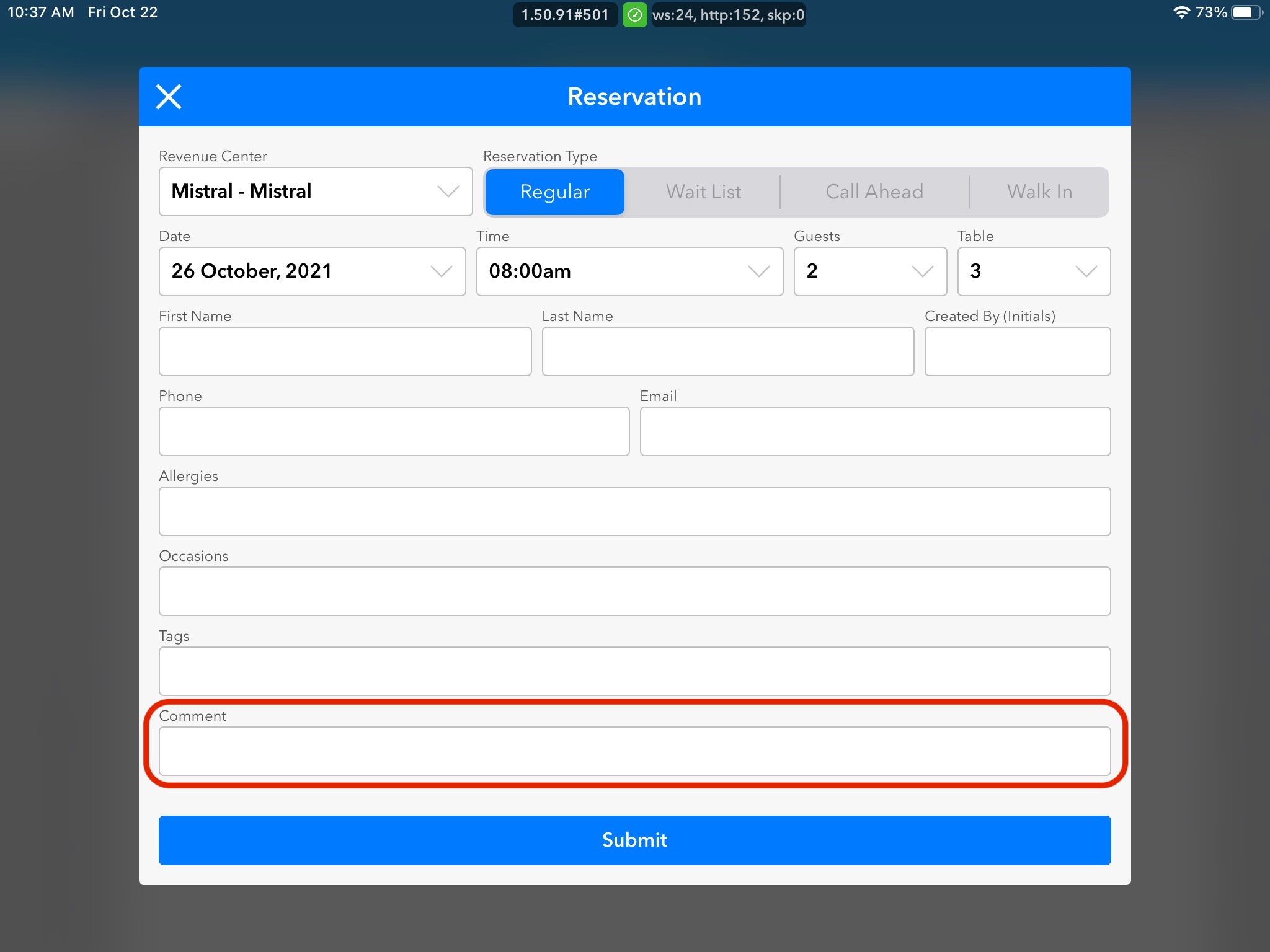
9. Add in any additional Comments that either the Guest asked to include, or you would like the restaurant staff to know about.
 10. Click the Create Reservation button.